
Updating Your Pc: A Comprehensive Guide
Are you worried about keeping your computer up-to-date? Do you know how to update your PC’s operating system, software, and drivers? In this article, we’ll guide you through the process of updating your Windows or Mac PC, ensuring it stays safe from viruses and other cyber threats.
Why Updating Your PC is Important
Updating your PC’s operating system, software, and drivers is essential for several reasons:
- It ensures your computer remains secure against latest viruses and malware.
- It fixes bugs and glitches that could be causing problems with your PC.
- It improves performance by optimizing system resources and hardware.
How to Update Your Windows PC
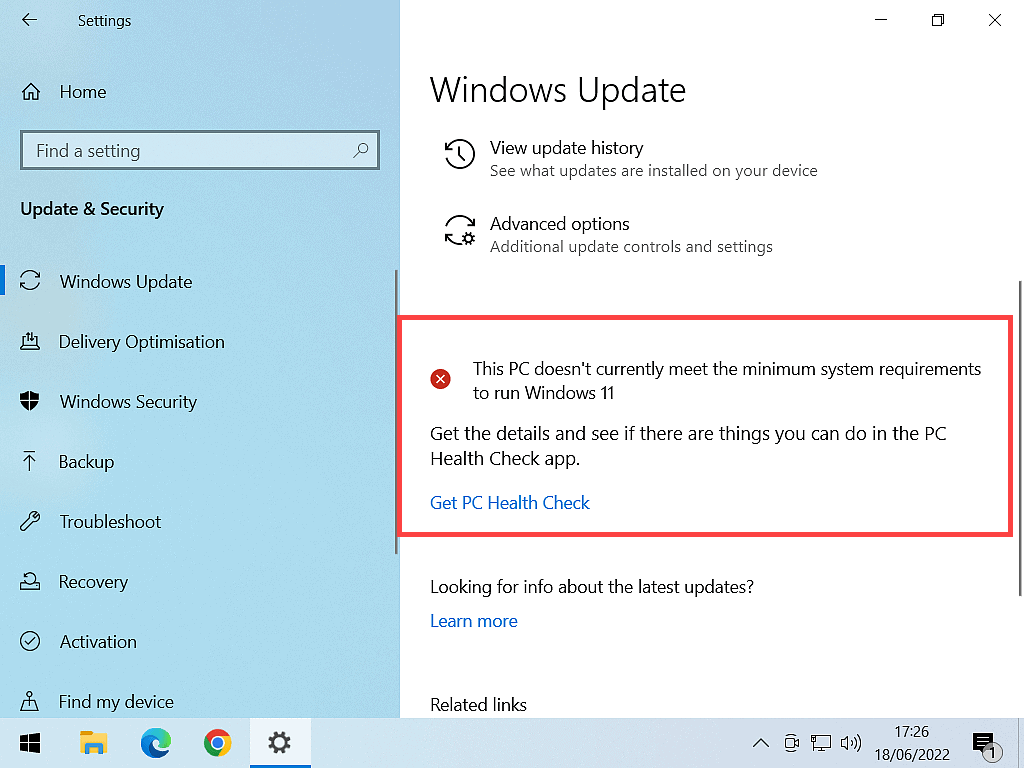
Windows provides a built-in update feature called “Windows Update” that automatically downloads and installs updates. However, you can also manually check for updates and install them:
- Click on the Start button (or press the Windows key + X) and select Settings.
- Go to Update & Security > Windows Update.
- Click on Check for updates.
Updating Your Mac PC
To update your Mac PC, follow these steps:
- Click on the Apple menu in the top left corner of the screen and select System Preferences.
- Go to Software Update.
- Click on Update Now.
What You Need to Know About Updating Your PC
Before updating your PC, ensure you have:
- A valid Windows or Mac license key (depending on your operating system).
- Enough storage space on your hard drive for the update files.
- A stable internet connection to download and install updates.
Also, it’s a good idea to back up your important files before updating your PC, just in case something goes wrong during the process.
Troubleshooting Common Issues
If you encounter any problems while updating your PC, such as:
- Not finding updates.
- Updates failing to install.
- Error messages during the update process.
Updating Your Pc: Frequently Asked Questions (FAQs)
Here are some common FAQs about updating your PC:
- Q: How Often Should I Update my Pc?
A: You should update your PC regularly, ideally every few months or whenever updates become available. - Q: Can I Update my PC Manually?
A: Yes, you can manually check for and install updates on Windows PCs using the Windows Update feature. - Q: Do I Need a Fast Internet Connection to Update my Pc?
A: While a stable internet connection is necessary, it doesn’t necessarily have to be fast (though faster speeds may make the process quicker). - Q: What if I Encounter Issues During The Update Process?
A: If you experience problems while updating your PC, try restarting your computer and attempting the update again. - Q: Can I Still Use my PC During The Update Process?
A: Yes, in most cases, you can continue using your PC during the update process without interruption.
By following these steps and tips, you’ll be able to keep your Windows or Mac PC up-to-date and secure from the latest cyber threats.


