
Updating Raiplay on Smart Tv: A Step-by-step Guide
Are you tired of dealing with problems when using the RaiPlay app on your Smart TV? Do you want to know how to update it easily and efficiently? Look no further! In this article, we’ll guide you through the process of updating RaiPlay on various Smart TV brands, including LG, Samsung, Hisense, and Panasonic.
Understanding The Preliminary Operations
Before we dive into the step-by-step guide, it’s essential to understand the preliminary operations required for a successful update. First and foremost, ensure that your Smart TV is connected to the internet. If you’re experiencing issues with connectivity, check our tutorial on how to connect your Smart TV to Wi-Fi.
Updating Raiplay on LG Smart TV
To update RaiPlay on an LG Smart TV, follow these steps:
- Connect Your LG Smart TV to The Internet: Ensure that your TV is connected to a stable internet connection.
- Download And Install Any Available System Updates: Check for any available system updates by going to Settings > General > Software Update. Download and install any updates as necessary.
- Access The Content Store: Open the Content Store app on your LG Smart TV, which can be found in the Home menu.
- Search For Raiplay: Use the search bar to find the RaiPlay app.
- Update Raiplay: Select the RaiPlay icon and then click on the Update button.
Updating Raiplay on Samsung Smart TV
To update RaiPlay on a Samsung Smart TV, follow these steps:
- Connect Your Samsung Smart TV to The Internet: Ensure that your TV is connected to a stable internet connection.
- Download And Install Any Available System Updates: Check for any available system updates by going to Settings > Support > Update software.
- Access The Apps Menu: Press the Home button on your remote control, then select the Apps icon.
- Select Raiplay: Choose the RaiPlay app from the list of installed apps.
- Update Raiplay: Select the Update button next to the RaiPlay icon.
Updating Raiplay on Hisense Smart TV
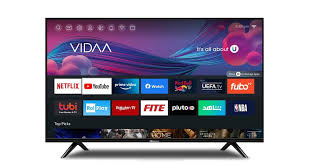
To update RaiPlay on a Hisense Smart TV with VIDAA operating system, follow these steps:
- Connect Your Hisense Smart TV to The Internet: Ensure that your TV is connected to a stable internet connection.
- Access The My Applications Menu: Press the Home button on your remote control and select the My Applications icon.
- Open The App Store: Choose the App Store app from the list of installed apps.
- Search For Raiplay: Use the search bar to find the RaiPlay app.
- Update Raiplay: Select the Update button next to the RaiPlay icon.
Updating Raiplay on Panasonic Smart TV
To update RaiPlay on a Panasonic Smart TV with Android TV operating system, follow these steps:
- Connect Your Panasonic Smart TV to The Internet: Ensure that your TV is connected to a stable internet connection.
- Access The Apps Menu: Press the Home button on your remote control and select the Apps icon.
- Search For Raiplay: Use the search bar to find the RaiPlay app.
- Update Raiplay: Select the Update button next to the RaiPlay icon.
Tips And Tricks
- Always ensure that your Smart TV is connected to a stable internet connection before attempting an update.
- Check for any available system updates on your Smart TV’s settings menu before updating RaiPlay.
- If you encounter any issues during the update process, restart your Smart TV and try again.
Conclusion
Updating RaiPlay on your Smart TV is a straightforward process that can be completed with ease by following these step-by-step guides. Remember to always check for available system updates and ensure that your TV is connected to a stable internet connection before attempting an update. By doing so, you’ll be able to enjoy seamless streaming of your favorite content on RaiPlay.
Frequently Asked Questions (FAQs)
- Q: Why Can’t I Find The Raiplay App on my Smart Tv?
A: Make sure that your Smart TV is connected to the internet and that you have checked for any available system updates. - Q: How do I Update Raiplay if It’s Not Available in The App Store?
A: Check if the app is available in other stores, such as the Google Play Store or the Content Store on LG TVs. - Q: Can I Update Raiplay Manually?
A: Yes, you can update RaiPlay manually by searching for the app in your Smart TV’s store and selecting the Update button. - Q: Why is my Raiplay Not Updating Automatically?
A: Check if the automatic update feature is enabled on your Smart TV, or try updating the app manually. - Q: Can I Update Raiplay on an Older Smart TV Model?
A: Check with the manufacturer to see if they have released any updates for older models.
Note: The above FAQs are based on common questions related to updating RaiPlay on various Smart TV brands. However, specific issues may arise depending on your TV’s operating system and other factors.


