
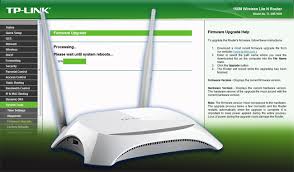
How to Update Your Router Firmware: A Step-by-step Guide
Updating your router’s firmware is an essential step in maintaining the optimal performance and security of your home network. In this article, we will guide you through the process of updating your router firmware, with a focus on specific routers from popular manufacturers such as TP-Link, FRITZ!Box, and TIM.
Why Update Your Router Firmware?
Before we dive into the step-by-step guide, it’s essential to understand why updating your router firmware is crucial. Router firmware updates often bring new features, improve performance, and enhance security. By keeping your router’s firmware up-to-date, you can:
- Fix bugs and vulnerabilities
- Enhance network performance
- Improve security by patching known exploits
Preparation is Key
Before you start the update process, make sure you have:
- A stable internet connection
- A computer or device connected to your router
- The correct login credentials for your router’s web interface
Step-by-step Guide: Updating Tp-link Router Firmware
To update your TP-Link router firmware, follow these steps:
- Connect your computer or device to the router using an Ethernet cable.
- Open a web browser and navigate to the router’s IP address (usually 192.168.0.1 Or 192.168.1.1).
- Log in to the router using the correct credentials.
- Click on the “Advanced” tab and select “System Tools.”
- Click on “Firmware Update” and follow the on-screen instructions.
Step-by-step Guide: Updating Fritz!box Router Firmware
To update your FRITZ!Box router firmware, follow these steps:
- Connect your computer or device to the router using an Ethernet cable.
- Open a web browser and navigate to the router’s IP address (usually 192.168.0.1 Or 192.168.1.1).
- Log in to the router using the correct credentials.
- Click on the “System” tab and select “Firmware Update.”
- Follow the on-screen instructions to download and install the firmware update.
Step-by-step Guide: Updating Tim Router Firmware
To update your TIM router firmware, follow these steps:
- Connect your computer or device to the router using an Ethernet cable.
- Open a web browser and navigate to the router’s IP address (usually 192.168.0.1 Or 192.168.1.1).
- Log in to the router using the correct credentials.
- Click on the “Status & Support” tab and select “System Info.”
- Check the firmware version and follow the on-screen instructions to update.
Conclusion
Updating your router firmware is a straightforward process that can be completed with minimal technical expertise. By following the step-by-step guides provided above, you can ensure that your router remains up-to-date and secure. Remember to always check for updates regularly and follow proper procedures when updating your router firmware.
Frequently Asked Questions (FAQs)
- Q: Why is it Essential to Update my Router Firmware?
A: Updating your router firmware ensures that you have the latest features, improved performance, and enhanced security. - Q: What Are The Benefits of Keeping my Router Firmware Up-to-date?
A: Keeping your router firmware up-to-date fixes bugs and vulnerabilities, enhances network performance, and improves security by patching known exploits. - Q: Can I Update my Router Firmware Manually?
A: Yes, you can update your router firmware manually, but it’s recommended to use the automatic update feature when available. - Q: What Should I do if I Encounter Issues During The Update Process?
A: If you encounter issues during the update process, restart your router and try again. If the issue persists, contact the manufacturer’s support team for assistance.
Note: Always follow proper procedures when updating your router firmware to avoid any potential risks or consequences.


