
Updating Your Sony Bravia Tv: A Step-by-step Guide
Are you tired of dealing with outdated software on your Sony Bravia TV? Do you want to stay connected and enjoy the latest features and applications? Look no further! In this article, we’ll guide you through the process of updating your Sony Bravia TV, covering firmware updates, app updates, and channel updates.
Why Update Your TV Firmware?
Updating your TV’s firmware is essential for ensuring optimal performance and security. Firmware updates typically fix bugs, improve functionality, and add new features to your TV. By keeping your firmware up-to-date, you can:
- Fix common issues and problems
- Improve picture quality and performance
- Enhance security and protect against malware
- Access the latest features and applications
Updating Your TV Firmware: Automatic Vs. Manual
You have two options for updating your TV’s firmware: Automatic or manual.
Automatic Firmware Update
If you have a stable internet connection, you can enable the automatic firmware update feature on your Sony Bravia TV.
- Press the HOME button on your remote control.
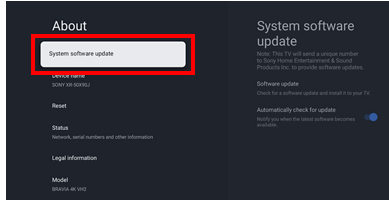
- Navigate to Settings > System Software Update.
- Select Check if there are updates for the system software.
- If an update is available, select Download and Install.
Manual Firmware Update Using a Usb Drive
If you don’t have access to the internet or prefer a manual update process, you can use a USB drive to update your TV’s firmware.
- Insert a USB drive into your computer.
- Visit the Sony website and download the latest firmware for your TV model.
- Save the firmware file (.Zip) on the USB drive.
- Rename the USB drive as “Sony Update” (FAT32 format).
- Copy the firmware file to the root directory of the USB drive.
- Insert the USB drive into your Sony Bravia TV’s rear panel.
- Wait for the update process to complete.
Updating Your TV Apps
Keeping your TV apps up-to-date is essential for ensuring optimal performance and access to new features.
- Press the HOME button on your remote control.
- Navigate to the Google Play Store app (or Vews store, if installed).
- Select My Apps or Apps.
- Find the app you want to update and select it.
- If an update is available, select Update.
Updating Your TV Channels
You can update your TV channels using either automatic or manual methods.
Automatic Channel Update
- Press the MENU button on your remote control.
- Navigate to Settings > System > Channel Settings.
- Select Digital Setting and choose Automatic digital Preselection.
- Choose Antenna as the source type and wait for the update process to complete.
Manual Channel Scanning
If you prefer a manual channel scanning process, follow these steps:
- Press the MENU button on your remote control.
- Navigate to Settings > System > Channel Settings.
- Select Digital Setting and choose Manual digital Preselection.
- Choose Channel or Frequency as the source type.
- Enter the desired channel number or frequency using the keypad.
- Select Scan in high or Scan in low depending on your preferences.
Troubleshooting Tips
If you encounter any issues during the update process, try these troubleshooting tips:
- Check for firmware updates manually by visiting the Sony website.
- Consult the user manual for specific guidance.
- Visit the official forum for assistance from other users and experts.
- Contact a technical support representative for further assistance.
Conclusion
Updating your Sony Bravia TV is an essential step in ensuring optimal performance, security, and access to new features. By following this guide, you can update your TV’s firmware, apps, and channels using either automatic or manual methods. Don’t hesitate to reach out if you need additional assistance or guidance.
Faqs
- Q: Why Should I Update my TV Firmware?
A: Updating your TV firmware fixes bugs, improves functionality, enhances security, and adds new features. - Q: How do I Enable Automatic Firmware Updates on my Sony Bravia Tv?
A: Press the HOME button > Settings > System Software Update > Check if there are updates for the system software. - Q: What is The Difference Between Manual And Automatic Firmware Updates?
A: Manual firmware updates require a USB drive, while automatic updates use your internet connection. - Q: How do I Update my TV Apps?
A: Press the HOME button > Google Play Store app > My Apps or Apps > Find and select the app to update. - Q: Can I Update my TV Channels Manually?
A: Yes, you can choose manual channel scanning by selecting Digital Setting > Manual digital Preselection in your TV’s settings menu. - Q: Why Did my TV Freeze During The Firmware Update Process?
A: Try restarting your TV and check for any issues with your internet connection or power supply. - Q: Where Can I Find Additional Support For Updating my Sony Bravia Tv?
A: Visit the official Sony website, contact a technical support representative, or consult the user manual for assistance. - Q: Can I Roll Back to an Older Firmware Version if Something Goes Wrong During The Update Process?
A: Yes, you can try restoring your TV to its previous firmware version, but be aware that this may not resolve all issues and may require further technical support.


