
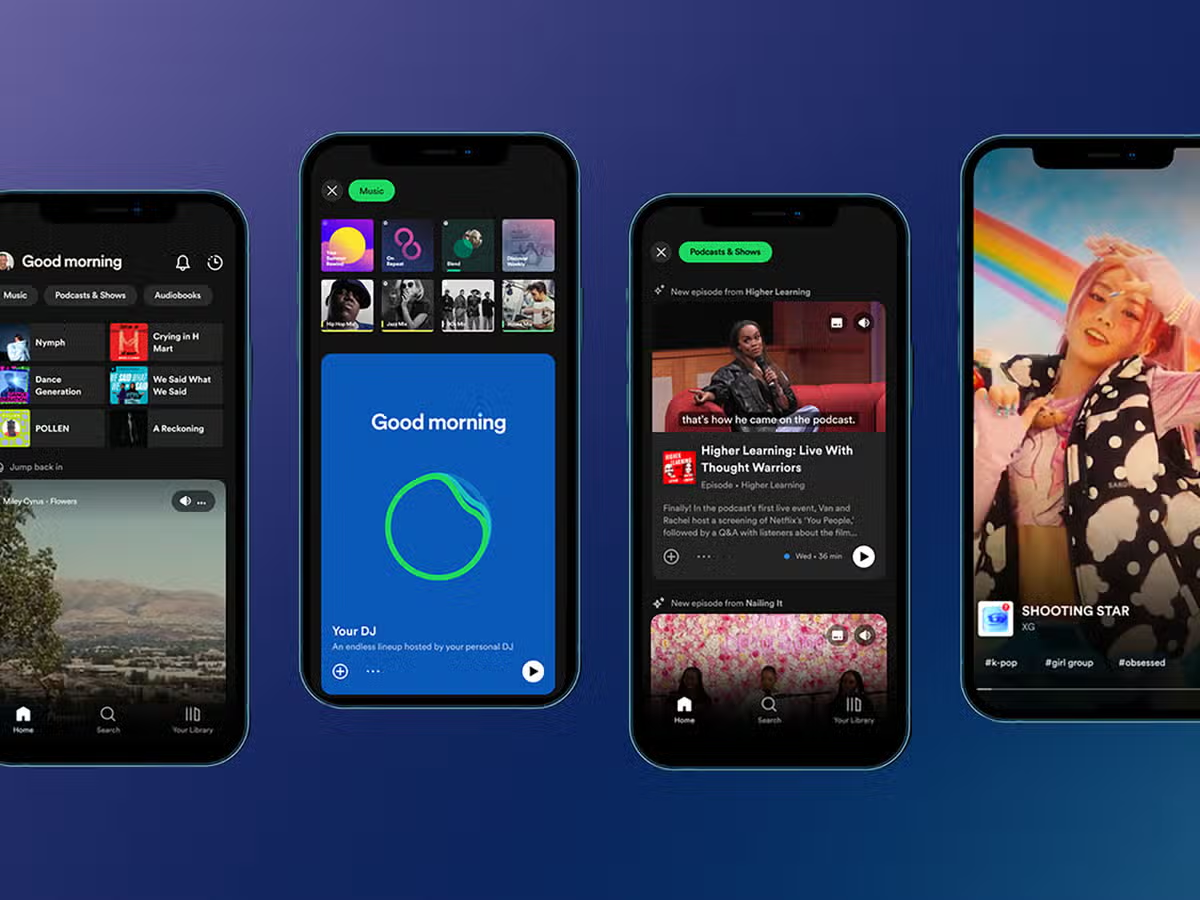
How to Update Spotify on Pc, Smartphone, Tablet, And Other Devices: A Step-by-step Guide
Are you wondering how to update your favorite music streaming app, Spotify? Look no further! In this comprehensive guide, we’ll walk you through the process of updating Spotify on your PC, smartphone, tablet, and other devices. Whether you’re a seasoned user or just starting out, this article will help you stay up-to-date with the latest features and improvements.
Why Update Spotify?
Before we dive into the update process, let’s quickly discuss why updating Spotify is essential. As new versions are released, they often include:
- Improved performance and stability
- Enhanced security features
- New music discovery tools and playlists
- Compatibility with newer devices and operating systems
By keeping your Spotify app updated, you’ll ensure a seamless listening experience and access to the latest content.
Updating Spotify on PC
To update Spotify on your Windows or Mac computer, follow these steps:
- Check For Updates: Launch Spotify and navigate to the Help menu (Windows) or Spotify menu (Mac). Click on “About Spotify” to check if there’s an available update.
- Download And Install: If an update is available, click on the “Update” button to download and install the latest version.
Updating Spotify on Smartphone And Tablet
To update Spotify on your Android device:
- Open Google Play Store: Find the Spotify app in the Google Play Store.
- Check For Updates: Look for the “Update” button next to the app’s name.
- Download And Install: Tap the “Update” button to download and install the latest version.
For iOS devices:
- Open App Store: Find the Spotify app in the App Store.
- Check For Updates: Look for the “Update” button next to the app’s name.
- Download And Install: Tap the “Update” button to download and install the latest version.
Updating Spotify on Other Devices
Spotify is available on various devices, including smart TVs, gaming consoles, and streaming boxes. To update Spotify on these devices:
- Check For Updates: Navigate to the device’s app store or settings menu.
- Download And Install: Look for an available update and follow the prompts to download and install the latest version.
Updating Payment Method
If you need to modify your payment method, follow these steps:
- Access Spotify Website: Go to the Spotify website using a web browser.
- Log in: Sign in to your account.
- Update Payment Method: Navigate to the “Your Account” page and click on “Update Payment Method.”
Updating Position
If you’re planning to travel abroad and want to access Spotify in another country, follow these steps:
- Check Your Account Settings: Log in to your Spotify account and navigate to the “Profile” page.
- Update Position: Click on the “Edit Profile” button and update your location.
Updating Firewall Settings
If you’re experiencing issues with Spotify streaming due to firewall settings, follow these steps:
- Check Your Device’s Firewall Settings: Navigate to your device’s firewall settings menu.
- Allow Spotify Access: Allow Spotify access to the necessary ports (TCP 443, 4070, and 80).
Conclusion
Updating Spotify is a straightforward process that ensures you have the latest features, improvements, and security patches. By following these step-by-step guides, you’ll be able to update your Spotify app on PC, smartphone, tablet, and other devices. Remember to also update your payment method and position settings as needed.
Frequently Asked Questions
Q: How often should I update Spotify?
A: It’s recommended to update Spotify regularly to ensure the latest features and improvements.
Q: What happens if I don’t update Spotify?
A: Failure to update Spotify may result in compatibility issues, security vulnerabilities, or missed feature updates.
Q: Can I update Spotify on multiple devices at once?
A: Yes, you can update Spotify on multiple devices simultaneously by following the same steps for each device.
Q: How do I know if an update is available?
A: Check the “About Spotify” page in the Help menu (Windows) or Spotify menu (Mac) to see if there’s an available update.
Q: What should I do if I’m experiencing issues with Spotify streaming?
A: Try updating your firewall settings, checking for updates, and restarting the app. If issues persist, contact Spotify support.
Conclusion
Updating Spotify is a simple yet essential process that ensures you have the best possible listening experience. By following these guides, you’ll be able to update your Spotify app on various devices and stay up-to-date with the latest features and improvements.


