
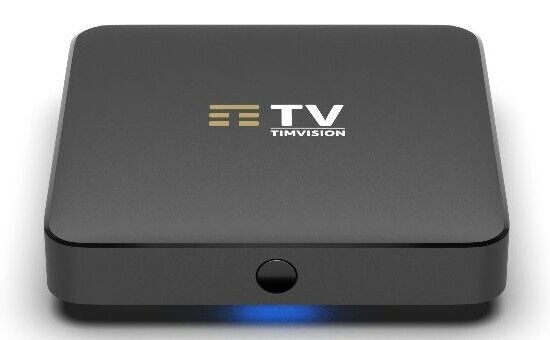
Updating Timvision App: A Step-by-step Guide
Are you tired of missing out on your favorite TV shows and movies because the TIMVISION app is not updated? Look no further! In this article, we will guide you through the process of updating the TIMVISION app on various devices, including Android, iPhone, iPad, Smart TV, Windows, and macOS.
Why Update The Timvision App?
Updating the TIMVISION app ensures that you have access to the latest features, improvements, and bug fixes. A fresh update can bring a whole new level of entertainment to your viewing experience.
How to Update The Timvision App on Android
If you’re using an Android device, updating the TIMVISION app is a breeze. Here’s how:
- Open the Google Play Store.
- Tap on the “Update” button next to the TIMVISION app icon.
- If prompted, tap on the “Open” button to start the update process.
Alternative Method: Check For Updates
You can also check for updates by following these steps:
- Open the Google Play Store.
- Click on the menu icon (three horizontal lines) and select “My apps & games.”
- Look for the TIMVISION app and tap on it.
- If an update is available, tap on the “Update” button.
How to Update The Timvision App on Iphone And Ipad
If you’re using an iPhone or iPad, updating the TIMVISION app is just as easy. Here’s how:
- Open the App Store.
- Tap on the “Update” button next to the TIMVISION app icon.
- If prompted, tap on the “Open” button to start the update process.
Alternative Method: Check For Updates
You can also check for updates by following these steps:
- Open the App Store.
- Click on your profile icon and select “Purchased.”
- Look for the TIMVISION app and tap on it.
- If an update is available, tap on the “Update” button.
How to Update The Timvision App on Smart TV
Updating the TIMVISION app on your Smart TV is a relatively straightforward process. Here’s how:
- Open the TV app store (e.G., Samsung Apps, LG Content Store).
- Search for the TIMVISION app.
- Select the app and tap on the “Update” button.
How to Update The Timvision App on Windows
If you’re using a Windows device, updating the TIMVISION app is easy peasy. Here’s how:
- Open the Microsoft Store.
- Click on the menu icon (three horizontal lines) and select “My Library.”
- Look for the TIMVISION app and click on it.
- If an update is available, click on the “Update” button.
How to Update The Timvision App on Macos
While there isn’t a dedicated TIMVISION app for macOS, you can still access the service through the platform’s website. Here’s how:
- Open your web browser (e.G., Safari, Chrome).
- Navigate to the TIMVISION website.
- Click on the “Update” button if prompted.
Tips And Tricks
- Make sure your device has a stable internet connection before updating the app.
- If you’re using an older device or operating system, you may not be able to update the app.
- Consider enabling automatic updates for future convenience.
Conclusion
Updating the TIMVISION app is essential to ensure that you have access to the latest features and improvements. By following these simple steps, you can keep your app up-to-date on various devices, including Android, iPhone, iPad, Smart TV, Windows, and macOS. Remember to always check for updates regularly to avoid missing out on new content and features.
Frequently Asked Questions
- Q: Why do I Need to Update The Timvision App?
A: Updating the app ensures that you have access to the latest features, improvements, and bug fixes. - Q: How Often Should I Update The Timvision App?
A: It’s recommended to check for updates regularly, especially if you’re using an older device or operating system. - Q: Can I Update The Timvision App on Multiple Devices at Once?
A: Unfortunately, no. Each device requires a separate update process. - Q: What Happens if I’m Unable to Update The Timvision App?
A: If you’re experiencing issues updating the app, try restarting your device or checking for updates again later.
We hope this article has been helpful in guiding you through the process of updating the TIMVISION app on various devices. Happy watching!


