
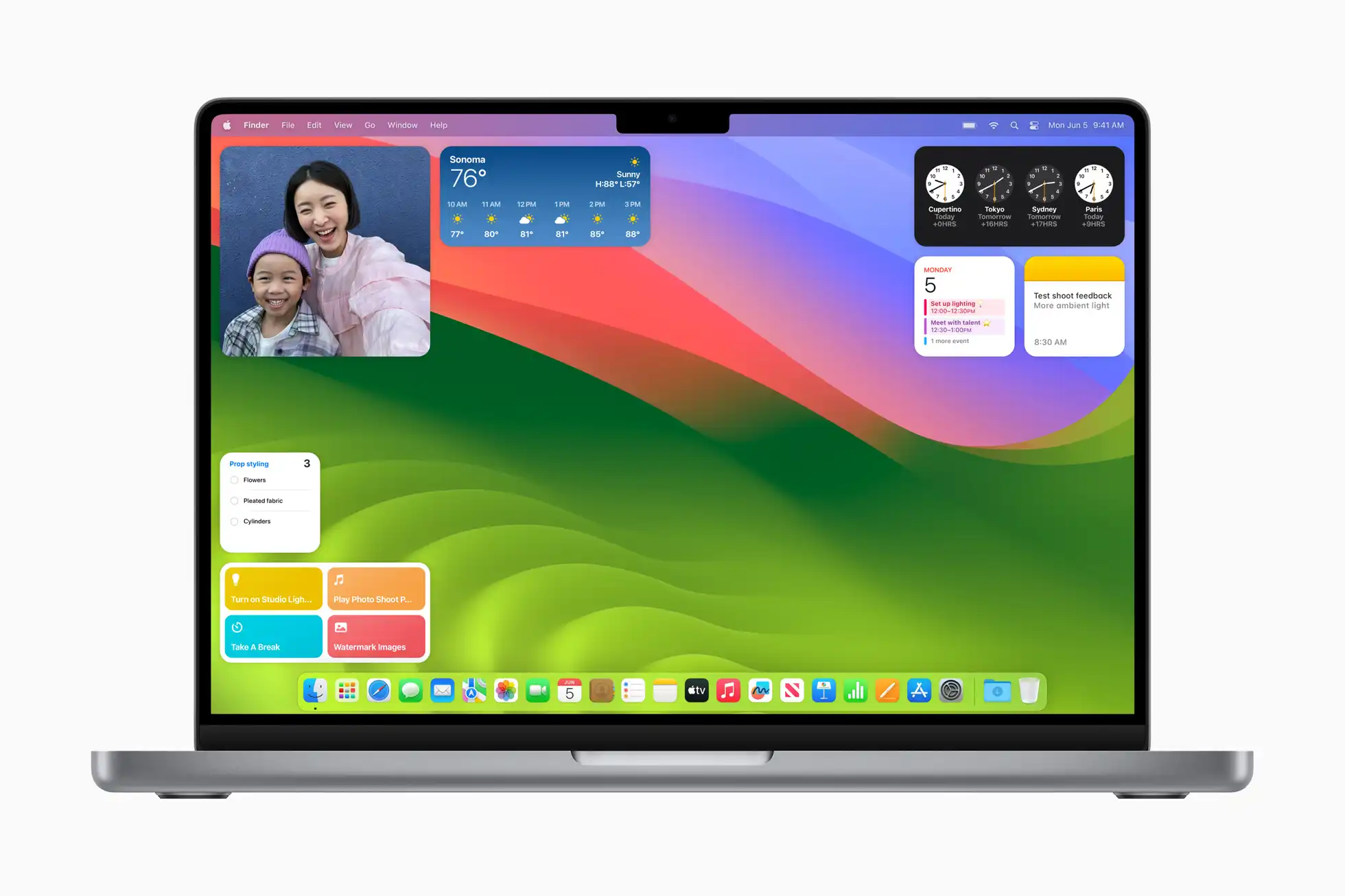
Updating to Macos Monterey: A Step-by-step Guide
Are you ready to upgrade your Mac to the latest operating system, macOS Monterey? Look no further! In this article, we will guide you through the process of updating to macOS Monterey, from preparing your Mac to installing the new operating system.
Compatibility And Requirements
Before we dive into the update process, it’s essential to ensure that your Mac is compatible with macOS Monterey. If you have a Mac with an Intel processor or Apple Silicon (M1), you’re good to go! Here are some specific models that support the update:
- IMac Fine 2015 and later
- MacBook Air Beginning 2015 and later
- MacBook Beginning 2016 and later
- MacBook Pro Beginning 2015 and later
- Mac mini Fine 2014 and later
Preparing Your Mac
Before updating to macOS Monterey, it’s a good idea to prepare your Mac by cleaning up any unnecessary files or malware. One tool that can help you with this is CleanMyMac X. This all-in-one cleaning and maintenance tool can help optimize your Mac’s performance, erase unwanted files, and protect against malware.
To use CleanMyMac X, simply download the app from their website, install it, and follow the instructions to scan and clean up your Mac. If you’re short on time, you can also use the “Initiate” button to automate the process.
Downloading Macos Monterey
Now that your Mac is prepared, it’s time to download macOS Monterey. Open System Preferences, go to Software Update, and click on the “Update Now” button. Wait for the update to be downloaded and installed. Once complete, you’ll see a window prompting you to install the new operating system.
Installing Macos Monterey
To install macOS Monterey, follow these steps:
- Click on the “Continuous” button.
- Accept the terms of use and select the destination disk (i.E., Your startup disk).
- If necessary, enter your administrator password and click on the “Continuous” button to begin the installation process.
The installation process will take several minutes to complete, during which time your Mac may restart multiple times. Once finished, you’ll be greeted with a fresh macOS Monterey interface, complete with all the latest features and updates.
Installing Macos Monterey Clean
If you prefer to install macOS Monterey clean, without any existing data or applications, follow these steps:
- Download macOS Monterey using the Terminal command:
Createinstallmedia –Volume /Volumes/ nomevolume - Hold down the Power button until you see a list of bootable devices.
- Select the USB drive containing the installation files.
- Follow the on-screen instructions to complete the installation process.
Frequently Asked Questions
- What is Macos Monterey?
MacOS Monterey is the latest operating system from Apple, released in 2021. - Is my Mac Compatible With Macos Monterey?
Check your Mac’s specifications to see if it meets the requirements for updating to macOS Monterey. - Do I Need to Back up my Data Before Updating to Macos Monterey?
Yes, it’s always a good idea to back up your important files and data before performing any software update. - Can I Install Macos Monterey on an External Drive?
Yes, you can install macOS Monterey on an external drive using the Terminal command:Createinstallmedia –Volume /Volumes/ nomevolume - Will my Apps And Settings be Preserved During The Update?
Yes, your apps and settings will be preserved during the update to macOS Monterey. - Is Cleanmymac X Free to Use?
CleanMyMac X offers a 7-day free trial; after which, you’ll need to purchase the complete version or subscribe to Setapp for access to their extensive library of Mac apps. - Can I Use Cleanmymac X to Clean up Malware And Other Issues on my Mac?
Yes, CleanMyMac X has built-in tools to help protect against malware and optimize your Mac’s performance.
Conclusion
Updating to macOS Monterey is a straightforward process that can be completed in just a few steps. By following the guide above, you’ll be able to prepare your Mac, download and install the new operating system, and enjoy all the latest features and updates that come with it. Remember to always back up your data before performing any software update, and consider using CleanMyMac X to clean up unnecessary files and malware on your Mac.


