
Updating Windows 10: A Comprehensive Guide
Are you tired of dealing with outdated software and slow computer performance? Look no further! Updating Windows 10 is a straightforward process that can breathe new life into your PC.
What’s New in The Latest Update?
The latest update for Windows 10 brings numerous improvements, including:
- Enhanced security features
- Improved performance and speed
- New functionality and tools
Why Update to The Latest Version?
Updating to the latest version of Windows 10 offers several benefits, including:
- Improved Security: The latest update includes enhanced security features that protect your PC from malware and other online threats.
- Increased Performance: Updating to the latest version can significantly improve your computer’s speed and responsiveness.
- New Features: You’ll gain access to new tools and functionality that make it easier to manage your files, photos, and videos.
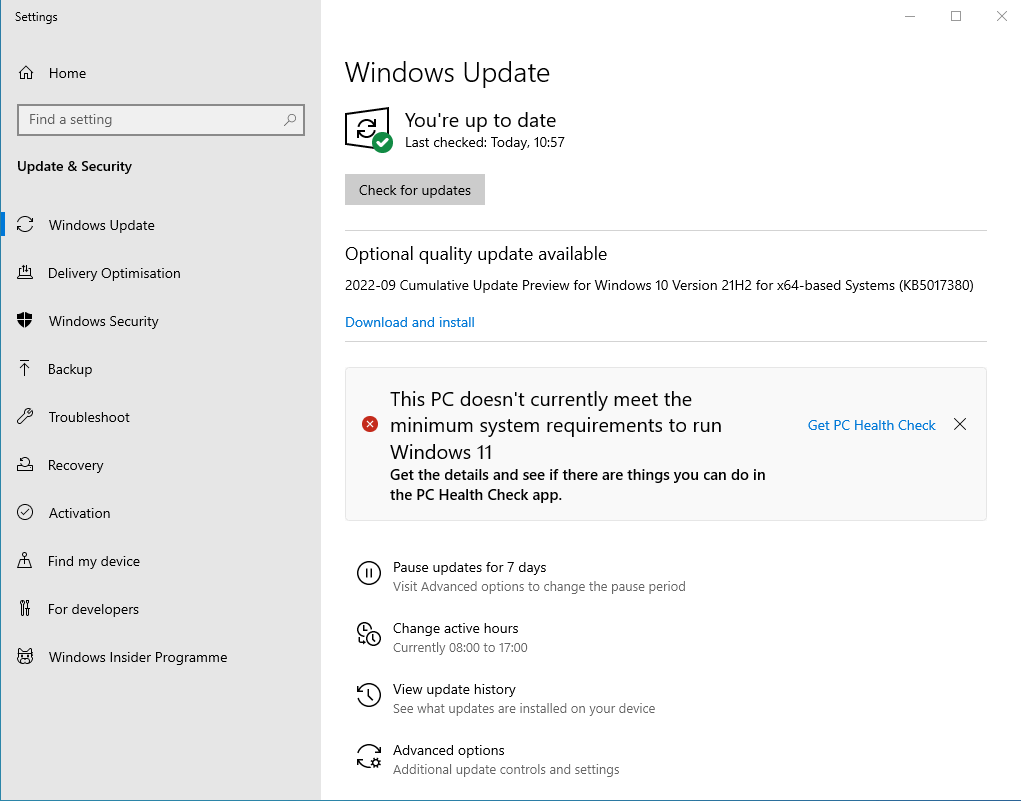
How to Update Windows 10 Using Windows Update
Updating Windows 10 using Windows Update is a simple process that requires minimal effort. Here’s how:
- Click Start: Click the Start button located in the bottom left corner of your screen.
- Settings: Click on the Settings icon, which looks like a gear.
- Update & Security: Select the “Update & Security” option from the menu.
- Check For Updates: Click on the “Check for updates” button to see if there are any available updates.
- Download And Install: If an update is available, click on the “Download and install” button to proceed with the installation.
Updating Windows 10 Manually
If you prefer to update your PC manually, follow these steps:
- Go to Microsoft’s Website: Visit Microsoft’s official website to download the Media Creation Tool.
- Run The Tool: Run the tool and select the “Upgrade this PC now” option.
- Follow The Instructions: Follow the on-screen instructions to complete the update process.
Troubleshooting Common Issues
If you encounter any issues during the updating process, don’t worry! Here are some common problems and their solutions:
- Connection Issues: Ensure that your internet connection is stable and try restarting your PC.
- Update Errors: Try running the Media Creation Tool again or consult Microsoft’s support page for further assistance.
Updating From Windows 10 Home to Pro
Want to upgrade from Windows 10 Home to Pro? Here’s how:
- Go to Settings: Go to Settings > System > About.
- Click on “Change Product Key”: Click on the “Change product key” option and enter your new product key.
- Restart Your PC: Restart your PC to apply the changes.
Updating From Windows 10 32-bit to 64-bit
If you’re running a 32-bit version of Windows 10, here’s how to upgrade to 64-bit:
- Download The Media Creation Tool: Download the Media Creation Tool from Microsoft’s website.
- Run The Tool: Run the tool and select the “Upgrade this PC now” option.
- Follow The Instructions: Follow the on-screen instructions to complete the update process.
Conclusion
Updating Windows 10 is a straightforward process that can significantly improve your computer’s performance, security, and features. Whether you’re updating from Home to Pro or switching from 32-bit to 64-bit, this guide has got you covered.
Frequently Asked Questions (FAQs)
- Q: How Often Should I Update my Windows 10?
A: It’s recommended to update your Windows 10 every time a new update is available. - Q: What Happens if I Encounter an Error During The Updating Process?
A: If you encounter an error, try restarting your PC or consult Microsoft’s support page for further assistance. - Q: Can I Revert Back to my Old Version of Windows 10?
A: Yes, but it’s recommended to create a backup before attempting to downgrade. - Q: How Long Does The Updating Process Take?
A: The time taken to update your PC varies depending on your internet speed and the size of the update. - Q: Can I Update my Windows 10 Manually?
A: Yes, you can update your Windows 10 manually using the Media Creation Tool. - Q: What Are The Benefits of Updating to Windows 10 Pro?
A: Upgrading to Windows 10 Pro offers enhanced security features and improved performance. - Q: Can I Switch From Windows 10 Home to Pro And Vice Versa?
A: Yes, you can switch between versions by purchasing a new license key. - Q: How do I Know if my PC Meets The System Requirements For Updating to Windows 10 Pro?
A: Check Microsoft’s website for the minimum system requirements for updating to Windows 10 Pro.


