
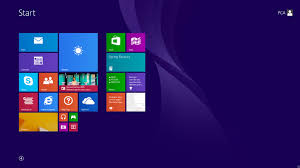
How to Update Windows 8: A Step-by-step Guide
Are you tired of wondering how to update your Windows 8 operating system? Look no further! In this article, we’ll guide you through the process of updating Windows 8 to the latest version, providing you with a comprehensive and easy-to-follow guide.
Why Update Windows 8?
Before we dive into the update process, let’s briefly discuss why updating your operating system is essential. Updates typically fix bugs, improve security, and enhance performance. In the case of Windows 8, updates can also provide new features and improvements to the overall user experience.
Checking For Updates
To begin, you’ll need to check if any updates are available for your Windows 8 installation. Here’s how:
- Click on The Start Button: Located in the bottom left corner of your screen.
- Search For “Windows Update”: Type this phrase into the search bar and select the result.
- Open Windows Update: Click on the Windows Update icon to open the application.
Updating Windows 8
Now that you’ve opened Windows Update, let’s walk through the steps to update your operating system:
- Check For Updates: Select “Check for updates” from the menu.
- Download And Install Updates: If any updates are available, click on “Download and install updates.”
- Follow The Installation Process: The update will be downloaded and installed automatically.
Updating Windows 8 to Windows 10
If you’re looking to update your Windows 8 operating system to Windows 10, follow these steps:
- Meet The Minimum Requirements: Ensure that your computer meets the minimum requirements for installing Windows 10 (see below).
- Backup Your Data: Make a copy of your important files and folders.
- Download The Windows 10 Installation Media: Visit Microsoft’s website to download the necessary files.
Minimum Requirements For Installing Windows 10
Before proceeding with the update, ensure that your computer meets the minimum requirements:
- Processor: 1 GHz or faster
- RAM: 1 GB (32-bit) or 2 GB (64-bit)
- Hard Disk Space: 16 GB (32-bit) or 20 GB (64-bit)
Updating to Windows 10
Now that you’ve met the minimum requirements, follow these steps:
- Create a Bootable Usb Drive: Use Microsoft’s Media Creation Tool to create a bootable USB drive.
- Insert The Usb Drive: Insert the USB drive into your computer and restart it.
- Follow The Installation Process: The installation wizard will guide you through the update process.
Troubleshooting Issues
If you encounter any issues during the update process, don’t worry! We’ve got some troubleshooting tips to help you resolve common problems:
- Check for corrupted system files: Run a System File Checker (SFC) scan.
- Disable antivirus software: Temporarily disable your antivirus software to ensure that it doesn’t interfere with the update process.
Conclusion
Updating Windows 8 to the latest version is a straightforward process, and we’ve provided you with detailed steps to guide you through it. Remember to always backup your important files and meet the minimum requirements before proceeding with an update. If you have any further questions or concerns, feel free to ask!
Frequently Asked Questions (FAQs)
- Q: Why Should I Update my Windows 8 Operating System?
A: Updates fix bugs, improve security, and enhance performance. - Q: How do I Check For Updates in Windows 8?
A: Click on the Start button, search for “Windows Update,” and select the result. - Q: What Are The Minimum Requirements For Installing Windows 10?
A: Processor: 1 GHz or faster, RAM: 1 GB (32-bit) or 2 GB (64-bit), Hard Disk Space: 16 GB (32-bit) or 20 GB (64-bit). - Q: How do I Update my Windows 8 Operating System to Windows 10?
A: Follow the steps outlined in this article. - Q: What if I Encounter Issues During The Update Process?
A: Refer to our troubleshooting tips section for assistance. - Q: Can I Update my Windows 8 Operating System Manually?
A: Yes, you can update your Windows 8 operating system manually by downloading and installing updates from the Microsoft website. - Q: What Are The Benefits of Updating my Windows 8 Operating System to Windows 10?
A: Benefits include improved performance, enhanced security, and access to new features. - Q: How do I Know if my Computer Meets The Minimum Requirements For Installing Windows 10?
A: Check your computer’s specifications or consult with a professional for assistance.
Additional Resources
For more information on updating Windows 8 or troubleshooting common issues, refer to these additional resources:
- Microsoft’s official website
- Our comprehensive guide on installing Windows 10
- Troubleshooting guides and FAQs
We hope this article has provided you with the necessary guidance and confidence to update your Windows 8 operating system. Happy updating!


