
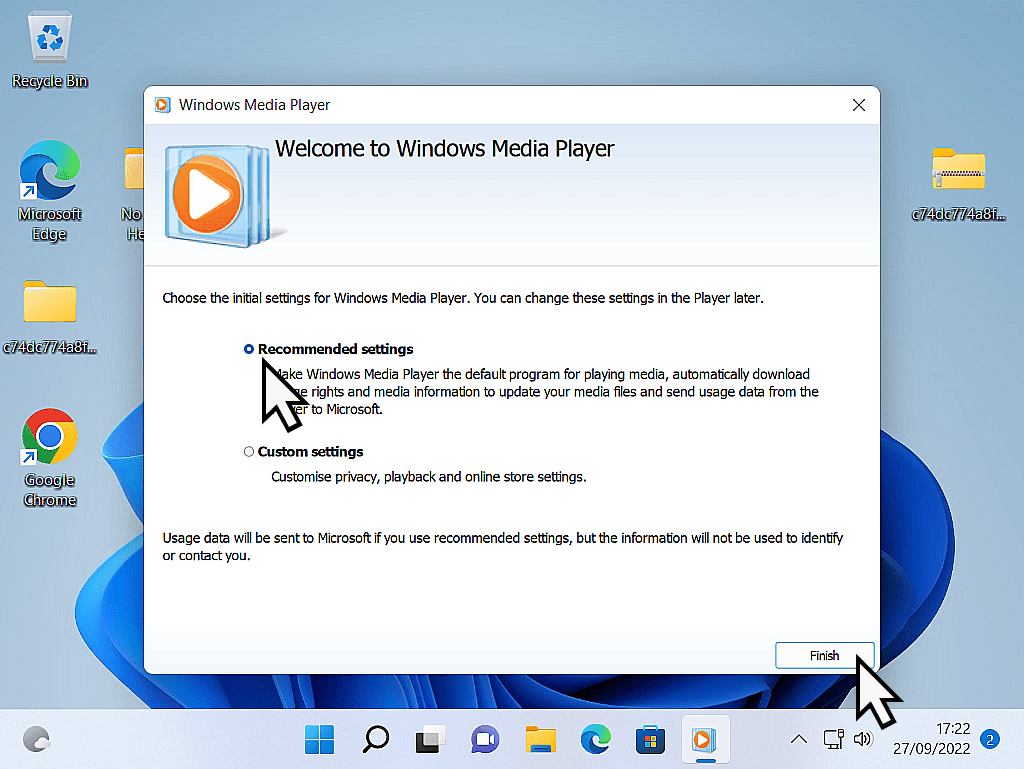
Updating Windows Media Player: A Step-by-step Guide
Are you tired of using an outdated version of Windows Media Player? Look no further! In this article, we will guide you through the process of updating your media player to the latest version.
Why Update Windows Media Player?
Before we dive into the update process, let’s talk about why it’s essential to keep your media player up-to-date. Updating your media player ensures that you have access to the latest features and improvements. It also helps prevent security vulnerabilities and bugs that may affect your system.
Updating Windows Media Player on Windows 10 And Windows 11
On Windows 10 and Windows 11, updating Windows Media Player is a straightforward process. Here’s how:
- Check For Updates: Click on the Start menu and select “Settings.” From there, go to “Update & Security” and click on “Windows Update.”
- Check For Available Updates: In the Windows Update window, click on “Check for updates.” Your system will then search for any available updates.
- Download And Install Updates: If there are any updates available, they will be downloaded and installed automatically.
Updating Windows Media Player on Windows 8.1 And Earlier Versions
On Windows 8.1 And earlier versions, updating Windows Media Player is a bit different. Here’s what you need to do:
- Open Windows Media Player: Launch Windows Media Player from the Start menu.
- Click on The “Help” Menu: Click on the “Help” menu and select “Check for updates.”
- Follow The Prompts: Follow the prompts to download and install any available updates.
Updating Windows Media Player: Tips And Tricks
Here are some tips and tricks to keep in mind when updating your media player:
- Make Sure You Have a Stable Internet Connection: A stable internet connection is essential for downloading and installing updates.
- Close All Applications: Close all applications before updating your media player to prevent any conflicts or crashes.
- Back up Your Data: Always back up your data before updating your system.
Updating The Codec of Windows Media Player
If you’re experiencing issues with playing certain audio or video files, it’s possible that your codec needs an update. Here’s how to update your codec:
- Check For Updates: Check if there are any updates available for Windows Media Player.
- Download And Install Updates: If there are any updates available, download and install them.
- Update The Codec: Update the codec by downloading the latest version from the Microsoft website.
Conclusion
Updating your media player is essential to ensure that you have access to the latest features and improvements. By following these steps, you can update your Windows Media Player to the latest version and enjoy a seamless media experience.
Frequently Asked Questions (FAQs)
Here are some frequently asked questions about updating Windows Media Player:
- Q: Why do I Need to Update my Media Player?
A: Updating your media player ensures that you have access to the latest features and improvements, which can help prevent security vulnerabilities and bugs. - Q: How Often Should I Update my Media Player?
A: It’s essential to keep your media player up-to-date with the latest updates and patches to ensure a seamless media experience. - Q: What Happens if I Don’t Update my Media Player?
A: Failing to update your media player can lead to security vulnerabilities, bugs, and other issues that may affect your system. - Q: Can I Update my Media Player Manually?
A: Yes, you can update your media player manually by checking for updates and downloading them from the Microsoft website. - Q: What is a Codec, And Why do I Need to Update It?
A: A codec is a piece of software that decodes audio or video files. Updating your codec ensures that you can play various audio and video formats without any issues. - Q: How do I Know if my Media Player Needs an Update?
A: You can check for updates by clicking on the “Help” menu and selecting “Check for updates.” - Q: Can I Use a Third-party Media Player Instead of Windows Media Player?
A: Yes, you can use a third-party media player like VLC Media Player, which is known for its robust features and seamless playback experience. - Q: What Are The Benefits of Updating my Media Player to The Latest Version?
A: Updating your media player ensures that you have access to the latest features and improvements, which can enhance your overall media experience.
Additional Resources
If you’re looking for more information on updating Windows Media Player or need help with any technical issues, here are some additional resources:
- Microsoft Support: Visit the Microsoft support website for comprehensive guides and tutorials on updating Windows Media Player.
- Windows Community Forum: Join the Windows community forum to connect with other users who may have experienced similar issues or can offer helpful advice.


