
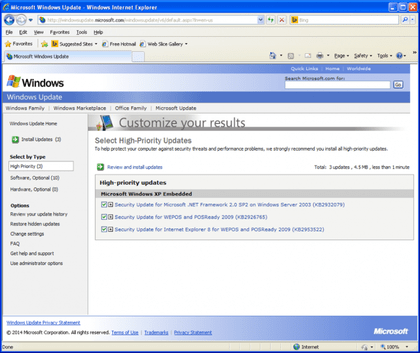
Update Windows Xp: A Step-by-step Guide
As we approach the end of April 2019, Microsoft’s support for Windows XP will come to an end. This deadline marks a significant turning point for users still running the aging operating system.
In this article, we’ll explore the steps necessary to update Windows XP to more recent versions, including Windows 10, Windows 8.1, And Windows 7.
Why Update Windows Xp?
Before diving into the updates, let’s quickly discuss why you should consider moving away from Windows XP:
- Security: With Microsoft ending support for XP, your system will no longer receive security patches or updates.
- Compatibility: As newer software applications and hardware devices are developed, they may not be compatible with XP.
Preliminary Operations
Before proceeding with the update process, there are some essential preliminary operations to complete:
- Backup Your Data: Ensure your most important files are safely backed up on an external hard drive or cloud storage service.
- Recover Windows Installation Media: If you’re using a physical copy of Windows XP (CD/DVD), make sure it’s still available. If not, download the necessary installation media from Microsoft’s website.
Configure Bios
Next, configure your computer’s BIOS settings to prioritize booting from a CD/DVD or USB drive over other devices.
If you’re working with UEFI firmware, disable Secure Boot and enable Legacy BIOS mode for the Windows 7 installation.
To perform these operations, refer to the guide on configuring BIOS settings in my tutorial series.
Update Windows XP to Windows 10
Now that we’ve completed the preliminary steps, let’s move on to updating Windows XP to Windows 10:
- System Requirements: Ensure your computer meets the minimum requirements for installing Windows 10:
- Processor: 1 GHz or faster
- RAM: 1 GB (32-bit) or 2 GB (64-bit)
- Hard Disk Space: 16 GB (32-bit) or 20 GB (64-bit)
- Graphics: DirectX 9 or later with WDDM 1.0
- Installation Media: Insert the Windows 10 installation media into your computer.
- Boot From Installation Media: Restart your computer and boot from the installation media.
Follow these steps to complete the update process:
- Execute the installation procedure using the Microsoft Media Creation Tool, creating a bootable USB drive or DVD for another PC if necessary.
- Activate Windows 10 with a valid product key, which can be purchased online.
- Choose whether to perform an in-place upgrade or install Windows 10 on a separate partition, following the guided procedure.
Update Windows XP to Windows 8.1
To update Windows XP to Windows 8.1:
- System Requirements: Ensure your computer meets the minimum requirements for installing Windows 8.1:
- Processor: 1 GHz or faster with PAE, NX, and SSE2 support
- RAM: 1 GB (32-bit) or 2 GB (64-bit)
- Hard Disk Space: 16 GB (32-bit) or 20 GB (64-bit)
- Graphics: DirectX 9 with WDDM
- Installation Media: Insert the Windows 8.1 Installation media into your computer.
- Boot From Installation Media: Restart your computer and boot from the installation media.
Follow these steps to complete the update process:
- Execute the installation procedure using the Microsoft Media Creation Tool, creating a bootable USB drive or DVD for another PC if necessary.
- Activate Windows 8.1 With a valid product key, which can be purchased online.
- Choose whether to perform an in-place upgrade or install Windows 8.1 On a separate partition, following the guided procedure.
Update Windows XP to Windows 7
To update Windows XP to Windows 7:
- System Requirements: Ensure your computer meets the minimum requirements for installing Windows 7:
- Processor: 32-Bit (x86) or 64-bit (x64), 1 GHz or faster
- RAM: 1 GB (32-bit) or 2 GB (64-bit)
- Hard Disk Space: 16 GB (32-bit) or 20 GB (64-bit)
- Graphics: DirectX 9 with WDDM 1.0 Or later
- Installation Media: Insert the Windows 7 installation media into your computer.
- Boot From Installation Media: Restart your computer and boot from the installation media.
Follow these steps to complete the update process:
- Execute the installation procedure using the Microsoft USB/DVD Download Tool, creating a bootable USB drive or DVD for another PC if necessary.
- Activate Windows 7 with a valid product key, which can be purchased online.
- Choose whether to perform an in-place upgrade or install Windows 7 on a separate partition, following the guided procedure.
Update Windows XP to Service Pack 3
If you want to update Windows XP to Service Pack 3, follow these steps:
- Download Service Pack 3: Download the Service Pack 3 executable file from Microsoft’s website.
- Install Service Pack 3: Run the downloaded file and follow the guided procedure to install Service Pack 3.
Conclusion
Updating Windows XP to a more recent version can be a complex process, but with these step-by-step guides, you’ll be able to navigate the necessary operations.
Before proceeding, make sure your computer meets the minimum requirements for the new operating system and that you have backed up all essential data.
By following these instructions, you’ll be able to successfully update Windows XP to Windows 10, Windows 8.1, Windows 7, or Service Pack 3.
Faqs
Here are some frequently asked questions related to updating Windows XP:
- Q: Why Should I Update Windows Xp?
A: Updating Windows XP ensures you receive security patches and compatibility with newer software applications and hardware devices. - Q: What are the system requirements for installing Windows 10, Windows 8.1, Or Windows 7?
A: Refer to the minimum requirements listed in each section of this guide. - Q: Can I Update Windows XP to Service Pack 3?
A: Yes, you can download and install Service Pack 3 directly from Microsoft’s website. - Q: Do I need a valid product key to activate Windows 10, Windows 8.1, Or Windows 7?
A: Yes, a valid product key is necessary to activate the new operating system. - Q: What Happens if my Computer Does Not Meet The Minimum Requirements For Installing The New Operating System?
A: If your computer does not meet the minimum requirements, you may need to consider upgrading hardware components or purchasing a new device.
Conclusion
Updating Windows XP to more recent versions can be a complex process. However, with these step-by-step guides and FAQs, you’ll be able to navigate the necessary operations and successfully update your operating system.
Make sure to follow each section carefully and consult additional resources if needed.


