
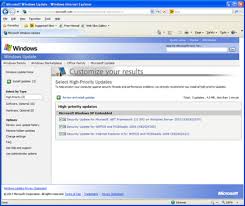
Updating Xp: A Step-by-step Guide
Are you still using Windows XP on your computer? If so, be aware that it’s an outdated operating system that poses serious safety risks. In this article, we’ll guide you through the process of updating to a more recent version, such as Windows 10 or Windows 7.
Why Update From Xp?
Windows XP is no longer supported by Microsoft and has numerous security vulnerabilities. Updating to a newer version will not only improve your computer’s performance but also protect it from potential threats.
System Requirements For Update
Before we dive into the steps, ensure that your computer meets the minimum requirements for updating:
- Processor: A CPU with 1 GHz or higher speed (with PAE support for 32-bit systems).
- Ram: 1 GB of RAM for Windows 10 (32-bit) and 2 GB for Windows 10 (64-bit).
- Hard Disk Space: 16 GB for Windows 10 (32-bit) and 20 GB for Windows 10 (64-bit).
- Graphics Card: A graphics card that supports DirectX 9 or higher.
- Monitor Resolution: A minimum resolution of 800 x 600 pixels, with a recommended resolution of 1024 x 768 pixels.
Step 1: Backup Your Data
Before updating your operating system, make sure to back up all your important files and data. This is crucial because the update process will erase all data on the disk where Windows XP is installed.
Step 2: Download The Update
Once you’ve backed up your data, download the necessary updates:
- For Windows 10: Download the ISO file directly from Microsoft’s website.
- For Windows 7: Use a non-official tool called Windows and Office ISO Download Tool to obtain the required files.
Step 3: Format Your Hard Drive (Optional)
If you’re planning to install Windows 10, you’ll need to format your hard drive. This will erase all data on the disk where Windows XP is installed.
Step 4: Install The Update
Follow these steps to install the update:
- For Windows 10: Insert the installation media (USB or DVD), restart your computer, and follow the prompts.
- For Windows 7: Insert the installation media (USB or DVD), restart your computer, and follow the prompts.
Step 5: Configure Your New Operating System
After installing the update, configure your new operating system by setting up:
- Language
- Time Format
- Keyboard Layout
- Login Options
Common Faqs
Here are some frequently asked questions that might help you with the updating process:
Q: What happens to my data when I update from XP?
A: Your data will be deleted during the update process.
Q: Can I keep my data on the same hard drive if I update to Windows 10?
A: No, you’ll need to format your hard drive for a clean installation of Windows 10.
Q: What about the cost of the update?
A: The official cost of Windows 10 is around €145 (Home edition) and €259 (Pro edition). However, you might be able to find free alternatives or older versions like Windows 7.
Conclusion
Updating from Windows XP to a newer operating system can be a bit daunting, but with the right guidance, it’s definitely doable. By following these steps and considering your options carefully, you’ll be able to enjoy the benefits of a more secure and efficient operating system.
Frequently Asked Questions (FAQs)
Q: What are the system requirements for updating from XP?
A: Check out our article on “System Requirements for Update” above.
Q: How do I backup my data before updating?
A: We’ve got a detailed guide on backing up your data before updating in our article “Step 1: Backup Your Data”.
Q: What happens if I don’t format my hard drive during the update process?
A: If you’re planning to install Windows 10, it’s essential to format your hard drive to ensure a smooth installation.
Q: Can I keep using XP while I’m waiting for the update process to complete?
A: Unfortunately not, as the update process will erase all data on the disk where XP is installed.


