
Updating Your Smartphone: A Step-by-step Guide
Are you tired of seeing your smartphone lag behind in terms of software updates? Do you want to ensure that your device is running on the latest version of its operating system? Look no further! In this article, we will guide you through the process of updating your smartphone, whether it’s an Android or iOS device.
Why Update Your Smartphone?
Updating your smartphone is essential for several reasons. Firstly, it ensures that your device has the latest security patches, which helps protect it from malware and other online threats. Secondly, updates often bring new features and improvements to the operating system, making your device more efficient and user-friendly. Finally, updating your smartphone can also improve its performance and battery life.
Updating Your Android Smartphone
If you have an Android smartphone, updating it is a relatively straightforward process. Here’s how:
- Go to Settings: Open the Settings app on your device.
- Select System Update: Scroll down and select “System update” or “Software update”.
- Check For Updates: The system will check for any available updates. If there are, you’ll be prompted to download and install them.
- Download And Install: Follow the prompts to download and install the update. Your device may restart during this process.
Updating Your Iphone
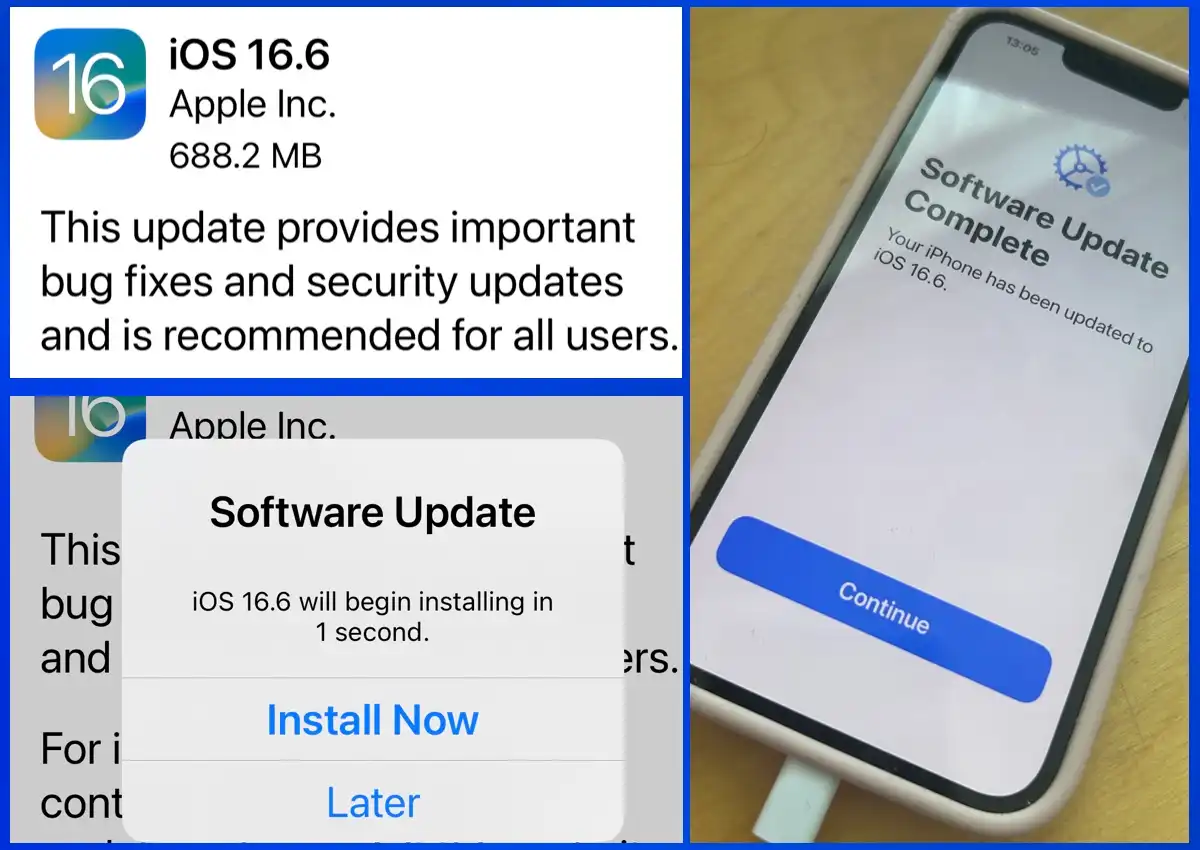
If you have an iPhone, updating it is similarly easy:
- Go to Settings: Open the Settings app on your device.
- Select General: Scroll down and select “General”.
- Select Software Update: Select “Software update” from the list of options.
- Check For Updates: The system will check for any available updates. If there are, you’ll be prompted to download and install them.
- Download And Install: Follow the prompts to download and install the update. Your device may restart during this process.
Updating Your Android Smartphone Using a PC
If you prefer to update your Android smartphone using a PC, here’s how:
- Connect Your Device: Connect your device to your PC using a USB cable.
- Download The Update Software: Download the update software for your specific device from the manufacturer’s website.
- Run The Update Software: Run the update software on your PC and follow the prompts to download and install the update.
Updating Your Iphone Using a PC
If you prefer to update your iPhone using a PC, here’s how:
- Connect Your Device: Connect your device to your PC using a Lightning cable.
- Open Itunes or Finder: Open iTunes (for Windows) or Finder (for Mac).
- Select Your Device: Select your device from the list of connected devices.
- Check For Updates: The system will check for any available updates. If there are, you’ll be prompted to download and install them.
- Download And Install: Follow the prompts to download and install the update.
Updating Your Smartphone Without Wi-fi
If you don’t have access to a Wi-Fi connection, but still want to update your smartphone, here’s what you can do:
- Create a Hotspot: Create a hotspot on your device using its cellular data.
- Connect Your PC: Connect your PC to the hotspot.
- Update Your Device: Update your device as described above.
Updating Older Android Smartphones
If you have an older Android smartphone, updating it may be more complicated:
- Check For Available Updates: Check with the manufacturer’s website to see if there are any available updates for your specific device.
- Consider Installing a Rom: If there aren’t any official updates available, consider installing a custom ROM on your device.
Updating Older Iphones
If you have an older iPhone, updating it may be more complicated:
- Check For Available Updates: Check with Apple’s website to see if there are any available updates for your specific device.
- Consider Joining The Beta Tester Program: If there aren’t any official updates available, consider joining Apple’s beta tester program.
Updating Your Smartphone’s Bluetooth
Unfortunately, updating your smartphone’s Bluetooth is not possible through software updates:
- Check With The Manufacturer: Check with the manufacturer to see if there are any available updates for your specific device.
- Consider Replacing The Device: If there aren’t any available updates, it may be time to consider replacing your device.
Conclusion
Updating your smartphone is a crucial process that ensures your device has the latest security patches and features. By following the steps outlined in this article, you can keep your device up-to-date and running smoothly.
Frequently Asked Questions (FAQs)
- Q: How Often Should I Update my Smartphone?
A: It’s recommended to update your smartphone as soon as possible after an update is available. - Q: Will Updating my Smartphone Delete All my Data?
A: No, updating your smartphone will not delete any of your data. - Q: Can I Update my Smartphone Without Wi-fi?
A: Yes, you can create a hotspot on your device using its cellular data to update it. - Q: Will Updating my Older Android Smartphone Void Its Warranty?
A: It depends on the manufacturer’s policies; check with them before proceeding. - Q: Can I Update my Iphone Without a Computer?
A: Yes, you can update your iPhone directly from the device itself. - Q: How Long Does it Take to Update a Smartphone?
A: The time it takes to update a smartphone depends on various factors, including the speed of your internet connection and the size of the update. - Q: Will Updating my Smartphone Improve Its Performance?
A: Yes, updating your smartphone will likely improve its performance and battery life. - Q: Can I Roll Back an Update if I’m Not Satisfied With It?
A: It depends on the manufacturer’s policies; check with them before proceeding.


