
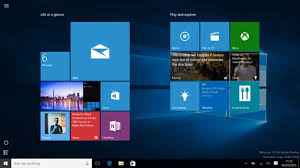
Upgrading to Windows 10: A Step-by-step Guide
Are you still using an outdated operating system like Windows 7, 8, or 11? If so, it’s time to upgrade to the latest version of Windows – Windows 10! In this article, we’ll guide you through the process of upgrading from any of these older versions to Windows 10.
Why Upgrade to Windows 10?
Before we dive into the upgrade process, let’s take a look at why you should consider upgrading to Windows 10:
- Better Security: Windows 10 has enhanced security features that protect your device from malware and other online threats.
- Improved Performance: Windows 10 is designed to run faster and more efficiently than older versions of the operating system.
- Enhanced Features: Windows 10 offers a range of new features, including Cortana, a personal digital assistant, and the ability to use multiple desktops.
Prerequisites For Upgrading
Before you start the upgrade process, make sure your device meets the following requirements:
- Processor: Your device must have at least a 1 GHz processor.
- Ram: You’ll need at least 1 GB of RAM (32-bit) or 2 GB of RAM (64-bit).
- Storage: Your device should have at least 16 GB of free space (for the 32-bit version) or 32 GB of free space (for the 64-bit version).
Backing Up Your Data
Before you start the upgrade process, make sure to back up your data to an external drive or cloud storage service. This will ensure that your files and settings are safe during the upgrade.
Creating a Backup
To create a backup, follow these steps:
- Connect an external drive to your device.
- Open File Explorer and navigate to the “This PC” section.
- Right-click on the external drive and select “Properties.”
- Click on the “Backup” tab and select “Set up automatic backup.”
- Follow the prompts to create a backup of your data.
Downloading The Upgrade Tool
Next, you’ll need to download the upgrade tool from Microsoft’s website:
- Go to the Microsoft Support website.
- Search for “Windows 10 upgrade tool” and select the relevant result.
- Click on the “Download” button to begin the download process.
Running The Upgrade Tool
Once the download is complete, run the upgrade tool to begin the upgrade process:
- Open File Explorer and navigate to the location where you saved the upgrade tool.
- Double-click on the executable file to run it.
- Follow the prompts to initiate the upgrade process.
Upgrading From Windows 7
If you’re upgrading from Windows 7, you’ll need to follow a slightly different procedure:
- Download the Media Creation Tool from Microsoft’s website.
- Run the tool and select the “Upgrade this PC now” option.
- Follow the prompts to initiate the upgrade process.
Upgrading From Windows 8 or 11
If you’re upgrading from Windows 8 or 11, you can follow these steps:
- Go to the Microsoft Support website.
- Search for “Windows 10 upgrade tool” and select the relevant result.
- Click on the “Download” button to begin the download process.
Running The Upgrade Tool
Once the download is complete, run the upgrade tool to begin the upgrade process:
- Open File Explorer and navigate to the location where you saved the upgrade tool.
- Double-click on the executable file to run it.
- Follow the prompts to initiate the upgrade process.
Troubleshooting Issues
If you encounter any issues during the upgrade process, don’t worry! Here are some troubleshooting tips:
- Restart Your Device: Sometimes, simply restarting your device can resolve issues.
- Check For Updates: Ensure that your device is running the latest version of Windows 10.
- Contact Microsoft Support: If you’re experiencing persistent issues, contact Microsoft support for assistance.
Conclusion
Upgrading to Windows 10 is a relatively straightforward process. By following these steps and troubleshooting any issues that arise, you’ll be enjoying the benefits of the latest operating system in no time!
Faqs
-
What Are The System Requirements For Upgrading to Windows 10?
- Your device must have at least a 1 GHz processor.
- You’ll need at least 1 GB of RAM (32-bit) or 2 GB of RAM (64-bit).
- Your device should have at least 16 GB of free space (for the 32-bit version) or 32 GB of free space (for the 64-bit version).
-
How do I Back up my Data Before Upgrading to Windows 10?
- Connect an external drive to your device.
- Open File Explorer and navigate to the “This PC” section.
- Right-click on the external drive and select “Properties.”
- Click on the “Backup” tab and select “Set up automatic backup.”
-
What is The Media Creation Tool, And How do I Use It?
- The Media Creation Tool is a utility that allows you to create a bootable USB drive or CD/DVD.
- To use it, download the tool from Microsoft’s website and run it.
- Follow the prompts to initiate the upgrade process.
-
Can I Upgrade From Windows 7 Directly to Windows 10?
- Yes, you can upgrade from Windows 7 directly to Windows 10 using the Media Creation Tool.
- Download the tool and select the “Upgrade this PC now” option.
-
How do I Troubleshoot Issues During The Upgrade Process?
- Restart your device if you encounter any issues.
- Check for updates to ensure that your device is running the latest version of Windows 10.
- Contact Microsoft support for assistance with persistent issues.
-
Can I Roll Back to my Previous Operating System After Upgrading to Windows 10?
- Yes, you can roll back to your previous operating system within a certain timeframe (typically 10-60 days).
- Follow the prompts to initiate the rollback process.
-
What Are The Benefits of Upgrading to Windows 10?
- Enhanced security features
- Improved performance
- New features, including Cortana and multiple desktops
-
How Long Does The Upgrade Process Take?
- The time it takes to complete the upgrade process varies depending on your device’s specifications.
- Typically, the process takes anywhere from a few minutes to an hour or more.
-
Can I Install Windows 10 on a Virtual Machine?
- Yes, you can install Windows 10 on a virtual machine.
- Follow the instructions provided by Microsoft for setting up a virtual machine.
-
What Are The System Requirements For Running Windows 10?
- Your device must have at least a 1 GHz processor.
- You’ll need at least 1 GB of RAM (32-bit) or 2 GB of RAM (64-bit).
- Your device should have at least 16 GB of free space (for the 32-bit version) or 32 GB of free space (for the 64-bit version).
-
Can I Upgrade From Windows 8 Directly to Windows 10?
- Yes, you can upgrade from Windows 8 directly to Windows 10.
- Download the upgrade tool and follow the prompts to initiate the upgrade process.
-
How do I Ensure That my Device is Running The Latest Version of Windows 10?
- Go to Settings > Update & Security > Windows Update.
- Click on “Check for updates” to see if any updates are available.
-
What Should I do if I Encounter Issues During The Upgrade Process?
- Restart your device if you encounter any issues.
- Check for updates to ensure that your device is running the latest version of Windows 10.
- Contact Microsoft support for assistance with persistent issues.
-
Can I Roll Back to my Previous Operating System After Upgrading to Windows 10?
- Yes, you can roll back to your previous operating system within a certain timeframe (typically 10-60 days).
- Follow the prompts to initiate the rollback process.
-
What Are The Benefits of Upgrading to Windows 10?
- Enhanced security features
- Improved performance
- New features, including Cortana and multiple desktops


