
How to Update Windows 7 to Windows 10: A Step-by-step Guide
Are you still using Windows 7 on your computer? If yes, it’s high time to upgrade to the latest operating system, Windows 10. In this article, we will guide you through a step-by-step process of updating Windows 7 to Windows 10.
Why Update to Windows 10?
Windows 10 is the latest operating system from Microsoft, and it offers numerous features and improvements over Windows 7. Some of the key reasons to update to Windows 10 include:
- Improved security: Windows 10 has enhanced security features, including a new login screen and improved password management.
- Better performance: Windows 10 is faster and more efficient than Windows 7, making it ideal for modern computers.
- New features: Windows 10 introduces new features such as Cortana, Microsoft’s virtual assistant, and the Edge browser.
Preparation is Key
Before updating to Windows 10, make sure you have:
- Backup Your Data: Create a backup of all important files and data on an external drive or cloud storage.
- Update Windows 7: Ensure that Windows 7 is up-to-date by running the Windows Update tool.
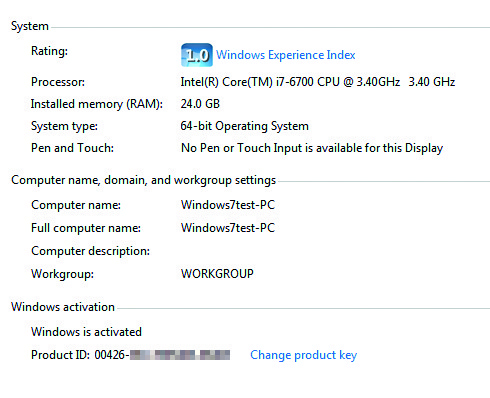
- Check System Requirements: Verify that your computer meets the minimum system requirements for Windows 10.
Step 1: Create a Backup of Data And Drivers
It’s essential to create a backup of all important files and data on an external drive or cloud storage. This will ensure that you don’t lose any critical information during the update process.
Step 2: Check System Requirements
Verify that your computer meets the minimum system requirements for Windows 10:
- Processor: 1 GHz or faster
- Memory (RAM): 1 GB for 32-bit systems, 2 GB for 64-bit systems
- Hard drive space: 16 GB for 32-bit systems, 32 GB for 64-bit systems
Step 3: Obtain a Windows 10 License Key
You will need to obtain a valid license key for Windows 10. You can purchase one from Microsoft or an authorized reseller.
Step 4: Create a Support Media (DVD or Usb)
Create a DVD or USB drive with the Windows 10 installation media:
- Download The Iso File: Download the Windows 10 ISO file from Microsoft’s website.
- Burn The Iso to a Dvd: Burn the ISO file to a DVD using a burning software like Rufus.
- Copy The Iso to a Usb Drive: Copy the ISO file to a USB drive using a software like Rufus.
Step 5: Update Windows 7 to Windows 10
Now that you have prepared your computer and created the support media, it’s time to update Windows 7 to Windows 10:
- Insert The Dvd or Usb: Insert the DVD or USB drive into your computer.
- Restart Your Computer: Restart your computer and press the F2 key (or Del key) to access the BIOS settings.
- Configure The Boot Order: Configure the boot order to prioritize the DVD or USB drive.
- Run The Installation Media: Run the Windows 10 installation media by double-clicking on the setup.Exe file.
- Follow The Prompts: Follow the prompts to complete the update process.
Tips And Variations
If you encounter any issues during the update process, don’t worry! Here are some tips and variations:
- Clean Install: If you want a clean install of Windows 10 without preserving any files or settings from Windows 7, follow these steps.
- Upgrade With Ease: Follow this guide to upgrade Windows 7 to Windows 10 without losing any important data.
Conclusion
Updating Windows 7 to Windows 10 is a straightforward process that requires some preparation and patience. By following the step-by-step guide outlined in this article, you will be able to successfully update your computer to the latest operating system from Microsoft.
Frequently Asked Questions (FAQs)
Q: Can I still use Windows 7?
A: Yes, but it’s recommended to update to Windows 10 for improved security and performance.
Q: What are the minimum system requirements for Windows 10?
A: Processor: 1 GHz or faster, Memory (RAM): 1 GB for 32-bit systems, 2 GB for 64-bit systems, Hard drive space: 16 GB for 32-bit systems, 32 GB for 64-bit systems.
Q: Can I still use my existing license key?
A: Yes, you can still use your existing Windows 7 license key to activate Windows 10.
Q: Will I lose any data during the update process?
A: No, but it’s essential to create a backup of all important files and data before updating to Windows 10.
Q: Can I upgrade from Windows 7 to Windows 10 without losing any settings or files?
A: Yes, you can upgrade directly to Windows 10 without preserving any files or settings from Windows 7.
Q: Will my existing drivers be compatible with Windows 10?
A: Yes, but it’s recommended to update your drivers to ensure compatibility and optimal performance.
Q: Can I roll back to Windows 7 if I encounter issues during the upgrade process?
A: Yes, you can restore your computer to its previous state by reverting to Windows 7.
Additional Resources
For more information on updating Windows 7 to Windows 10, please refer to Microsoft’s official documentation:
I hope this article has provided you with the necessary guidance and information to update your Windows 7 computer to Windows 10. If you have any further questions or concerns, please don’t hesitate to ask!


