
The Ultimate Guide to Using Google Drive: A Step-by-step Tutorial
Are you tired of cluttering your computer’s storage space or searching for files scattered across various devices? Look no further than Google Drive! This cloud-based service allows you to store, share, and access your files from anywhere, on any device. In this article, we’ll take a comprehensive look at how to use Google Drive, covering its benefits, features, and troubleshooting tips.
Benefits of Using Google Drive
Before diving into the tutorial, let’s explore the advantages of using Google Drive:
- Cloud Storage: Store your files online and access them from anywhere, on any device.
- Collaboration: Share files with others, granting them permission to edit or view, making collaboration a breeze.
- Automatic Backup: Set up automatic backups for your important files, ensuring they’re safe and secure.
- Access Across Devices: Access your files from your computer, smartphone, tablet, or any other device connected to the internet.
Getting Started With Google Drive
To begin using Google Drive, follow these steps:
- Create a Google Account: If you haven’t already, create a Google account by going to accounts.Google.Com and following the sign-up process.
- Download And Install Google Drive: Go to the Google Drive website (drive.Google.Com) and click on the “Get started” button. Download and install the Google Drive application for your computer or mobile device.
- Set up Automatic Backup: Set up automatic backups for your important files by going to drive.Google.Com/settings and following the instructions.
Uploading Files to Google Drive
Now that you have Google Drive set up, let’s learn how to upload files:
Uploading Files on PC (Windows)
- Open Google Drive: Open the Google Drive application on your computer.
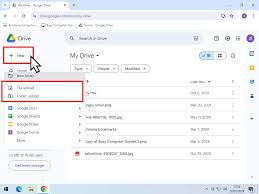
- Click on The “+” Button: Click on the “+” button in the top-right corner of the window.
- Select “Upload”: Select “Upload” from the dropdown menu.
- Choose a File: Choose the file you want to upload and click “Open”.
Uploading Files on Mac
- Open Google Drive: Open the Google Drive application on your computer.
- Click on The “+” Button: Click on the “+” button in the top-right corner of the window.
- Select “Upload”: Select “Upload” from the dropdown menu.
- Choose a File: Choose the file you want to upload and click “Open”.
Uploading Files on Android
- Open Google Drive: Open the Google Drive application on your mobile device.
- Tap The “+” Button: Tap the “+” button in the top-right corner of the window.
- Select “Upload”: Select “Upload” from the dropdown menu.
- Choose a File: Choose the file you want to upload and tap “Upload”.
Uploading Files on Iphone And Ipad
- Open Google Drive: Open the Google Drive application on your mobile device.
- Tap The “+” Button: Tap the “+” button in the top-right corner of the window.
- Select “Upload”: Select “Upload” from the dropdown menu.
- Choose a File: Choose the file you want to upload and tap “Upload”.
Sharing Files on Google Drive
Once you’ve uploaded files, you can share them with others by following these steps:
Sharing Files on PC (Windows)
- Open Google Drive: Open the Google Drive application on your computer.
- Right-click on a File: Right-click on the file you want to share and select “Get link”.
- Copy The Link: Copy the link to the clipboard.
Sharing Files on Mac
- Open Google Drive: Open the Google Drive application on your computer.
- Click on a File: Click on the file you want to share.
- Select “Share”: Select “Share” from the dropdown menu.
- Copy The Link: Copy the link to the clipboard.
Sharing Files on Android
- Open Google Drive: Open the Google Drive application on your mobile device.
- Tap a File: Tap on the file you want to share.
- Select “Share”: Select “Share” from the dropdown menu.
- Copy The Link: Copy the link to the clipboard.
Sharing Files on Iphone And Ipad
- Open Google Drive: Open the Google Drive application on your mobile device.
- Tap a File: Tap on the file you want to share.
- Select “Share”: Select “Share” from the dropdown menu.
- Copy The Link: Copy the link to the clipboard.
Troubleshooting Tips
If you’re experiencing issues with uploading or sharing files, try these troubleshooting tips:
- Check Your Internet Connection: Ensure that your internet connection is stable and working correctly.
- Restart Google Drive: Restart the Google Drive application on your computer or mobile device.
- Clear Cache And Data: Clear the cache and data of the Google Drive application to resolve any issues.
Conclusion
Google Drive is a powerful tool for storing, sharing, and accessing files from anywhere, on any device. With this comprehensive guide, you’re now equipped with the knowledge to use Google Drive effectively. Remember to always follow proper protocols when sharing files, and don’t hesitate to reach out if you encounter any issues.
Frequently Asked Questions (FAQs)
- What is Google Drive?
Google Drive is a cloud-based service that allows you to store, share, and access your files from anywhere. - How do I Upload Files to Google Drive?
To upload files, follow the steps outlined in this guide for PC, Mac, Android, iPhone, and iPad. - Can I Share Files on Google Drive?
Yes, you can share files with others by following the steps outlined in this guide. - How do I Troubleshoot Issues With Google Drive?
Try restarting Google Drive, checking your internet connection, or clearing cache and data to resolve any issues.
Additional Resources
For more information on using Google Drive, visit the official Google Drive website (drive.Google.Com) or check out our other articles on using cloud-based services effectively.


