
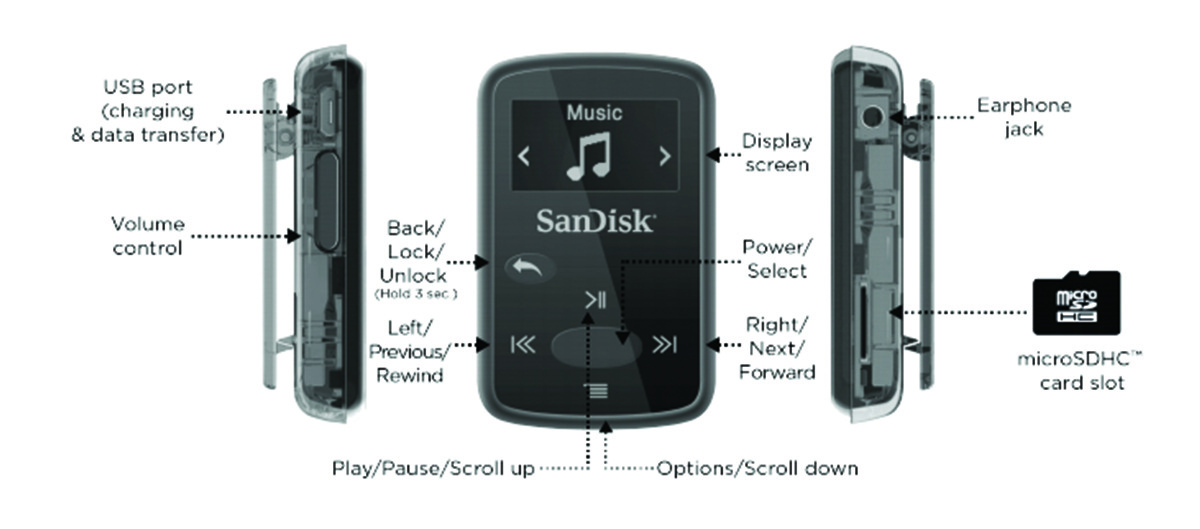
How to Load Music on Your Mp3
Are you a music enthusiast looking to bring your favorite tunes with you wherever you go? Do you want to load music onto your MP3 player without having to worry about internet connectivity? If so, this guide is for you!
In today’s digital age, there are many ways to access and enjoy music on-the-go. However, sometimes we want to have our favorite songs readily available without relying on streaming services or online connections. That’s where loading music onto your MP3 player comes in.
Benefits of Loading Music Onto Your Mp3
Loading music onto your MP3 player offers several benefits. For one, you can enjoy your music without having to worry about internet connectivity. This is especially useful when traveling or engaging in activities where Wi-Fi may not be available.
Another benefit is that loading music onto your MP3 player allows you to save space on your device for other important files and apps. With an external drive like a portable hard drive or SD card, you can store thousands of songs without taking up valuable space on your phone or tablet.
How to Load Music Onto Your Mp3 (Windows)
To load music onto your MP3 player using a Windows computer, follow these steps:
- Connect your MP3 player to your computer via USB.
- Open File Explorer and navigate to the folder containing the music files you want to transfer.
- Select the files you want to transfer by clicking on them while holding down Ctrl (Windows) or Command (Mac).
- Right-click on one of the selected files and choose “Copy” from the context menu.
- Go back to your MP3 player’s folder in File Explorer and right-click on an empty area.
- Choose “Paste” from the context menu, and the music files will be copied onto your MP3 player.
How to Load Music Onto Your Mp3 (Mac)
To load music onto your MP3 player using a Mac computer, follow these steps:
- Connect your MP3 player to your Mac via USB.
- Open Finder and navigate to the folder containing the music files you want to transfer.
- Select the files you want to transfer by clicking on them while holding down Command (Mac).
- Right-click on one of the selected files and choose “Copy” from the context menu.
- Go back to your MP3 player’s folder in Finder and right-click on an empty area.
- Choose “Paste” from the context menu, and the music files will be copied onto your MP3 player.
How to Load Music Onto Your Ipod
To load music onto your iPod using iTunes (Windows or Mac), follow these steps:
- Download and install iTunes on your computer if you haven’t already.
- Connect your iPod to your computer via USB.
- Open iTunes and select the “Music” tab.
- Choose to sync all songs in your music library by selecting the box next to “Sync Music.”
- Select the playlist, artist, or album you want to transfer.
- Click on the “Apply” button to begin syncing.
How to Load Music Onto Your Mp3 From Your Phone
To load music onto your MP3 player from your phone, follow these steps:
- Connect your phone to your computer via USB.
- Open File Explorer (Windows) or Finder (Mac).
- Navigate to the folder containing the music files on your phone.
- Select the files you want to transfer by clicking on them while holding down Ctrl (Windows) or Command (Mac).
- Right-click on one of the selected files and choose “Copy” from the context menu.
- Go back to your MP3 player’s folder in File Explorer or Finder and right-click on an empty area.
- Choose “Paste” from the context menu, and the music files will be copied onto your MP3 player.
Tips For Loading Music Onto Your Mp3
When loading music onto your MP3 player, keep in mind the following tips:
- Use a folder structure to organize your music files for easy access.
- Keep your MP3 player’s memory card empty of other files and apps to ensure there’s enough space for your music library.
- Consider using an external drive like a portable hard drive or SD card to store thousands of songs without taking up valuable space on your phone or tablet.
Conclusion
Loading music onto your MP3 player is a simple process that offers several benefits. With the steps outlined in this guide, you can enjoy your favorite tunes anywhere, anytime, without relying on streaming services or online connections. Whether you’re using Windows or Mac, loading music onto your MP3 player is a straightforward process that will get you started.
Frequently Asked Questions
Q: How do I load music onto my MP3 player?
A: To load music onto your MP3 player, follow the steps outlined in this guide for Windows, Mac, iPod, and phone.
Q: Can I use streaming services to load music onto my MP3 player?
A: Yes, you can use streaming services like Spotify or Apple Music to load music onto your MP3 player. However, this method requires internet connectivity.
Q: How do I organize my music library on my MP3 player?
A: Use a folder structure to organize your music files for easy access.
Q: Can I use an external drive like a portable hard drive or SD card to store thousands of songs?
A: Yes, you can use an external drive to store thousands of songs without taking up valuable space on your phone or tablet.
Q: How do I transfer music from my phone to my MP3 player?
A: Follow the steps outlined in this guide for transferring music from your phone to your MP3 player.
Q: Can I load music onto my MP3 player if it’s already full of other files and apps?
A: No, you’ll need to delete some files or apps to make space for your music library.
Q: How do I keep track of the music files on my MP3 player?
A: Use a folder structure to organize your music files for easy access.
Conclusion
Loading music onto your MP3 player is a simple process that offers several benefits. With the steps outlined in this guide, you can enjoy your favorite tunes anywhere, anytime, without relying on streaming services or online connections.


