
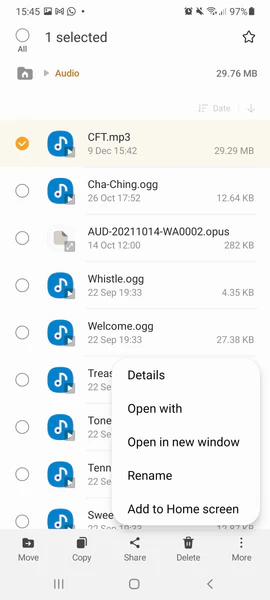
How to Add Music on Samsung
Are you tired of listening to the same old songs on your Samsung phone? Do you want to add music from your favorite streaming services or download them directly onto your device? Look no further! In this article, we’ll guide you through the process of adding music on Samsung using various methods.
Why Add Music on Samsung
Adding music on Samsung allows you to access your favorite tunes without relying on Wi-Fi or data. You can create playlists, discover new artists, and enjoy your music offline. Whether you’re a music enthusiast or just want to spice up your daily commute, adding music on Samsung is a must.
Method 1: Spotify
Spotify is one of the most popular streaming services available today. With over 50 million tracks in its catalog, it’s no surprise that millions of users rely on Spotify for their music needs.
How to Download Music From Spotify
To download music from Spotify, follow these steps:
- Download and install the Spotify app on your Samsung phone.
- Open the app and sign up or log in with your existing account.
- Search for a song, album, or playlist you want to add.
- Tap the three dots beside the item you’ve chosen, then select “Add to library.”
- Once added, tap the music icon on the bottom navigation bar and select the downloaded track.
That’s it! You now have access to millions of songs from Spotify directly on your Samsung device.
Method 2: Amazon Music
Amazon Music is another popular streaming service that offers a vast collection of music, podcasts, and more. With its user-friendly interface and affordable pricing plans, it’s no surprise that many users prefer Amazon Music over other services.
How to Download Music From Amazon Music
To download music from Amazon Music, follow these steps:
- Download and install the Amazon Music app on your Samsung phone.
- Sign up or log in with your existing account.
- Search for a song, album, or playlist you want to add.
- Tap the + icon next to the item you’ve chosen, then select “Add to library.”
- Once added, tap the music icon on the bottom navigation bar and select the downloaded track.
With these steps, you’ll be able to enjoy your favorite Amazon Music content directly on your Samsung device.
Method 3: Youtube Music
YouTube Music is a relatively new streaming service that offers a vast collection of music videos, live performances, and more. With its unique features like Discover Mix and Release Radar, it’s no surprise that many users prefer YouTube Music over other services.
How to Download Music From Youtube Music
To download music from YouTube Music, follow these steps:
- Download and install the YouTube Music app on your Samsung phone.
- Sign up or log in with your existing account.
- Search for a song, album, or playlist you want to add.
- Tap the three dots beside the item you’ve chosen, then select “Add to library.”
- Once added, tap the music icon on the bottom navigation bar and select the downloaded track.
With these steps, you’ll be able to enjoy your favorite YouTube Music content directly on your Samsung device.
Method 4: Transferring Music From PC
Transferring music from your computer to your Samsung phone is a great way to access your existing music library. With the right tools and software, it’s easy to transfer music between devices.
How to Transfer Music From PC
To transfer music from PC, follow these steps:
- Install the Android File Transfer app on your Mac.
- Connect your Samsung phone to your computer using a USB cable.
- Open Android File Transfer and select the songs you want to transfer.
- Drag and drop the selected songs into the Music folder on your device.
That’s it! With these steps, you’ll be able to transfer music from PC to your Samsung device in no time.
Method 5: Using Usb Driver
Using a USB driver is another way to transfer music from your computer to your Samsung phone. This method requires some technical expertise but offers flexibility and control over the transfer process.
How to Use Usb Driver
To use a USB driver, follow these steps:
- Install the USB driver software on your computer.
- Connect your Samsung phone to your computer using a USB cable.
- Open the device manager on your computer and select the USB driver for Android devices.
- Select the songs you want to transfer and drag them into the Music folder on your device.
That’s it! With these steps, you’ll be able to use a USB driver to transfer music from PC to your Samsung device.
Tips And Tricks
Here are some additional tips and tricks to keep in mind when adding music on Samsung:
- Use high-quality headphones or earbuds to get the best listening experience.
- Explore different streaming services like Spotify, Amazon Music, and YouTube Music for access to millions of songs.
- Create playlists and discover new artists using the Discover Mix feature on YouTube Music.
- Transfer music from PC to your Samsung device using Android File Transfer or a USB driver.
Conclusion
Adding music on Samsung is easy and fun with these methods. Whether you prefer Spotify, Amazon Music, YouTube Music, transferring music from PC, or using a USB driver, there’s an option for everyone. Don’t forget to explore different streaming services, create playlists, discover new artists, and enjoy your favorite tunes offline.
Frequently Asked Questions
Here are some frequently asked questions about adding music on Samsung:
Q: What is the best streaming service for Samsung?
A: The best streaming service for Samsung depends on personal preference. Spotify, Amazon Music, and YouTube Music offer vast collections of music and unique features to enjoy.
Q: How do I transfer music from PC to my Samsung device?
A: You can use Android File Transfer or a USB driver to transfer music from PC to your Samsung device.
Q: Can I add music on Samsung without Wi-Fi or data?
A: Yes, you can download music directly onto your Samsung device using various methods like Spotify, Amazon Music, YouTube Music, transferring music from PC, and more.
Q: How do I create a playlist on my Samsung device?
A: You can create a playlist by selecting songs from your library, searching for specific artists or genres, and adding them to your playlist.
Q: What is the difference between Spotify, Amazon Music, and YouTube Music?
A: Each service has its unique features and collection of music. Spotify offers Discover Mix, Amazon Music offers Release Radar, and YouTube Music offers Discover Mix and more.
Conclusion
Adding music on Samsung is a breeze with these methods and tips. Whether you prefer streaming services like Spotify, Amazon Music, or YouTube Music, transferring music from PC, or using a USB driver, there’s an option for everyone. Don’t forget to explore different streaming services, create playlists, discover new artists, and enjoy your favorite tunes offline.


