
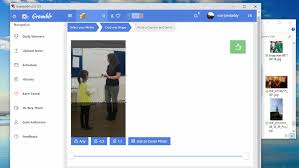
How to Post Photos on Instagram From Pc: A Step-by-step Guide
Are you an avid user of Instagram, but want to share your photos directly from your computer? Look no further! In this article, we will guide you through the process of posting photos on Instagram from your PC using various methods.
What You Need to Know Before Getting Started
Before we dive into the step-by-step instructions, it’s essential to understand that Instagram is a mobile-first platform. While it’s possible to post photos from your PC, you might encounter some limitations and restrictions compared to using the app on your smartphone.
Method 1: Using The Instagram For Windows App
The first method involves downloading and installing the official Instagram app for Windows. This app allows you to access your Instagram account directly from your desktop, upload photos, and engage with other users.
To get started:
- Download The Instagram For Windows App: Visit the Microsoft Store or click on the “Get” button on the Instagram website to download the app.
- Install The App: Follow the prompts to install the app. Once installed, you can launch it from your Start menu.
- Sign in to Your Account: Enter your Instagram login credentials to access your account.
- Select a Photo: Choose a photo from your computer or take a new one using the built-in camera.
- Edit And Caption: Edit the photo as needed and add a caption, hashtags, and location (if desired).
- Post The Photo: Click on the “Share” button to post the photo directly to Instagram.
Method 2: Using Facebook Creator Studio
If you’re already using Facebook for your business or personal account, you can use the Facebook Creator Studio to upload photos to Instagram from your PC. This method requires a Facebook account connected to your Instagram account.
To get started:
- Access Facebook Creator Studio: Log in to your Facebook account and navigate to the Creator Studio section.
- Connect Your Instagram Account: Follow the prompts to connect your Instagram account to your Facebook account.
- Select a Photo: Choose a photo from your computer or take a new one using the built-in camera.
- Edit And Caption: Edit the photo as needed and add a caption, hashtags, and location (if desired).
- Post The Photo: Click on the “Share” button to post the photo directly to Instagram.
Method 3: Using Instagram Web
The third method involves accessing Instagram through their official website using your PC’s browser. This method allows you to upload photos from your computer, but keep in mind that it may not be as seamless or user-friendly as using the app on your smartphone.
To get started:
- Access Instagram Web: Visit the Instagram website and log in to your account.
- Select a Photo: Choose a photo from your computer or take a new one using the built-in camera.
- Edit And Caption: Edit the photo as needed and add a caption, hashtags, and location (if desired).
- Post The Photo: Click on the “Share” button to post the photo directly to Instagram.
Method 4: Using Bluestacks
BlueStacks is an Android emulator that allows you to run Android apps on your PC. You can use this method to access Instagram and post photos from your computer.
To get started:
- Download And Install Bluestacks: Visit the official website of BlueStacks and download the software.
- Configure Bluestacks With a Google Account: Follow the prompts to set up BlueStacks with a Google account.
- Access Instagram on Bluestacks: Open the Play Store, search for Instagram, and install it.
- Post a Photo: Select a photo from your computer or take a new one using the built-in camera.
- Edit And Caption: Edit the photo as needed and add a caption, hashtags, and location (if desired).
- Post The Photo: Click on the “Share” button to post the photo directly to Instagram.
Conclusion
Posting photos on Instagram from your PC can be a convenient and efficient way to share your content with others. By following these step-by-step guides using the various methods outlined above, you’ll be able to upload and share your photos directly to Instagram from your desktop.
Faqs
- Can I Post Videos on Instagram From my Pc?
Yes, all four methods allow you to post videos directly to Instagram. - Will I Lose Any Features or Functionality by Posting From my Pc?
While some limitations may apply compared to using the app on your smartphone, most of the core features and functionalities will remain intact. - Can I Edit Photos Before Posting Them on Instagram From my Pc?
Yes, you can edit photos using various photo editing software available on your PC or directly within the Instagram app itself. - Do I Need a Facebook Account to Post Photos on Instagram From my Pc?
No, but if you have a Facebook account connected to your Instagram account, you can use Facebook Creator Studio to upload photos and engage with other users. - Is There Any Cost Associated With Using Bluestacks to Access Instagram on my Pc?
While the free version of BlueStacks has some limitations, you can upgrade to the premium subscription for $4/month or $40/year to access additional features and remove ads.
Troubleshooting Tips
- Make sure you have the latest version of your chosen method installed.
- Check that your internet connection is stable and fast enough to upload photos and engage with other users.
- If you encounter any issues, try restarting your PC or reinstalling the software.


