
How to Burden Photo on Instagram: A Step-by-step Guide
Are you wondering how to share high-quality photos on Instagram? Look no further! In this article, we will guide you through the process of uploading photos on Instagram using your smartphone, tablet, or computer.
Understanding Instagram’s Image Requirements
Before we dive into the step-by-step guide, it’s essential to understand Instagram’s image requirements. According to Instagram’s guidelines, when posting a photo, it should have a maximum width of 1080 pixels and be in one of the following formats:
- Square (1:1, 1080X1080 pixels)
- Vertical (4:5, 1080X1350 pixels)
- Horizontal (16:9, 1080X607 pixels)
To guarantee the maximum quality, it’s crucial to use Instagram’s recommended resolution and format for your photos.
How to Burden Photo on Instagram Using Your Smartphone
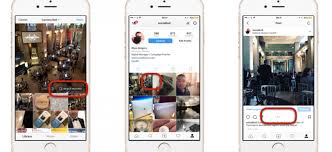
Using your smartphone is one of the most convenient ways to post a photo on Instagram. Here’s how:
- Open the Instagram app on your Android or iOS device.
- Tap the “+” icon at the top-right corner of the screen.
- Choose between posting a new photo or video, or selecting one from your gallery.
- Edit and customize your photo using Instagram’s built-in filters and features.
- Add a caption to your post by tapping the “Write a caption” field.
- Tap the “Share” button to post your photo on Instagram.
How to Burden Photo on Instagram Using Your Tablet
If you want to share photos on Instagram using your tablet, here’s how:
- Download and install the Instagram app from the App Store or Google Play Store.
- Launch the app and sign in with your Instagram account.
- Tap the “+” icon at the top-right corner of the screen.
- Choose between posting a new photo or video, or selecting one from your gallery.
- Edit and customize your photo using Instagram’s built-in filters and features.
- Add a caption to your post by tapping the “Write a caption” field.
- Tap the “Share” button to post your photo on Instagram.
How to Burden Photo on Instagram Using Your Computer
Using your computer is another way to share photos on Instagram. Here’s how:
- Open a web browser and navigate to instagram.Com.
- Sign in with your Instagram account.
- Click the “+” icon at the top-right corner of the screen.
- Choose between posting a new photo or video, or selecting one from your gallery.
- Edit and customize your photo using Instagram’s built-in filters and features.
- Add a caption to your post by clicking the “Write a caption” field.
- Click the “Share” button to post your photo on Instagram.
How to Burden Photo on Instagram Using Google Photos
If you use Google Photos, here’s how to share photos on Instagram:
- Open Google Photos and select the photo you want to share.
- Tap the three dots at the top-right corner of the screen.
- Select “Share” and choose Instagram from the list of available apps.
- Edit and customize your photo using Instagram’s built-in filters and features.
- Add a caption to your post by tapping the “Write a caption” field.
- Tap the “Share” button to post your photo on Instagram.
Tips For Burden Photo on Instagram
Here are some additional tips to help you share high-quality photos on Instagram:
- Use good lighting and edit your photos using Instagram’s built-in filters and features.
- Keep your captions concise and engaging.
- Post regularly to maintain a consistent aesthetic and keep your followers engaged.
- Utilize Instagram Stories and IGTV to share behind-the-scenes content, sneak peeks, and exclusive deals.
Conclusion
Sharing high-quality photos on Instagram is easier than you think! By following these step-by-step guides and tips, you can post stunning photos that engage your audience and grow your online presence. Remember to always use good lighting, edit your photos using Instagram’s built-in filters and features, and keep your captions concise and engaging.
Faqs
- What is The Maximum Width of a Photo on Instagram?
The maximum width of a photo on Instagram is 1080 pixels. - What Are The Recommended Formats For Posting a Photo on Instagram?
The recommended formats for posting a photo on Instagram are square (1:1, 1080X1080 pixels), vertical (4:5, 1080X1350 pixels), and horizontal (16:9, 1080X607 pixels). - How do I Edit my Photos Using Instagram’s Built-in Filters And Features?
You can edit your photos using Instagram’s built-in filters and features by tapping the “Edit” button on the photo editing screen. - What is Instagram Stories And Igtv?
Instagram Stories and IGTV are features that allow you to share behind-the-scenes content, sneak peeks, and exclusive deals with your followers. - How do I Add a Caption to my Post on Instagram?
You can add a caption to your post by tapping the “Write a caption” field on the photo editing screen. - Can I Post Videos on Instagram?
Yes, you can post videos on Instagram using your smartphone or computer. - How do I Share Photos From Google Photos on Instagram?
You can share photos from Google Photos on Instagram by selecting the photo and tapping the “Share” button, then choosing Instagram from the list of available apps.
Note: The above FAQs are based on the article’s content and may not cover all possible questions related to sharing photos on Instagram.


