
How to Transfer Photos From Your PC to Iphone
Transferring photos from your computer to your iPhone can be a straightforward process if you know the right steps to follow. In this article, we will explore three methods of transferring photos from your PC to your iPhone: Using iTunes, iCloud, and Google Photos.
Method 1: Using Itunes
ITunes is a free software developed by Apple that allows you to manage your music, movies, TV shows, podcasts, and more on your computer. But did you know that it also allows you to transfer photos from your PC to your iPhone?
Here’s how:
- Connect your iPhone to your computer using a USB cable.
- Open iTunes on your computer and select your iPhone from the top left corner of the screen.
- Click on “Photo” in the left-hand menu bar.
- Select the option to synchronize photos with your iPhone.
- Choose the folders on your computer that contain the photos you want to transfer.
That’s it! Your photos will be transferred to your iPhone in just a few minutes.
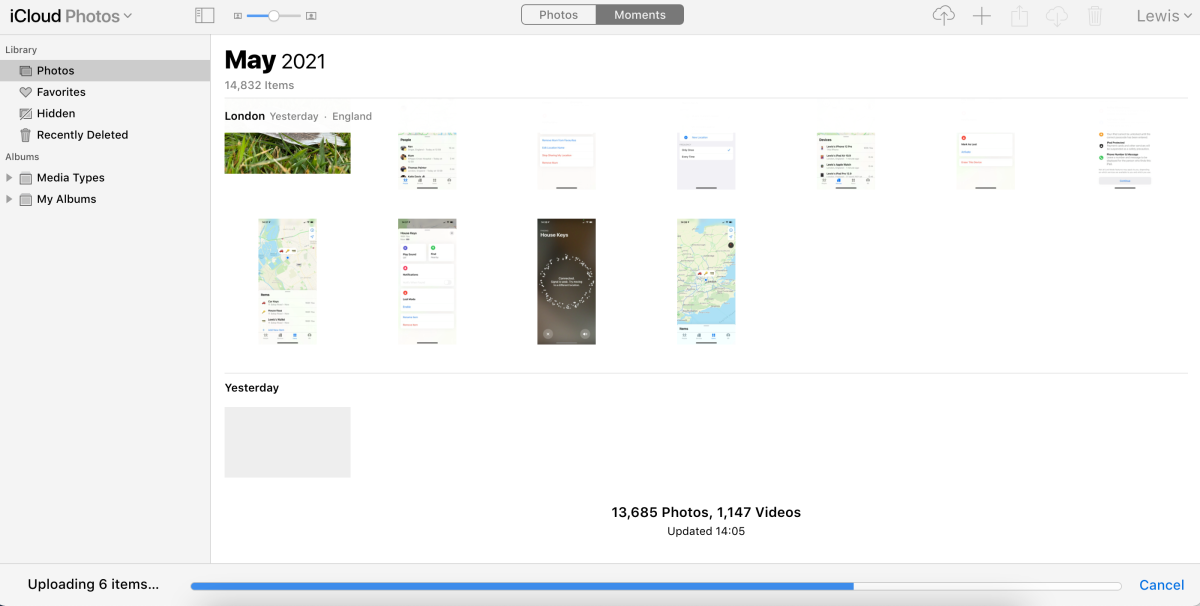
Method 2: Using Icloud
ICloud is a cloud storage service developed by Apple that allows you to store and access your files, including photos, from anywhere. You can use iCloud to transfer photos from your PC to your iPhone.
Here’s how:
- Open the Settings app on your iPhone.
- Select “Photos” and toggle it on.
- Make sure that iCloud Photo Library is enabled.
Now, open iTunes or the Finder on your computer and select the folder that contains the photos you want to transfer. You can also access your iCloud account online and upload your photos from there.
Method 3: Using Google Photos
Google Photos is a free service developed by Google that allows you to store and manage your photos and videos in the cloud. You can use Google Photos to transfer photos from your PC to your iPhone.
Here’s how:
- Download and install the Google Photos app on your computer.
- Sign in with your Google account credentials.
- Select the folders on your computer that contain the photos you want to transfer.
- Choose the option to upload these photos to Google Photos.
- Open the Google Photos app on your iPhone and sign in with your Google account credentials.
- Your photos will be synced across all your devices, including your iPhone.
Comparison of Methods
| Method | Ease of Use | Cost |
|---|---|---|
| ITunes | 8/10 | Free |
| ICloud | 9/10 | Free (5GB storage) |
| Google Photos | 9/10 | Free (15GB storage) |
As you can see, all three methods are relatively easy to use and free. However, if you have a large collection of photos, using iCloud or Google Photos might be more convenient.
Conclusion
Transferring photos from your PC to your iPhone is easier than ever with these three methods. Whether you choose to use iTunes, iCloud, or Google Photos, you’ll be able to enjoy your photos on the go in no time.
Frequently Asked Questions
- How do I Transfer Multiple Folders of Photos at Once?
You can select multiple folders at once by holding down the Ctrl key (Windows) or Command key (Mac) while selecting the folders. - Can I Transfer Videos Along With Photos?
Yes, you can transfer videos using all three methods: ITunes, iCloud, and Google Photos. - How do I Know if my Photos Have Been Transferred Successfully?
Once the transfer is complete, you should see your photos on your iPhone or in the respective app (iCloud or Google Photos). - Can I Transfer Photos From Multiple Devices to my Iphone at Once?
Yes, you can transfer photos from multiple devices using iCloud or Google Photos. - Is There a Limit to The Number of Photos I Can Transfer?
No, there is no limit to the number of photos you can transfer using these methods. - Can I Use These Methods to Transfer Photos From my Ipad to my Iphone?
Yes, you can transfer photos between your devices using iCloud or Google Photos. - Are There Any Security Concerns When Transferring Photos Using These Methods?
No, these methods are secure and will not compromise the security of your device or data. - Can I Use These Methods to Transfer Photos From my Android Device to my Iphone?
Unfortunately, no. These methods are specific to Apple devices and do not work with Android devices.


