
How to Easily Share Photos on Pinterest From Your Computer or Mobile Device
Are you tired of struggling to share photos on Pinterest? Do you want to make the most out of this popular social media platform? Look no further! In this article, we will guide you through the step-by-step process of sharing photos on Pinterest from your computer or mobile device.
Why Share Photos on Pinterest?
Pinterest is a visual discovery and planning website that allows users to share and save images and videos (known as “Pins”) into virtual pinboards. With over 320 million active users, Pinterest provides an ideal platform for businesses and individuals to showcase their products, services, or ideas through visually appealing photos.
Sharing Photos on Pinterest From Your Computer
To share a photo on Pinterest from your computer, follow these easy steps:
Step 1: Create a Pinterest Account
If you don’t already have a Pinterest account, create one by visiting the website and following the sign-up process. You can also log in with your Facebook or Google account.
Step 2: Access Your Profile
Once logged in, click on the profile icon (represented by your name or initials) at the top right corner of the page.
Step 3: Create a New Pin
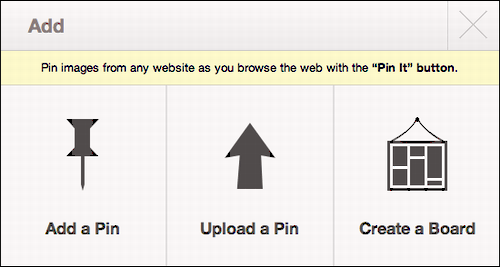
Click on the “Create” button located at the top right corner of the page. From there, select “Pin from Computer.”
Step 4: Upload Your Photo
Choose the photo you want to share and click “Open” to upload it to Pinterest.
Step 5: Add Details to Your Pin
Enter a title for your photo in the “Description” field. You can also add a link, tags, or hashtags to make it more discoverable.
Step 6: Choose a Board
Select the board where you want to save your photo. If you don’t have an existing board, create a new one by clicking on the “Create Board” button.
Sharing Photos on Pinterest From Your Mobile Device
To share a photo on Pinterest from your mobile device (smartphone or tablet), follow these easy steps:
Step 1: Download And Install The Pinterest App
Download and install the Pinterest app on your mobile device. You can find it in the Apple App Store (for iOS devices) or Google Play Store (for Android devices).
Step 2: Log In to Your Account
Log in to your Pinterest account using your email address, Facebook, or Google account.
Step 3: Create a New Pin
Tap on the “+” icon located at the bottom right corner of the screen. Select “Pin” from there.
Step 4: Upload Your Photo
Choose the photo you want to share and select it from your device’s gallery.
Step 5: Add Details to Your Pin
Enter a title for your photo, add a description, and include any relevant tags or hashtags.
Step 6: Choose a Board
Select the board where you want to save your photo. If you don’t have an existing board, create a new one by tapping on the “Create Board” button.
Tips And Variations
- To delete a photo from Pinterest, access your profile, select the photo you want to remove, and click on the three dots at the top right corner of the pin.
- To modify a photo’s details, tap on the three dots at the top right corner of the pin and select “Edit Pin.”
- To share a photo with others, add them as collaborators by tapping on the “People” icon and selecting their usernames.
Common Issues And Solutions
- Problem: I’m having trouble uploading photos from my computer.
- Solution: Check your internet connection and ensure that you’re using a supported file format (e.G., JPEG or PNG).
- Problem: I can’t find the “+” button to create a new pin on my mobile device.
- Solution: Make sure you’ve logged in correctly, and try restarting the app.
Conclusion
Sharing photos on Pinterest is easier than ever! With these step-by-step guides for both computer and mobile devices, you’ll be able to showcase your favorite images and connect with others who share similar interests. Don’t hesitate to reach out if you have any further questions or need assistance with any issues you may encounter.
Frequently Asked Questions (FAQs)
- Q: What are the requirements for uploading photos on Pinterest?
- A: You’ll need a valid email address, password, and access to a computer or mobile device.
- Q: Can I share photos from my social media profiles directly on Pinterest?
- A: Yes, you can use your Facebook or Google account to log in and share photos from those platforms.
- Q: How do I add multiple photos to a single pin on Pinterest?
- A: You can upload multiple photos by selecting them from your device’s gallery and adding them to the same pin.
- Q: Can I delete a photo that has already been shared on Pinterest?
- A: Yes, you can remove a photo by accessing your profile, selecting the photo, and clicking on the three dots at the top right corner of the pin.
Hope you have got all the answers to your question


