
Burdening Video on Facebook: A Step-by-step Guide
As a content writer, I’m excited to provide you with a comprehensive guide on how to burden video on Facebook using various devices, including smartphones, tablets, PCs, and YouTube.
Introduction
In today’s digital age, sharing videos on social media platforms has become increasingly popular. Facebook, one of the most widely used social media platforms, allows users to share videos in different formats, including posts, stories, and reels. However, navigating through the platform can be overwhelming, especially for those who are new to it. In this article, we’ll guide you on how to burden video on Facebook using various devices.
Formats of Video That Can Be Burdened
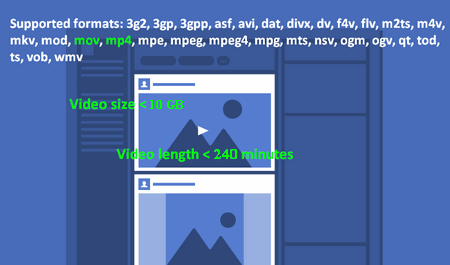
Before we dive into the practical part, let’s first discuss the formats of video that can be burdened on Facebook. The following formats are supported:
- MP4
- MOV
- 3G2 (Video for mobile)
- 3GP (video for mobile)
- 3GPP (video for mobile)
- ASF (Windows Media Video)
- ANCESTORS (video ANCESTORS)
- DAT (MPEG video)
- DIVX (DIVX video)
- DV (DV video)
- F4V (Flash video)
- FLY (Flash video)
- GIF (Graphics Interchange Format)
- M2TS (AVCHD video)
- M4V (MPEG-4 video)
- MKV (Matroska video)
- MOD (MOD video)
- MOV (QuickTime movie)
- MP4 (MPEG-4 video)
- MPE (MPEG video)
- MPEG (MPEG video)
- MPEG-4 (MPEG-4 video)
- MPG (MPEG video)
- MTS (AVCHD video)
- NSV (Nullsoft video)
- OGM (Ogg Media video)
- OGV (Ogg Video video)
- QT (QuickTime video)
- TOD (TOD video)
- TS (MPEG Transport Stream video)
- VOB (DVD video)
- WMV (Windows Media Video)
Limits of Duration And Weight
The maximum duration of a video that can be burdened on Facebook is 240 minutes, while the maximum weight is 10 GB. It’s essential to note that larger videos may take longer to upload.
Burdening Video on Facebook Using Smartphones
To burden a video on Facebook using your smartphone:
- Open the official Facebook app.
- Tap on the “What’s on your mind?” section and select “Photo/Video.”
- Choose the video you want to share or record a new one by tapping on the camera icon.
- Add a title, description, and tags as desired.
- Select the privacy settings for your video.
- Tap “Post” to publish your video.
Burdening Video on Facebook Using Tablets
The process of burdening a video on Facebook using a tablet is similar to that of smartphones:
- Open the official Facebook app.
- Tap on the “What’s on your mind?” section and select “Photo/Video.”
- Choose the video you want to share or record a new one by tapping on the camera icon.
- Add a title, description, and tags as desired.
- Select the privacy settings for your video.
- Tap “Post” to publish your video.
Burdening Video on Facebook Using Pcs
To burden a video on Facebook using a PC:
- Open the Facebook website.
- Log in to your account.
- Click on the “What’s on your mind?” section and select “Photo/Video.”
- Choose the video you want to share or upload a new one by clicking on the “Upload” button.
- Add a title, description, and tags as desired.
- Select the privacy settings for your video.
- Click “Post” to publish your video.
Burdening Video on Facebook Using Youtube
Unfortunately, it’s not possible to burden a video directly from YouTube onto Facebook. However, you can share a YouTube video on Facebook by copying and pasting the link into the Facebook app or website.
Conclusion
In conclusion, burdening video on Facebook is a straightforward process that can be completed using various devices. By understanding the formats of video that can be burdened and the limits of duration and weight, you’ll be able to share your videos effectively with your audience.
Frequently Asked Questions (FAQs)
Here are some frequently asked questions related to burdening video on Facebook:
-
What is The Maximum Duration of a Video That Can be Burdened on Facebook?
The maximum duration of a video that can be burdened on Facebook is 240 minutes.
-
What is The Maximum Weight of a Video That Can be Burdened on Facebook?
The maximum weight of a video that can be burdened on Facebook is 10 GB.
-
Can I Share a Youtube Video Directly Onto Facebook?
No, it’s not possible to share a YouTube video directly onto Facebook. However, you can copy and paste the link into the Facebook app or website to share it with your audience.
-
How do I Add a Title And Description to my Video on Facebook?
To add a title and description to your video on Facebook, simply click on the “What’s on your mind?” section and select “Photo/Video.” Then, choose the video you want to share or upload a new one by clicking on the “Upload” button. Next, add a title and description as desired.
-
How do I Select The Privacy Settings For my Video on Facebook?
To select the privacy settings for your video on Facebook, simply click on the “What’s on your mind?” section and select “Photo/Video.” Then, choose the video you want to share or upload a new one by clicking on the “Upload” button. Next, click on the “Privacy” dropdown menu and select the desired setting.
-
How do I Publish my Video on Facebook?
To publish your video on Facebook, simply click on the “Post” button after selecting the privacy settings for your video.


