
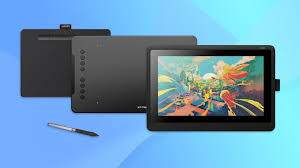
The Ultimate Guide to Using a Graphics Tablet
Are you an artist, designer, or simply someone who loves to create digital content? Look no further! In this comprehensive guide, we will explore the world of graphics tablets and show you how to use them like a pro.
What is a Graphics Tablet?
A graphics tablet, also known as a digitizer or drawing tablet, is an input device that allows you to draw, write, and edit digital content using a stylus or pen. It’s essentially a digital equivalent of a traditional sketchbook, but with the added benefit of being able to save and share your creations digitally.
Why Use a Graphics Tablet?
There are many reasons why artists, designers, and creatives love using graphics tablets. Here are just a few:
- Precision And Control: A graphics tablet allows you to create digital content with precision and control, making it ideal for fine details and intricate designs.
- Convenience: With a graphics tablet, you can work on your creations anywhere, at any time, without the need for paper or ink.
- Collaboration: Graphics tablets make it easy to collaborate with others in real-time, whether it’s through video conferencing or online sharing.
How to Install a Graphics Tablet
Installing a graphics tablet is relatively straightforward. Here are the steps:
- Connect Your Tablet: Plug in your graphics tablet to your computer using the provided USB cable.
- Download And Install Drivers: Visit the manufacturer’s website to download and install the necessary drivers for your operating system.
- Configure Your Tablet: Launch the software that came with your tablet and configure it according to your preferences.
How to Use a Graphics Tablet
Now that you’ve installed your graphics tablet, let’s talk about how to use it!
- Choose Your Software: Select the digital painting or drawing software of your choice (e.G. Adobe Photoshop, Illustrator, or Sketchbook).
- Configure Your Settings: Adjust the settings in your software to suit your preferences.
- Get Creative!: Start creating using your graphics tablet and stylus.
Using a Graphics Tablet With Popular Software
Here’s how to use a graphics tablet with some popular digital art software:
- Adobe Illustrator: Use the pressure sensitivity feature to control line width and style.
- Photoshop: Utilize the brush engine to create custom brushes and effects.
- Sketchbook: Enjoy the intuitive interface and seamless integration with your graphics tablet.
Using a Graphics Tablet For Writing
Yes, you can even use a graphics tablet for writing! Here’s how:
- Choose a Note-taking App: Select an app that allows handwriting recognition (e.G. OneNote, Evernote).
- Configure Your Settings: Adjust the settings to suit your writing style.
- Get Writing!: Start writing using your graphics tablet and stylus.
Using a Graphics Tablet as a Second Monitor
Did you know that you can use your graphics tablet as a second monitor? Here’s how:
- Connect Your Tablet: Connect your graphics tablet to your computer via HDMI or USB-C.
- Configure Your Settings: Adjust the settings in your operating system to use your tablet as an extended desktop.
Conclusion
In this comprehensive guide, we’ve explored the world of graphics tablets and shown you how to use them like a pro. Whether you’re an artist, designer, or simply someone who loves to create digital content, we hope this guide has been informative and helpful.
Faqs
Here are some frequently asked questions about graphics tablets:
- Q: What is The Difference Between a Graphics Tablet And a Touchscreen?
A: A graphics tablet uses a stylus to capture your input, while a touchscreen responds to finger or stylus gestures. - Q: Can I Use my Graphics Tablet With Multiple Software Programs?
A: Yes! Most graphics tablets are compatible with a wide range of digital art software programs. - Q: How do I Care For my Graphics Tablet?
A: Clean your graphics tablet regularly and avoid exposing it to extreme temperatures or humidity. - Q: Can I Use my Graphics Tablet as a Portable Drawing Tool?
A: Yes! Many graphics tablets come with built-in battery life, making them perfect for on-the-go creativity. - Q: How do I Troubleshoot Issues With my Graphics Tablet?
A: Refer to the user manual or contact the manufacturer’s support team for assistance.
We hope this guide has been helpful in answering your questions about graphics tablets!


