
How to Use Airpods on Android: A Step-by-step Guide
Are you an Android user who borrowed a pair of AirPods from a friend? Do you want to know how to use them with your smartphone or tablet? Look no further! In this article, we’ll guide you through the process of connecting and using AirPods on Android.
Preliminary Information
Before diving into the tutorial, let’s cover some preliminary information. The AirPods were originally designed for Apple devices, but they can also be used with Android smartphones and tablets. However, some features may not be available or may require additional apps to function properly.
Connecting Airpods to an Android Device
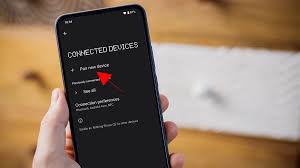
To connect your AirPods to an Android device, follow these steps:
- Enable Bluetooth on Your Device: Go to Settings > Connections > Bluetooth and toggle the switch to ON.
- Select Your Device From The Quick Settings Menu: Long press on the Bluetooth icon in the notification shade to access the list of available devices.
- Connect Airpods to Your Device: Select the name of your AirPods from the list of available devices.
How Airpods Work on an Android Device
Now that you’ve connected your AirPods, let’s explore how they work on an Android device:
- Controlling Volume And Music Playback: You can regulate the volume of your AirPods using the Volume (+) and Volume (-) buttons on your smartphone or tablet.
- Initiating Music Playback And Answering Calls: You can initiate music playback (using the default media player or any other app you prefer) and answer calls by tapping on the AirPods or pressing the external button (on Pro models).
- Using Google Assistant: Say “Ok Google” to activate the voice assistant.
Apps For Using Airpods on an Android Device
Some advanced features, like charging level monitoring and automatic pause during music playback, require additional apps. Here are some popular options:
- Airbattery: This app allows you to monitor your AirPods’ charge levels and set up automatic pause when they’re removed.
- Assistant Trigger: This app lets you visualize a charge level indicator and perform double-tap gestures to activate the Google Assistant, pause music playback, or take phone calls.
- Materialpods: This free app provides widget, notification, and pop-up window functionality for monitoring your AirPods’ charge levels.
- Airdroid: This app offers a popup, widget, and notification feature for visualizing your AirPods’ charge levels.
Renaming Airpods on an Android Device
If you want to rename your AirPods on an Android device:
- Go to Settings > Connections > Bluetooth.
- Tap on the icon next to the name of your AirPods.
- Select “Rename” and enter a new name.
Disconnecting Airpods From an Android Device
To disconnect your AirPods from an Android device:
- Go to Settings > Connections > Bluetooth.
- Long press on the icon next to the name of your AirPods.
- Select “Forget” or “Disconnect.”
Conclusion
Using AirPods with an Android device is a straightforward process that requires some basic setup and understanding of the available features. By following this guide, you’ll be able to connect and use your AirPods seamlessly on your smartphone or tablet.
Faqs
- Can I Use my Airpods With Any Android Device?: Yes, but some features may not be available or require additional apps.
- How do I Control The Volume of my Airpods?: You can regulate the volume using the Volume (+) and Volume (-) buttons on your smartphone or tablet.
- Can I Initiate Music Playback And Answer Calls With my Airpods?: Yes, by tapping on the AirPods or pressing the external button (on Pro models).
- How do I Use The Google Assistant With my Airpods?: Say “Ok Google” to activate the voice assistant.
- What Apps Can I Use to Access Advanced Features on my Airpods?: Some popular options include AirBattery, Assistant Trigger, MaterialPods, and AirDroid.
- How do I Rename my Airpods on an Android Device?: Go to Settings > Connections > Bluetooth, tap on the icon next to your AirPods’ name, and select “Rename”.
- Can I Disconnect my Airpods From an Android Device?: Yes, by going to Settings > Connections > Bluetooth and selecting “Forget” or “Disconnect”.
We hope this guide has been helpful in understanding how to use AirPods on Android devices!


