
Using Bluetooth on Android: A Comprehensive Guide
Are you looking to connect your device to other devices wirelessly? Look no further than the Bluetooth feature on your Android smartphone or tablet! In this article, we will guide you through the process of using Bluetooth on Android, from activating the feature to connecting and disconnecting devices.
What is Bluetooth?
Bluetooth is a wireless personal area network (PAN) technology that allows devices to communicate with each other over short distances. It’s commonly used for transferring files, streaming music, and making hands-free phone calls.
Activating Bluetooth on Android
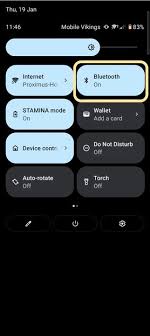
To use Bluetooth on your Android device, you’ll need to activate the feature first. Here’s how:
- Go to your device’s settings app.
- Scroll down and select “Bluetooth.”
- If Bluetooth is not already enabled, toggle the switch to turn it on.
- Wait for your device to detect nearby Bluetooth devices.
Pairing Devices
Once you’ve activated Bluetooth, you can pair your device with other Bluetooth-enabled devices, such as headphones, speakers, or even a keyboard and mouse.
- Open the Settings app on your Android device.
- Go to “Bluetooth” and select the device you want to pair.
- If prompted, enter the code displayed on the device’s screen.
- Wait for the pairing process to complete.
Disconnecting Devices
To disconnect a paired device from your Android device:
- Open the Settings app.
- Go to “Bluetooth.”
- Select the device you want to disconnect.
- Tap the “Disconnect” button.
Using Bluetooth For File Transfer
You can also use Bluetooth to transfer files between devices. Here’s how:
- Open the file you want to transfer on your Android device.
- Select the “Share” option and choose “Bluetooth.”
- Select the device you want to send the file to.
- Wait for the file to be transferred.
Using Bluetooth With Other Devices
Bluetooth is not just limited to Android devices. You can also use it to connect other devices, such as:
-
Windows Pcs: To connect a Windows PC to an Android device via Bluetooth:
- Open the Settings app on your Android device.
- Go to “Bluetooth” and select the PC.
- Enter the code displayed on the PC’s screen.
- Wait for the pairing process to complete.
-
Macos Devices: To connect a macOS device to an Android device via Bluetooth:
- Open the Settings app on your Android device.
- Go to “Bluetooth” and select the Mac.
- Enter the code displayed on the Mac’s screen.
- Wait for the pairing process to complete.
Can I Use Bluetooth With Iphone?
Unfortunately, no. Apple does not allow Bluetooth file transfers between iOS devices and Android devices due to security concerns.
However, you can use other methods to transfer files between an iPhone and an Android device, such as using a cloud service or messaging app.
Conclusion
In conclusion, Bluetooth is a useful feature on Android devices that allows for wireless communication with other devices. By following the steps outlined in this guide, you should be able to activate Bluetooth, pair devices, disconnect devices, and transfer files between devices.
Frequently Asked Questions (FAQs)
- Q: How do I Activate Bluetooth on my Android Device?
A: Go to Settings > Bluetooth and toggle the switch to turn it on. - Q: How do I Pair a Device With my Android Device Via Bluetooth?
A: Open the Settings app, go to “Bluetooth,” select the device you want to pair, and follow the prompts. - Q: Can I Use Bluetooth With Other Devices, Such as Windows Pcs or Macos Devices?
A: Yes, you can use Bluetooth to connect these devices to your Android device. - Q: Can I Transfer Files Between an Iphone And an Android Device Via Bluetooth?
A: Unfortunately, no. Apple does not allow Bluetooth file transfers between iOS devices and Android devices due to security concerns.
Using Bluetooth on Android: A Comprehensive Guide
I. Activating Bluetooth on Android
- Activate the feature by going to Settings > Bluetooth.
- Toggle the switch to turn it on.
- Wait for your device to detect nearby Bluetooth devices.
Ii. Pairing Devices
- Open the Settings app and go to “Bluetooth.”
- Select the device you want to pair.
- If prompted, enter the code displayed on the device’s screen.
- Wait for the pairing process to complete.
Iii. Disconnecting Devices
- Open the Settings app and go to “Bluetooth.”
- Select the device you want to disconnect.
- Tap the “Disconnect” button.
Iv. Using Bluetooth For File Transfer
- Open the file you want to transfer on your Android device.
- Select the “Share” option and choose “Bluetooth.”
- Select the device you want to send the file to.
- Wait for the file to be transferred.
V. Using Bluetooth With Other Devices
-
Windows Pcs: To connect a Windows PC to an Android device via Bluetooth:
- Open the Settings app on your Android device.
- Go to “Bluetooth” and select the PC.
- Enter the code displayed on the PC’s screen.
- Wait for the pairing process to complete.
-
Macos Devices: To connect a macOS device to an Android device via Bluetooth:
- Open the Settings app on your Android device.
- Go to “Bluetooth” and select the Mac.
- Enter the code displayed on the Mac’s screen.
- Wait for the pairing process to complete.
Vi. Can I Use Bluetooth With Iphone?
Unfortunately, no. Apple does not allow Bluetooth file transfers between iOS devices and Android devices due to security concerns.
However, you can use other methods to transfer files between an iPhone and an Android device, such as using a cloud service or messaging app.
Conclusion
In conclusion, Bluetooth is a useful feature on Android devices that allows for wireless communication with other devices. By following the steps outlined in this guide, you should be able to activate Bluetooth, pair devices, disconnect devices, and transfer files between devices.
Frequently Asked Questions (FAQs)
- Q: How do I Activate Bluetooth on my Android Device?
A: Go to Settings > Bluetooth and toggle the switch to turn it on. - Q: How do I Pair a Device With my Android Device Via Bluetooth?
A: Open the Settings app, go to “Bluetooth,” select the device you want to pair, and follow the prompts. - Q: Can I Use Bluetooth With Other Devices, Such as Windows Pcs or Macos Devices?
A: Yes, you can use Bluetooth to connect these devices to your Android device. - Q: Can I Transfer Files Between an Iphone And an Android Device Via Bluetooth?
A: Unfortunately, no. Apple does not allow Bluetooth file transfers between iOS devices and Android devices due to security concerns.
Using Bluetooth on Android: A Comprehensive Guide
This guide has provided a comprehensive overview of using Bluetooth on Android devices. By following the steps outlined in this guide, you should be able to activate Bluetooth, pair devices, disconnect devices, and transfer files between devices.
If you have any further questions or need additional guidance, feel free to ask!


