
Using Google Forms: A Comprehensive Guide
As a digital tool, Google Forms has revolutionized the way we create and manage online forms, questionnaires, quizzes, and surveys. With its user-friendly interface and extensive features, it’s no wonder that Google Forms has become an essential tool for individuals and businesses alike.
In this article, we’ll delve into the world of Google Forms and explore how to use it effectively. Whether you’re a student, teacher, entrepreneur, or simply someone who wants to create online forms, this guide is perfect for you.
What is Google Forms?
Google Forms is a free online application developed by the search engine giant, Google. It’s designed to help users create, share, and analyze online forms, questionnaires, quizzes, and surveys. With Google Forms, you can easily collect data, feedback, or responses from individuals using a simple and intuitive interface.
Benefits of Using Google Forms
Using Google Forms offers numerous benefits, including:
- Easy Creation: Create online forms, questionnaires, quizzes, and surveys quickly and easily.
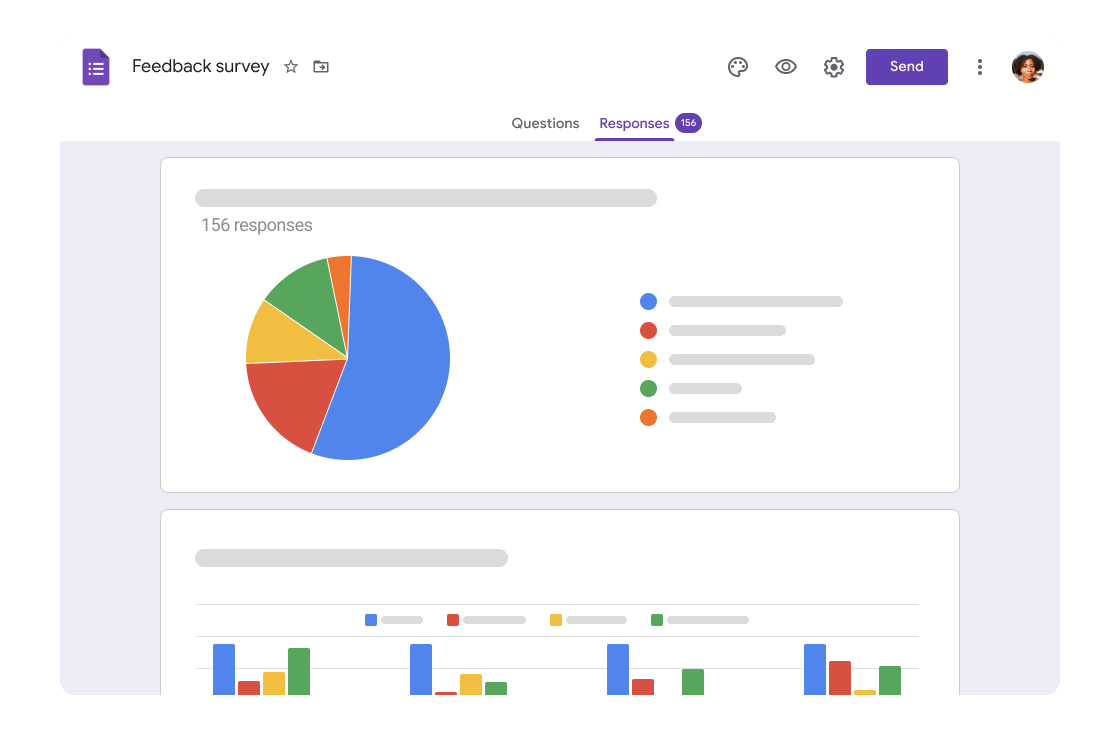
- Real-time Analysis: Analyze and track responses in real-time, making it easier to make informed decisions.
- Collaboration: Collaborate with others on form creation, sharing, and analysis.
- Accessibility: Accessible from anywhere, using any device, at any time.
Getting Started With Google Forms
To get started with Google Forms, follow these steps:
- Access The Google Forms Website: Go to the Google Forms website (www.Google.Com/forms) and sign in with your Google account.
- Create a New Form: Click on the “+” button to create a new form.
- Add Questions: Add questions, options, and settings as needed.
- Share The Form: Share the form with others via email, link, or embed it on a website.
Using Google Forms For Questionnaires
Google Forms is particularly useful for creating questionnaires. Here’s how to use it:
- Create a New Form: Create a new form and add questions as needed.
- Set Options: Set options for each question, such as multiple choice or text entry.
- Share The Form: Share the form with others via email, link, or embed it on a website.
Using Google Forms in Google Classroom
Google Forms can also be used within Google Classroom to create quizzes and questionnaires for students. Here’s how:
- Access Google Classroom: Access Google Classroom and sign in with your Google account.
- Create a New Form: Create a new form and add questions as needed.
- Assign The Form: Assign the form to students, setting deadlines and scores as necessary.
Tips And Tricks For Using Google Forms
Here are some tips and tricks for using Google Forms effectively:
- Use Clear And Concise Language: Use clear and concise language when creating questions and settings.
- Test Your Form: Test your form before sharing it with others to ensure it’s working correctly.
- Analyze Responses: Analyze responses in real-time to make informed decisions.
Conclusion
Google Forms is a powerful tool for creating, managing, and analyzing online forms, questionnaires, quizzes, and surveys. With its user-friendly interface and extensive features, it’s perfect for individuals and businesses alike. By following the steps outlined in this guide, you’ll be able to use Google Forms effectively and make the most of its benefits.
Frequently Asked Questions
- What is Google Forms?
Google Forms is a free online application developed by Google that allows users to create, share, and analyze online forms, questionnaires, quizzes, and surveys. - How do I Access Google Forms?
Access Google Forms by visiting the website (www.Google.Com/forms) and signing in with your Google account. - Can I Use Google Forms on Mobile Devices?
Yes, you can use Google Forms on mobile devices using any browser. - How do I Share a Form?
Share a form via email, link, or embed it on a website by clicking on the “Share” button in the top-right corner of the screen. - Can I Collaborate With Others on Form Creation?
Yes, you can collaborate with others on form creation by sharing the form and adding them as collaborators. - How do I Analyze Responses?
Analyze responses in real-time by clicking on the “Responses” tab in the top-right corner of the screen. - Can I Use Google Forms For Quizzes And Questionnaires in Google Classroom?
Yes, you can use Google Forms to create quizzes and questionnaires within Google Classroom.
I hope this article has provided you with a comprehensive guide to using Google Forms. If you have any further questions or need help with anything else, don’t hesitate to ask!


