
How to Use Google Maps Offline: A Step-by-step Guide
Are you planning a trip abroad and want to have the maps of the city or country you’re visiting at your fingertips without incurring extra data charges? One simple solution is to download the maps using Google Maps’ offline feature. In this article, we’ll show you how to do it on both Android and iOS devices.
Why Use Google Maps Offline?
Using Google Maps offline is a great way to avoid expensive data roaming charges when traveling abroad. By downloading the maps before your trip, you can navigate easily without relying on Wi-Fi hotspots or cellular networks.
How to Download Google Maps Offline on Android
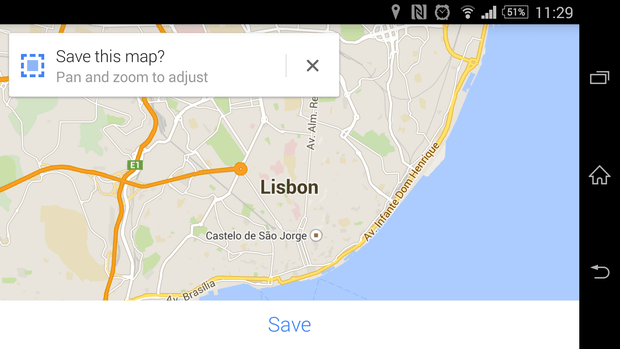
To download Google Maps offline on an Android device:
- Open the Google Maps app and tap on the menu icon (three horizontal lines) in the top-left corner.
- Tap on “Offline maps” and then select the area you want to download.
- Choose the zoom level and the type of map you want to download (e.G., Streets, satellite, or terrain).
- Tap on “Download” to start the download process.
How to Download Google Maps Offline on Ios
To download Google Maps offline on an iOS device:
- Open the Google Maps app and tap on the menu icon (three horizontal lines) in the top-left corner.
- Tap on “Offline maps” and then select the area you want to download.
- Choose the zoom level and the type of map you want to download (e.G., Streets, satellite, or terrain).
- Tap on “Download” to start the download process.
How to Use Google Maps Offline
Once you’ve downloaded the maps, you can use them offline by:
- Opening the Google Maps app.
- Tapping on the menu icon and selecting “Offline maps”.
- Choosing the area you want to navigate in.
- Following the directions provided by Google Maps.
Note: When using Google Maps offline, you won’t have access to real-time traffic information or alternative routes. However, you can still get turn-by-turn directions and view the map offline.
Tips And Tricks
- To update your offline maps automatically when connected to Wi-Fi, go to Settings > Google Maps > Offline maps and toggle on “Automatic updates”.
- To avoid downloading unnecessary data, make sure to select only the areas you need to navigate in.
- If you’re running low on storage space, consider deleting unused offline maps.
Conclusion
Using Google Maps offline is a simple and effective way to save money on data roaming charges while traveling abroad. By following the steps outlined in this guide, you can download the maps of your destination and navigate easily without relying on Wi-Fi hotspots or cellular networks.
Faqs
- Can I Use Google Maps Offline on Pc?
No, Google Maps does not have an official offline feature for PC browsers. However, you can use third-party programs to achieve similar results. - How do I Update my Offline Maps Automatically?
To update your offline maps automatically when connected to Wi-Fi, go to Settings > Google Maps > Offline maps and toggle on “Automatic updates”. - Can I Download Multiple Areas at Once?
Yes, you can download multiple areas at once by selecting them in the Offline maps section. - How Much Storage Space do Offline Maps Take Up?
Offline maps typically take up a small amount of storage space, usually around 10-20 MB per area. - Can I Use Google Maps Offline on Public Transportation?
No, Google Maps offline only provides turn-by-turn directions for driving, walking, or biking. Public transportation information is not available in offline mode. - How do I Delete Unused Offline Maps?
To delete unused offline maps, go to Settings > Google Maps > Offline maps and select the area you want to remove. - Can I Use Google Maps Offline on a Tablet?
Yes, you can use Google Maps offline on a tablet by following the same steps as on an Android device. - How do I Prevent Google Maps From Automatically Downloading New Maps?
To prevent Google Maps from automatically downloading new maps, go to Settings > Google Maps > Offline maps and toggle off “Automatic updates”.


