
How to Use Google Maps: A Comprehensive Guide
Are you tired of getting lost or wasting time navigating through unfamiliar areas? Do you want to know how to use Google Maps like a pro? Look no further! In this article, we will guide you through the ins and outs of using Google Maps on your smartphone, tablet, PC, and even in offline mode.
The Power of Google Maps
Google Maps is more than just a navigation app. It’s a powerful tool that provides you with real-time traffic information, Street View, reviews, and much more. With its user-friendly interface and extensive database, Google Maps has become an essential part of our daily lives.
Using Google Maps on Your Smartphone
To start using Google Maps on your smartphone, follow these steps:
- Install The App: Download and install the Google Maps app from the Play Store or App Store.
- Launch The App: Open the app and sign in with your Google account.
- Search For a Location: Use the search bar to find a location, address, or business.
- Get Directions: Tap on the “Get Directions” button to start navigating.
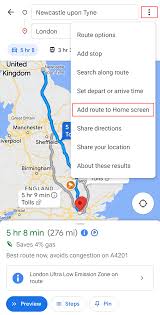
- Personalize Your Navigation: Customize your navigation by adding stages, choosing a mode of transportation, and setting an arrival time.
Using Google Maps Offline
Did you know that you can use Google Maps offline? Here’s how:
- Download a Map: Open the Google Maps app and navigate to the location you want to download.
- Tap on The Menu Icon: Tap on the menu icon (⋮) and select “Maps offline”.
- Select an Area: Choose the area you want to download and tap on “Save”.
- Use Offline Mode: Use the downloaded map by tapping on the “Offline maps” tab.
Using Google Maps on Android Car/carplay
If you have an Android car or CarPlay, you can use Google Maps in your vehicle. Here’s how:
- Connect Your Smartphone: Connect your smartphone to your car’s infotainment system.
- Launch Google Maps: Open the Google Maps app and sign in with your Google account.
- Get Directions: Use the search bar to find a location and get directions.
Using Google Maps on PC
While you can’t use Google Maps for navigation on PC, you can still explore the map, research places, and calculate routes. Here’s how:
- Visit The Official Website: Visit the official Google Maps website.
- Search For a Location: Use the search bar to find a location or business.
- Get Directions: Click on the “Get directions” button to start navigating.
Conclusion
Google Maps is an incredibly powerful tool that can help you navigate unfamiliar areas, avoid traffic jams, and even explore new places. By following these steps and tips, you’ll become a pro at using Google Maps on your smartphone, tablet, PC, and even in offline mode.
Frequently Asked Questions (FAQs)
- Q: How do I Use Google Maps Without Internet?
A: You can use Google Maps offline by downloading a map of the area you want to navigate. - Q: Can I Use Google Maps on my Pc?
A: While you can’t use Google Maps for navigation on PC, you can still explore the map and research places. - Q: How do I Get Directions Using Google Maps?
A: Simply tap on the “Get Directions” button or click on it if you’re using the app on your smartphone or PC. - Q: Can I Customize my Navigation Using Google Maps?
A: Yes, you can add stages, choose a mode of transportation, and set an arrival time to personalize your navigation. - Q: How do I Use Google Maps Offline?
A: Download a map of the area you want to navigate and tap on the “Offline maps” tab to start using it. - Q: Can I Use Google Maps in my Car?
A: Yes, if you have an Android car or CarPlay, you can use Google Maps in your vehicle. - Q: How do I Forward Directions From PC to my Smartphone?
A: Click on the “Forward indications” button and select your phone to send the directions.
The Final Word
Google Maps is a game-changer when it comes to navigation and exploration. By following these steps and tips, you’ll become a master navigator and never get lost again!


