
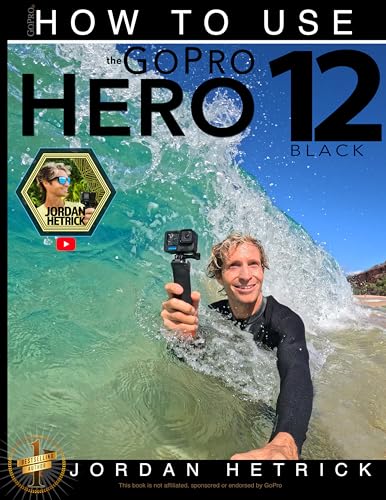
The Ultimate Guide to Using a Gopro
Are you ready to unleash your inner adventurer? Do you want to capture life’s most epic moments with stunning clarity and precision? Look no further than the GoPro, the ultimate action camera that has revolutionized the way we experience and share our adventures.
In this comprehensive guide, we’ll take you on a journey through the world of GoPros, exploring its features, functions, and uses. Whether you’re a seasoned pro or just starting out, this article will provide you with the knowledge and skills to get the most out of your GoPro.
What is a Gopro?
A GoPro is a small, rugged, and waterproof camera that can be attached to various objects, such as helmets, bikes, cars, or even surfboards. Its compact size and durability make it an ideal choice for capturing high-quality footage in extreme conditions.
Choosing The Right Gopro Model
With several models available, selecting the right GoPro can be a daunting task. Here’s a brief overview of the most popular models:
- Gopro Hero8: The latest flagship model, offering stunning 4K resolution and advanced features like HyperSmooth stabilization.
- Gopro Hero9: A close cousin to the Hero8, featuring similar specs but with some minor differences.
- Gopro Hero7: A solid mid-range option, suitable for those who want a reliable GoPro without breaking the bank.
How to Use a Gopro
Using a GoPro is surprisingly easy. Here are the basic steps:
- Attach The Gopro: Secure the camera to your desired object using the provided straps or adhesives.
- Power on And Set up: Turn on the camera, set the resolution and frame rate, and adjust any other settings as needed.
- Capture Footage: Press the record button to start capturing video or photos.
- View And Edit Footage: Use the GoPro’s built-in app or a computer software to view, edit, and share your videos.
Advanced Features
Beyond the basics, there are several advanced features that can enhance your GoPro experience:
- Night Mode: Capture stunning nighttime footage with reduced light sensitivity.
- Time-lapse: Set up the camera to capture time-lapses of landscapes or cityscapes.
- Wdr (Wide Dynamic Range): Take advantage of improved exposure control for more detailed images.
Alternative Uses
The GoPro is not just limited to capturing extreme sports and activities. Here are some alternative uses:
- Webcam: Turn your GoPro into a high-quality webcam using the official app.
- Security Camera: Use the GoPro as a discreet security camera, monitoring your home or office.
- Dash Cam: Attach the GoPro to your car windshield for hands-free driving footage.
Tips And Tricks
To get the most out of your GoPro, keep these tips in mind:
- Experiment With Settings: Adjust resolution, frame rate, and other parameters to optimize your capture.
- Use a Tripod or Stabilizer: Improve stability and reduce camera shake for smoother footage.
- Keep it Clean: Regularly clean the lens and housing to prevent dust and debris buildup.
Conclusion
In conclusion, the GoPro is an incredibly versatile and powerful tool that can help you capture life’s most epic moments. Whether you’re a seasoned pro or just starting out, this guide has provided you with the knowledge and skills to get the most out of your GoPro.
So, what are you waiting for? Grab your GoPro and start capturing life’s adventures!
Frequently Asked Questions (FAQs)
- What is The Best Gopro Model For Beginners?
The GoPro Hero7 is a great starting point for beginners. - How do I Attach The Gopro to my Car Windshield?
Use a suction cup or adhesive mount specifically designed for dash cams. - Can I Use The Gopro as a Security Camera?
Yes, you can use the GoPro as a discreet security camera. - What is Wdr (Wide Dynamic Range) And How Does it Help Me?
WDR improves exposure control, resulting in more detailed images. - How do I Edit my Gopro Footage Using a Computer Software?
Use Adobe Premiere Pro or Final Cut Pro X to edit your GoPro videos. - Can I Use The Gopro as a Webcam For Online Meetings?
Yes, you can turn your GoPro into a high-quality webcam. - What is Hypersmooth Stabilization And How Does it Help Me?
HyperSmooth stabilization provides smoother footage by reducing camera shake. - How do I Keep my Gopro Clean And Dust-free?
Regularly clean the lens and housing with a soft cloth and mild soap.
Recommended Accessories
- Gopro Adhesive Mounts: Attach the GoPro to your desired object without worrying about damage.
- Gopro Tripod: Improve stability and reduce camera shake for smoother footage.
- Gopro Suction Cup: Securely attach the GoPro to smooth surfaces like car windshields or mirrors.
Where to Buy
Visit the official GoPro website, Amazon, or authorized retailers to purchase your GoPro.


