
How to Use Icloud: A Comprehensive Guide
Are you wondering how to use iCloud? You’re not alone! With the rise of cloud storage, it’s essential to understand how to utilize this service effectively. In this article, we’ll delve into the world of iCloud and explore its features, benefits, and uses.
What is Icloud?
ICloud is a cloud-based storage system developed by Apple that allows users to store and access their data from anywhere, on any device. It’s an integrated service that provides a seamless experience across all your Apple devices, including iPhone, iPad, Mac, and Windows PCs.
Why Use Icloud?
Using iCloud offers numerous benefits, including:
- Convenience: Access your data from anywhere, at any time, with an internet connection.
- Security: Your data is encrypted and stored securely on Apple’s servers.
- Synchronization: Keep all your devices in sync, ensuring that you have the same information across multiple platforms.
How to Set Up Icloud
To use iCloud, you need to set it up on your device. Here’s a step-by-step guide:
- Create an Apple ID: If you don’t already have one, create an Apple ID account.
- Sign in to Icloud: Open the Settings app on your iPhone or iPad and sign in with your Apple ID.
- Enable Icloud: Switch on iCloud by tapping the toggle button next to “iCloud.”
Using Icloud on Iphone And Ipad
To use iCloud on your iPhone or iPad:
- Open The Settings App: Tap the gear icon to access settings.
- Tap on Your Name: Select your Apple ID from the list of options.
- Select Icloud: Choose “iCloud” from the menu.
- View Your Icloud Data: Browse through your stored files, photos, and other data.
Using Icloud on Mac
To use iCloud on your Mac:
- Open System Preferences: Click on the Apple logo in the top-left corner and select “System Preferences.”
- Select Icloud: Choose “iCloud” from the list of options.
- Configure Icloud Settings: Set up your iCloud account, including choosing which apps to sync.
Using Icloud on Windows
To use iCloud on a Windows PC:
- Download And Install The Icloud App: Visit the Microsoft Store or Apple’s website to download the iCloud app.
- Sign in With Your Apple ID: Enter your credentials to access your iCloud data.
- Configure Icloud Settings: Set up your iCloud account, including choosing which apps to sync.
Icloud Drive: A Cloud-based Storage Service
ICloud Drive is a cloud-based storage service that allows you to store and access your files from anywhere. Here’s how to use it:
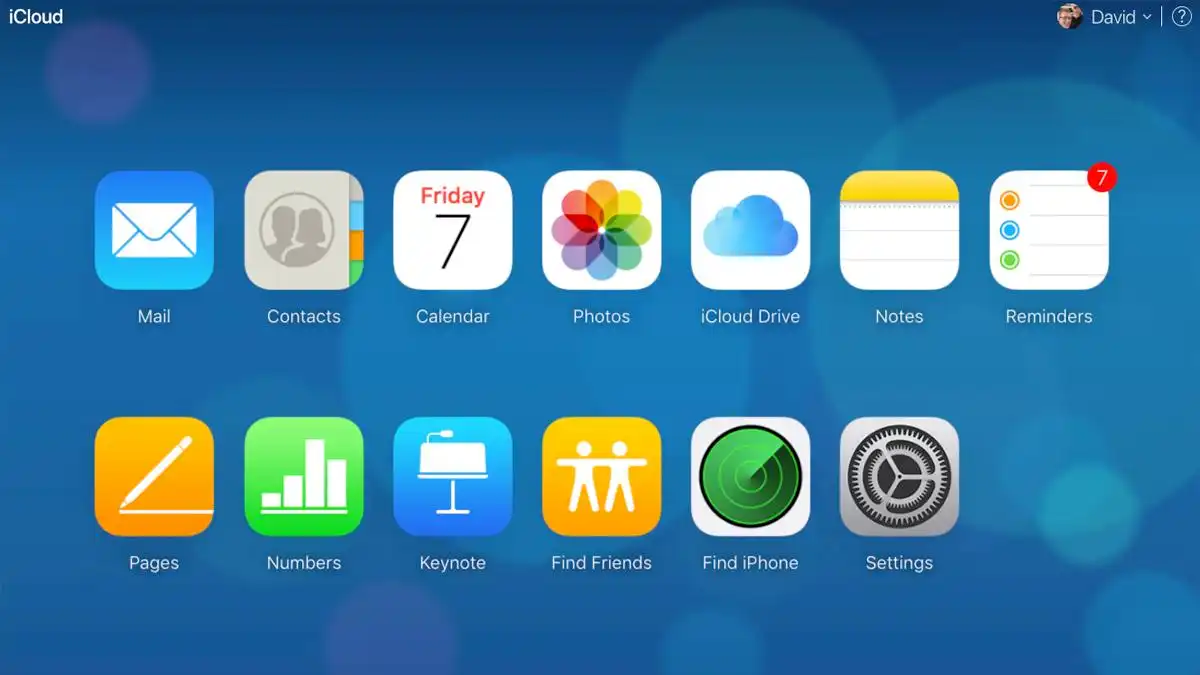
- Open The Icloud Website: Sign in with your Apple ID on icloud.Com.
- Access Your Icloud Drive Folder: Click on “Drive” to view your stored files.
Icloud Photo: A Cloud-based Photo Storage Service
ICloud Photo is a cloud-based storage service for photos and videos. Here’s how to use it:
- Open The Photos App: Select the Photos icon to access your photo library.
- Access Your Icloud Photo Library: Choose “iCloud Photo” from the menu.
Benefits of Using Icloud Drive
Using iCloud Drive offers numerous benefits, including:
- Cloud-based Storage: Store and access your files from anywhere.
- Collaboration: Share files with others in real-time.
- Backup: Keep a backup of your important documents and photos.
How to Upgrade or Downgrade Your Icloud Storage Plan
To upgrade or downgrade your iCloud storage plan:
- Visit The Icloud Website: Sign in with your Apple ID on icloud.Com.
- Access Your Account Settings: Click on “Account Settings.”
- Choose a New Storage Plan: Select a new storage plan that suits your needs.
Icloud Pricing
ICloud pricing plans include:
- 5 GB of Free Storage: Get started with 5 GB of cloud-based storage for free.
- 50 Gb, 200 Gb, or 2 TB of Paid Storage: Upgrade to a paid plan for expanded storage capacity.
Conclusion
Using iCloud is an excellent way to stay organized and access your data from anywhere. With this comprehensive guide, you’ve learned how to set up and use iCloud on various devices, including iPhone, iPad, Mac, and Windows PCs. Take advantage of the benefits offered by iCloud Drive and iCloud Photo, and upgrade or downgrade your storage plan as needed.
Frequently Asked Questions (FAQs)
- Q: What is Icloud?
A: ICloud is a cloud-based storage system developed by Apple that allows users to store and access their data from anywhere. - Q: How do I Set up Icloud on my Device?
A: To set up iCloud, create an Apple ID account, sign in with your Apple ID on the Settings app (iPhone/iPad) or System Preferences (Mac), and enable iCloud. - Q: Can I Use Icloud on Windows?
A: Yes, you can download and install the iCloud app from the Microsoft Store or Apple’s website to access your iCloud data on a Windows PC. - Q: What is Icloud Drive?
A: ICloud Drive is a cloud-based storage service that allows users to store and access their files from anywhere. - Q: How do I Upgrade or Downgrade my Icloud Storage Plan?
A: Visit the iCloud website, sign in with your Apple ID, access your account settings, and choose a new storage plan that suits your needs. - Q: What Are The Benefits of Using Icloud Drive?
A: Using iCloud Drive offers cloud-based storage, collaboration, backup, and more. - Q: Can I Use Icloud For Photos And Videos?
A: Yes, you can use iCloud Photo to store and access your photos and videos from anywhere. - Q: How do I Share Files With Others Using Icloud?
A: Share files with others in real-time by accessing the “Shared” folder on the iCloud website or through the Photos app (iPhone/iPad) or Finder (Mac).


