
How to Use Icloud: A Comprehensive Guide
Are you curious about using iCloud? Do you want to know how to harness the power of this service from Apple that allows you to create copies of your data online and sync them across all your devices? Look no further! In this article, we will guide you through everything you need to know to use iCloud on your iPhone, iPad, macOS, and even Windows PC.
What is Icloud?
ICloud is a free service from Apple that allows you to create copies of your data online and sync them across all your devices. With iCloud, you can have all your contacts, calendars, and last photos shot with your iPhone and iPad always at hand, even on the web.
How to Use Icloud on Your Devices
To use iCloud on your devices, you’ll need to follow these steps:
- Create an Apple ID: If you don’t already have one, create a new Apple ID by following the instructions in our guide on how to create an Apple ID.
- Enable Icloud on Your Device: To enable iCloud on your device, go to Settings > [your name] > iCloud and toggle the switch next to each service (e.G., Photos, Contacts, Calendars) that you want to use with iCloud.
- Configure Icloud on Your Mac: On your Mac, go to System Preferences > Apple ID > iCloud and select each service that you want to use with iCloud.
Using Icloud on Iphone And Ipad
To use iCloud on your iPhone or iPad:
- Go to Settings > [your name] > iCloud and toggle the switch next to each service (e.G., Photos, Contacts, Calendars) that you want to use with iCloud.
- Select each service that you want to use with iCloud.
Using Icloud on Android
To use iCloud on your Android device:
- Go to Google Account settings and select “iCloud” as a connected account.
- Follow the prompts to set up iCloud on your Android device.
Using Icloud on Windows PC
To use iCloud on your Windows PC:
- Download and install the official iCloud client from Microsoft Store.
- Open the client and sign in with your Apple ID and password.
- Select each service that you want to use with iCloud (e.G., Photos, Contacts, Calendars).
Using Icloud of Web Browser
To use iCloud on your web browser:
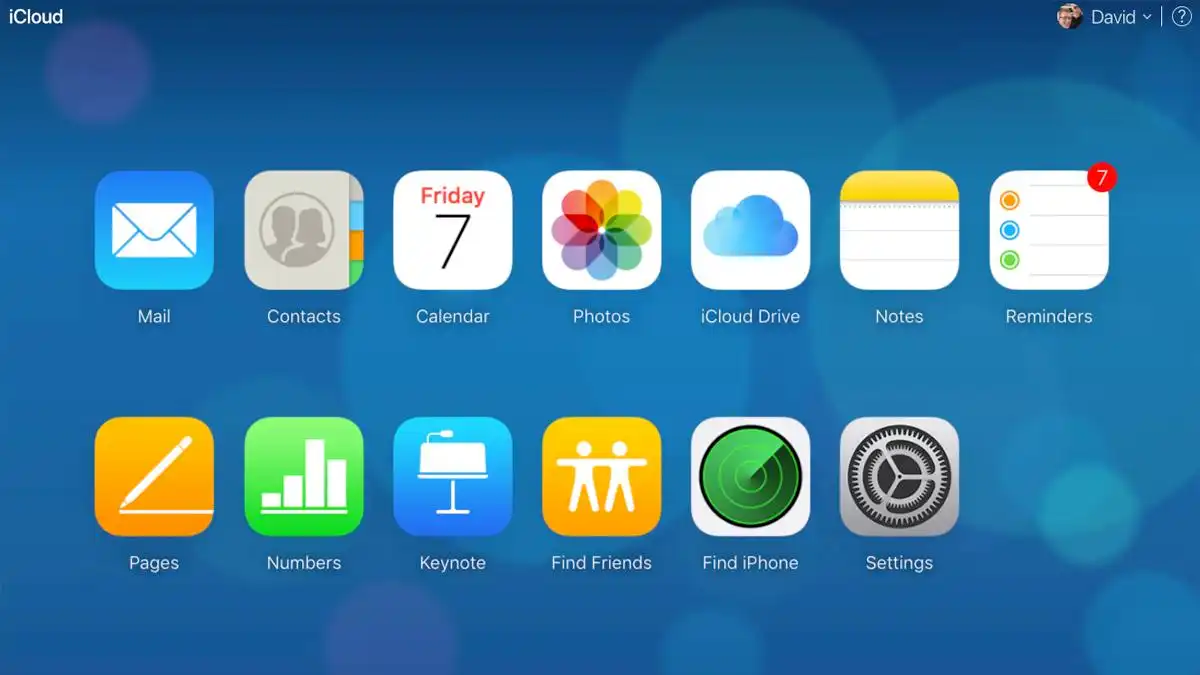
- Go to icloud.Com and sign in with your Apple ID and password.
- Select each service that you want to use with iCloud (e.G., Mail, Contacts, Calendar).
Icloud Photo
ICloud Photo is a service from Apple that allows you to store and sync your photos across all your devices. To use iCloud Photo:
- Make sure that you have an Apple ID and are signed in on each device.
- Go to Settings > [your name] > iCloud and toggle the switch next to “Photos” to enable it.
Icloud Drive
ICloud Drive is a service from Apple that allows you to store and sync your files across all your devices. To use iCloud Drive:
- Make sure that you have an Apple ID and are signed in on each device.
- Go to Settings > [your name] > iCloud and toggle the switch next to “iCloud Drive” to enable it.
Using Icloud in Family
If you’re part of a family, you can use iCloud’s Family Sharing feature to share services like iCloud+, Apple Music, and more with up to five other people. To set up Family Sharing:
- Go to Settings > [your name] > Family.
- Tap “Add Member” and follow the prompts to invite other family members.
Conclusion
ICloud is a powerful service from Apple that allows you to create copies of your data online and sync them across all your devices. By following the steps outlined in this guide, you can easily use iCloud on your iPhone, iPad, macOS, Windows PC, Android device, or web browser. Whether you’re looking to sync your photos, contacts, or calendars, or simply want to access your files from anywhere, iCloud has got you covered.
Frequently Asked Questions (FAQs)
- What is Icloud?
ICloud is a free service from Apple that allows you to create copies of your data online and sync them across all your devices.
- How do I Use Icloud on my Iphone or Ipad?
To use iCloud on your iPhone or iPad, go to Settings > [your name] > iCloud and toggle the switch next to each service (e.G., Photos, Contacts, Calendars) that you want to use with iCloud.
- Can I Use Icloud on my Android Device?
Yes, you can use iCloud on your Android device by following the steps outlined in our guide on how to use iCloud on Android.
- How do I Use Icloud on my Windows Pc?
To use iCloud on your Windows PC, download and install the official iCloud client from Microsoft Store, sign in with your Apple ID and password, and select each service that you want to use with iCloud.
- What is Icloud Photo?
ICloud Photo is a service from Apple that allows you to store and sync your photos across all your devices.
- How do I Use Icloud Drive?
To use iCloud Drive, make sure that you have an Apple ID and are signed in on each device, go to Settings > [your name] > iCloud and toggle the switch next to “iCloud Drive” to enable it.
- Can I Use Icloud With my Family?
Yes, you can use iCloud’s Family Sharing feature to share services like iCloud+, Apple Music, and more with up to five other people.
- What is Family Sharing on Icloud?
Family Sharing is a feature that allows you to share services like iCloud+, Apple Music, and more with up to five other people.
I hope this guide has been helpful in explaining how to use iCloud!


