
How to Use Instagram on PC
Are you tired of using your smartphone to browse through Instagram? Do you want to access the platform from the comfort of your computer? Well, you’re in luck because Instagram has a web version that allows you to use the app directly from your PC.
In this article, we’ll guide you through the steps of using Instagram on PC. We’ll cover everything from logging in to posting photos and interacting with other users.
Why Use Instagram on Pc?
Using Instagram on PC offers several advantages over using a smartphone. For one, you can use a larger screen to navigate through the app more easily. Additionally, you can use a keyboard and mouse to interact with the platform, which can be faster than using your fingers on a touchscreen.
Accessing Instagram on PC
To access Instagram on PC, follow these steps:
- Open a web browser such as Google Chrome or Mozilla Firefox.
- Go to the official Instagram website (www.Instagram.Com).
- Click on the “Log In” button at the top right corner of the page.
- Enter your login credentials (username and password) in the required fields.
- Click on the “Login” button.
Navigating The Instagram Website
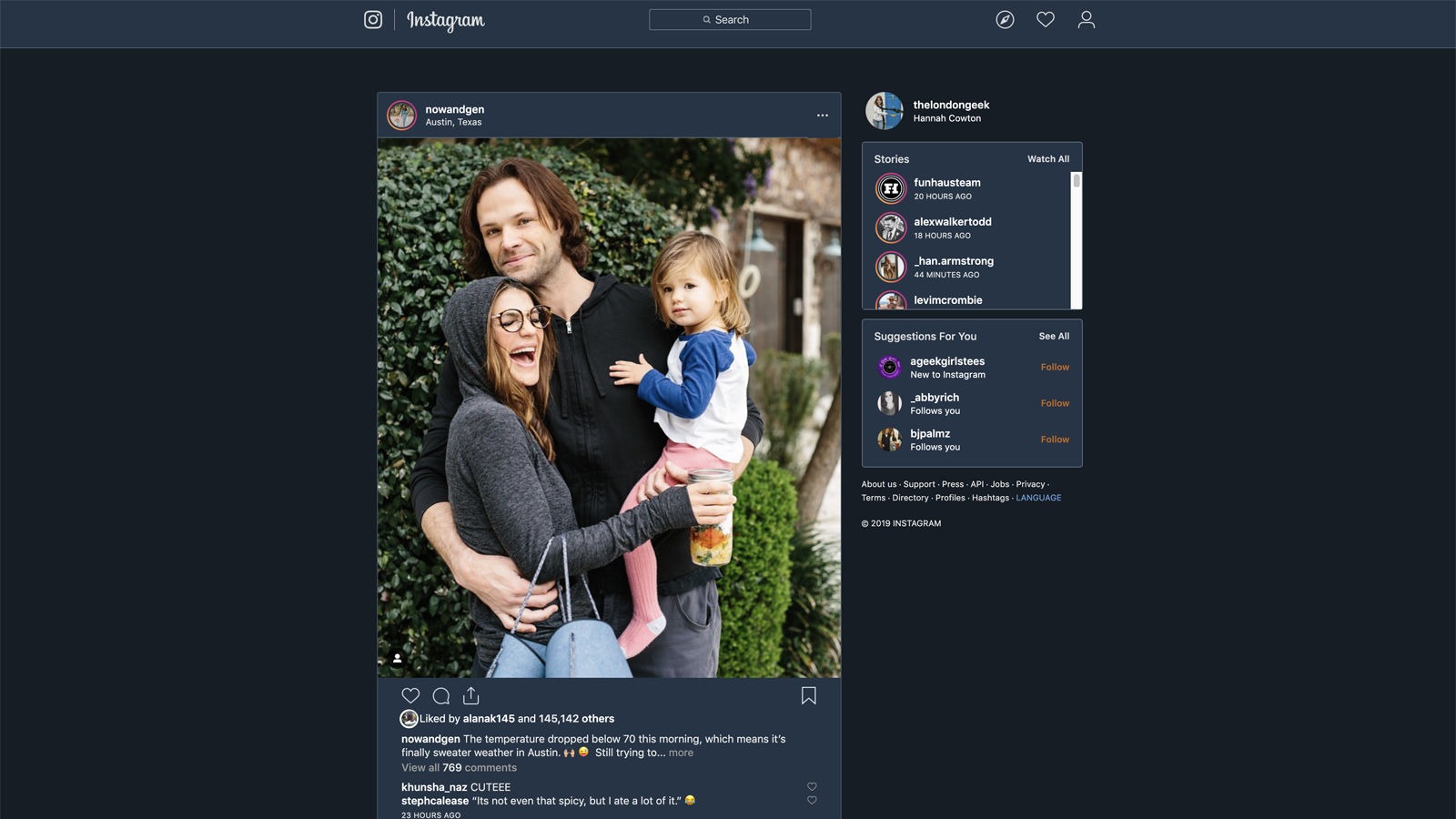
Once you’re logged in, you’ll be taken to your home feed. Here, you can see the last photos posted by the users you follow. You can also interact with other users’ posts by liking or commenting on them.
To navigate through the website, use the following options:
- Home: This is where you’ll find your home feed.
- Search: Use this option to search for specific users or hashtags.
- Notifications: Check here for notifications about new followers, likes, and comments.
- Your Profile: Access your profile by clicking on the icon of a person at the top right corner.
Posting Photos on Instagram
To post photos on Instagram from PC, follow these steps:
- Click on the “+” button at the top right corner of the page.
- Select “Post” from the dropdown menu.
- Choose an image from your computer by clicking on the “Choose a photo” button.
- Add a caption to your post in the text box provided.
- Use the filters available to edit your photo if needed.
- Click on the “Share” button to post your photo.
Using Instagram Direct
Instagram Direct is a feature that allows you to send private messages and photos to other users. To use this feature, follow these steps:
- Click on the “Direct” icon at the top right corner of the page.
- Select the user you want to send a message or photo to from your contacts list.
- Type in the text box provided to compose a message.
- Attach a photo by clicking on the camera icon.
- Click on the “Send” button to send your message.
Emulating Instagram on PC
If you don’t have a smartphone but still want to use Instagram, there are other ways to emulate the app on PC. One option is to download an emulator that allows you to run Android apps directly on your computer. Some popular emulators include BlueStacks and NoxPlayer.
Once you’ve installed an emulator, follow these steps:
- Download the Instagram app from the Google Play Store within the emulator.
- Install the app by following the prompts on screen.
- Log in to your Instagram account using your credentials.
- Use the app as you would on a smartphone.
Using Instagram For Windows
If you’re using Windows, you can also download the Instagram app directly from the Microsoft Store. This allows you to use the app without having to emulate it on PC.
To install Instagram on Windows:
- Go to the Microsoft Store website.
- Search for “Instagram” in the search bar.
- Click on the “Get” button to download and install the app.
- Follow the prompts on screen to log in to your account.
Conclusion
Using Instagram on PC is a great way to access the platform from the comfort of your computer. With this guide, you should be able to navigate through the website, post photos, and interact with other users easily. Don’t forget to use the emulators or download the app directly from the Microsoft Store if needed.
Frequently Asked Questions
Q: How do I log in to my Instagram account on PC?
A: To log in, go to the official Instagram website, click on the “Log In” button at the top right corner, and enter your login credentials.
Q: Can I post photos from my computer directly onto Instagram?
A: Yes, you can post photos from your computer by clicking on the “+” button, selecting “Post,” and choosing an image from your computer.
Q: How do I use Instagram Direct on PC?
A: To send private messages or photos, click on the “Direct” icon at the top right corner, select a user to send a message or photo to, type in the text box provided, attach a photo if needed, and click on the “Send” button.
Q: Can I use Instagram on Windows 10?
A: Yes, you can download and install the Instagram app directly from the Microsoft Store on Windows 10.
Q: Are there any other ways to emulate Instagram on PC?
A: Yes, you can use emulators such as BlueStacks or NoxPlayer to run Android apps directly on your computer.
Q: Can I use Instagram without a smartphone?
A: Yes, you can use Instagram on PC using the web version, downloading an emulator, or installing the app directly from the Microsoft Store.


