
How to Use Your Ipad as a Hotspot: A Step-by-step Guide
Are you tired of being tethered to a physical internet connection? Do you need to stay connected on the go without breaking the bank? Look no further than your trusty iPad! With its built-in hotspot feature, you can transform your tablet into a portable Wi-Fi router that shares your cellular data with other devices.
In this article, we’ll show you how to set up and use your iPad as a hotspot. Whether you’re a frequent traveler, a remote worker, or just someone who likes to stay connected on the go, this guide will have you up and running in no time.
Why Use Your Ipad as a Hotspot?
Before we dive into the nitty-gritty of setting up your iPad’s hotspot feature, let’s talk about why you might want to use it in the first place. Here are just a few reasons:
- Convenience: With your iPad’s hotspot, you can share your cellular data with other devices without having to worry about physical connections or finding Wi-Fi networks.
- Portability: Your iPad is a portable device, so why not make use of its ability to provide internet access on the go?
- Cost-effective: If you’re already paying for a cellular plan, using your iPad’s hotspot can be a cost-effective way to share internet access with other devices.
Step 1: Check That Your Ipad Has a Cellular Connection
Before we get started, make sure that your iPad has a cellular connection set up. To do this:
- Open the Settings app on your iPad.
- Tap on “Cellular” and then tap on “Cellular Data.”
- Make sure that the switch next to “Cellular Data” is turned on.
Step 2: Check That Your Cellular Plan Supports Hotspot Use
Not all cellular plans allow you to use your device as a hotspot. Before setting up your iPad’s hotspot feature, make sure that your plan supports it. If you’re not sure, contact your carrier for more information.
Setting Up Your Ipad’s Hotspot Feature
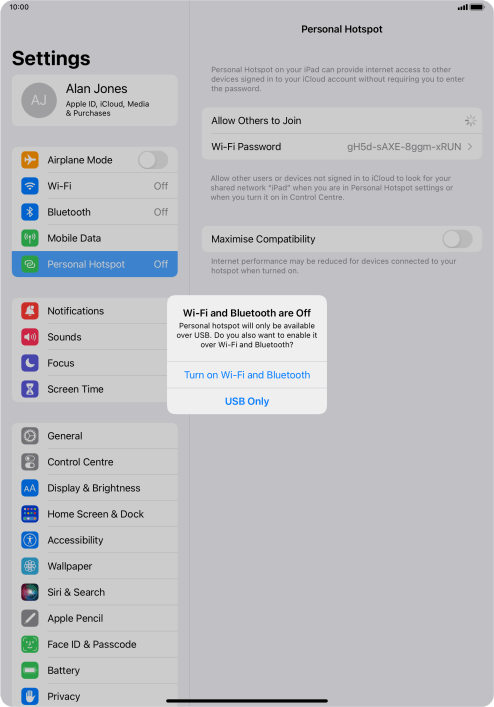
Now that we’ve covered the basics, let’s get started with setting up your iPad’s hotspot feature!
- Open the Settings app on your iPad.
- Tap on “Cellular” and then tap on “Personal Hotspot.”
- Toggle the switch next to “Allow Others to Join” to turn it on.
Using Your Ipad as a Hotspot
Now that we’ve set up your iPad’s hotspot feature, let’s talk about how to use it!
- To connect to your iPad’s hotspot using another device (such as a computer or smartphone), go to the Wi-Fi settings on your device and select your iPad’s name from the list of available networks.
- Once connected, you can access the internet just like you would with any other Wi-Fi network.
Tips For Using Your Ipad as a Hotspot
Here are some tips to keep in mind when using your iPad as a hotspot:
- Use it Wisely: Only use your iPad’s hotspot feature when necessary, as excessive data usage can affect your bill.
- Keep an Eye on Your Battery Life: If you’re going to be using your iPad’s hotspot for extended periods of time, make sure that it has enough battery life to last you through the day.
- Be Mindful of Security Risks: When sharing your cellular data with other devices, there is a risk of security breaches. Make sure that you take steps to protect yourself and your data.
Conclusion
In conclusion, using your iPad as a hotspot can be a convenient and cost-effective way to share internet access with other devices on the go. By following these simple steps, you can set up and use your iPad’s hotspot feature in no time.
Frequently Asked Questions
Here are some frequently asked questions about using your iPad as a hotspot:
- Q: Can I Use my Ipad’s Hotspot Feature With Any Device?
A: Yes, but not all devices may be able to connect to your iPad’s hotspot. This will depend on the specific device and its operating system. - Q: How do I Set up my Ipad’s Hotspot Feature?
A: To set up your iPad’s hotspot feature, go to the Settings app, tap on “Cellular,” and then tap on “Personal Hotspot.” - Q: Can I Use my Ipad’s Hotspot Feature to Connect Multiple Devices at Once?
A: Yes, you can connect multiple devices to your iPad’s hotspot at once. However, keep in mind that excessive data usage can affect your bill. - Q: How do I Turn Off my Ipad’s Hotspot Feature When I’m Not Using It?
A: To turn off your iPad’s hotspot feature, go to the Settings app, tap on “Cellular,” and then toggle the switch next to “Allow Others to Join” to turn it off.


