
How to Use Iphone as a Router: A Step-by-step Guide
Are you tired of dealing with internet connectivity issues at home or in the office? Do you want to know how to use your iPhone as a router to share the connection with multiple devices? Look no further! In this article, we will guide you through the process of using your iPhone as a Wi-Fi router.
What is Hotspot Mode on Iphone?
Before we dive into the steps, let’s first understand what hotspot mode on iPhone is. The hotspot mode on iPhone allows you to share the cellular data connection with other devices, such as computers, tablets, and smart TVs. This means that you can create a Wi-Fi network using your iPhone’s cellular data plan.
Benefits of Using Iphone as a Router
Using your iPhone as a router has several benefits. Firstly, it allows you to connect multiple devices to the internet without having to use a physical router or modem. Secondly, it provides a convenient solution when you are traveling and don’t have access to a physical Wi-Fi network. Lastly, it can be used as an alternative to a traditional router in case of a connectivity issue.
How to Use Iphone as a Router
Now that we’ve covered the benefits, let’s move on to the steps involved in using your iPhone as a router.
Step 1: Enable Hotspot Mode
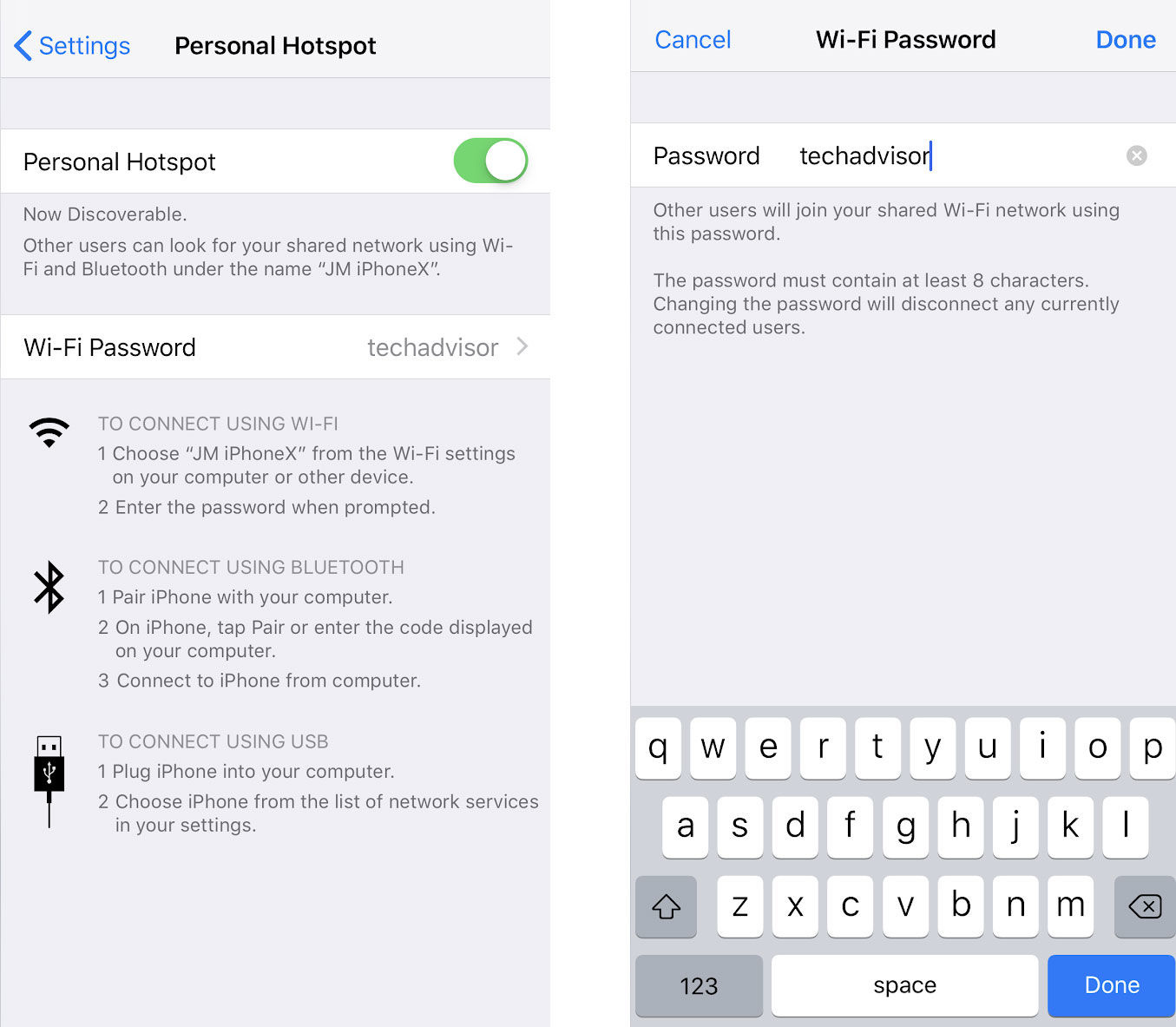
To enable hotspot mode on your iPhone, follow these steps:
- Go to Settings
- Tap on “Cellular”
- Make sure that the cellular data switch is turned ON
- Tap on “Personal Hotspot” and toggle it ON
- Set up a password for the Wi-Fi network (optional)
Step 2: Connect Other Devices
Once you’ve enabled hotspot mode, connect other devices to the Wi-Fi network using the following steps:
- On Windows PC:
- Click on the Wi-Fi icon in the system tray
- Select the “iPhone” network from the list of available networks
- Enter the password (if set up)
- On Mac:
- Click on the Wi-Fi icon in the menu bar
- Select the “iPhone” network from the list of available networks
- Enter the password (if set up)
Step 3: Use Iphone as a Router For Ps4
If you want to use your iPhone as a router for your PS4, follow these steps:
- Enable hotspot mode on your iPhone
- Connect your PS4 to the Wi-Fi network created by your iPhone
- Go to Settings > Network Settings > Set Up Internet Connection
- Select “Use Wi-Fi” and choose the “iPhone” network from the list of available networks
Using Iphone as a Router With Cable
If you have a PC that uses an Ethernet cable for internet connectivity, you can still use your iPhone as a router. To do this:
- Enable hotspot mode on your iPhone
- Connect your PC to your iPhone using an Ethernet cable
- Your PC will connect to the internet using your iPhone’s cellular data plan
Using Iphone as a Router in Spite of Devices
If you have multiple devices connected to the same Wi-Fi network and are experiencing connectivity issues, you can use your iPhone as a router. To do this:
- Enable hotspot mode on your iPhone
- Connect other devices to the Wi-Fi network created by your iPhone
Conclusion
Using your iPhone as a router is a convenient solution for sharing cellular data with multiple devices. With these simple steps, you can enable hotspot mode and connect other devices to the internet using your iPhone’s cellular data plan.
Frequently Asked Questions (FAQs)
- Q: Can I Use my Iphone as a Router if I Have a Physical Wi-fi Network at Home?
A: Yes, you can still use your iPhone as a router even if you have a physical Wi-Fi network at home. - Q: How Many Devices Can I Connect to The Internet Using my Iphone’s Cellular Data Plan?
A: The number of devices that can be connected depends on your cellular data plan and the strength of the signal. - Q: Can I Use my Iphone as a Router For my Ps4 if I Have a Physical Wi-fi Network at Home?
A: Yes, you can still use your iPhone as a router for your PS4 even if you have a physical Wi-Fi network at home.
We hope this article has been helpful in explaining how to use your iPhone as a router. If you have any further questions or need more assistance, feel free to ask!


