
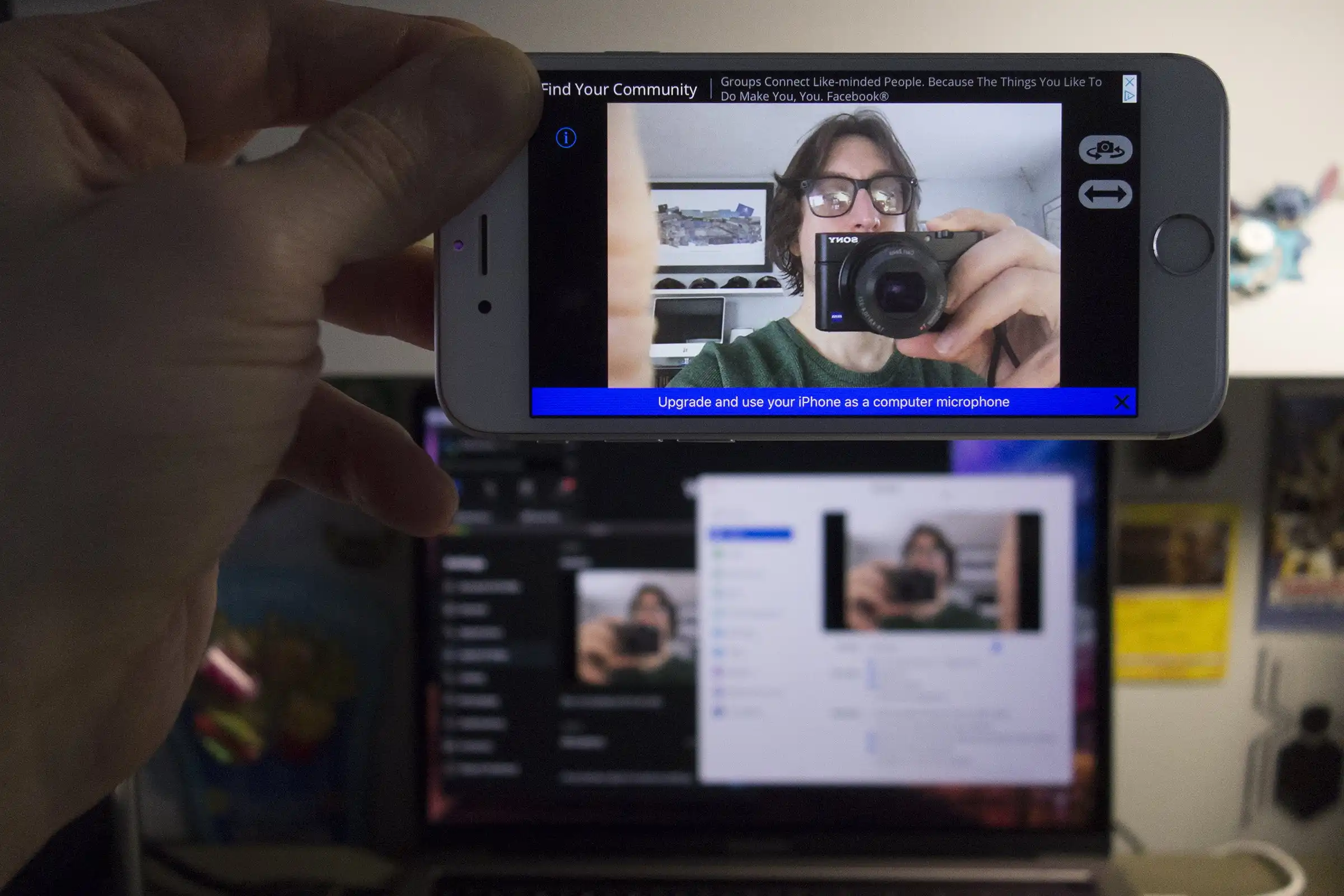
How to Use Iphone as a Webcam: A Comprehensive Guide
Are you tired of using your computer’s webcam or investing in a separate webcam? Do you want to know how to use your iPhone as a webcam? Look no further! In this article, we will guide you through the process of using your iPhone as a webcam on both Windows and Mac devices.
Introduction
Using an iPhone as a webcam is a convenient and cost-effective solution for those who need a high-quality camera for video conferencing, online meetings, or even live streaming. With the right software and setup, you can turn your iPhone into a powerful webcam that can compete with traditional webcams in terms of quality.
Prerequisites
Before we dive into the instructions, make sure you have:
- An iPhone (iPhone 11 or later) running iOS 16 or later
- A Windows or Mac computer compatible with the software used to connect your iPhone as a webcam
- A stable internet connection
Using Iphone as Webcam on Windows
To use your iPhone as a webcam on a Windows device, you will need to install an app called iVCam. Here’s how:
- Download And Install Ivcam: Go to the Apple App Store and download the iVCam app on your iPhone. Then, go to the Microsoft Store and download the iVCam app for Windows.
- Connect Your Iphone to Your Computer: Connect your iPhone to your computer using a USB cable or wirelessly via Wi-Fi.
- Launch Ivcam on Both Devices: Launch the iVCam app on both your iPhone and Windows device.
- Follow The On-screen Instructions: The iVCam app will guide you through the process of setting up your iPhone as a webcam.
Using Iphone as Webcam on Mac
To use your iPhone as a webcam on a Mac, you can take advantage of the built-in feature called “Fotocamera Continuity” (Camera Continuity). Here’s how:
- Check if Your Iphone And Mac Meet The Requirements: Ensure that your iPhone is running iOS 16 or later and your Mac is running macOS Ventura or later.
- Ensure Both Devices Are Connected to The Same Wi-fi Network: Make sure both devices are connected to the same Wi-Fi network.
- Enable Camera Continuity on Your Iphone: Go to Settings > General > AirPlay & Handoff, and toggle the switch next to “Fotocamera Continuity” (Camera Continuity) to turn it on.
- Enable Camera Continuity on Your Mac: Go to System Preferences > General > AirPlay & Handoff, and toggle the switch next to “Camera Continuity” to turn it on.
- Launch a Video Conferencing App: Launch a video conferencing app like Zoom or Skype on your Mac.
Using Iphone as Webcam With Obs
OBS (Open Broadcasting Software) is a popular software for live streaming and recording videos. Here’s how you can use your iPhone as a webcam with OBS:
- Download The Chamber App: Download the Chamber app, which allows you to connect your iPhone to OBS.
- Launch Obs on Your Computer: Launch OBS on your computer.
- Connect Your Iphone to Obs: Follow the instructions in the Chamber app to connect your iPhone to OBS.
Conclusion
Using your iPhone as a webcam is a convenient and cost-effective solution for video conferencing, online meetings, or live streaming. By following these steps, you can turn your iPhone into a powerful webcam that can compete with traditional webcams in terms of quality.


