
The Ultimate Guide to Mendeley: A Comprehensive Tutorial
As a researcher or academic, you’re likely no stranger to the concept of citation management and bibliographic references. In today’s digital age, it’s more important than ever to have a reliable tool to help you organize your research and stay on top of the latest developments in your field.
What is Mendeley?
Mendeley is an excellent platform for academic collaboration that integrates a free software for managing bibliographic references. It’s compatible with Windows, macOS, and Linux operating systems, making it a versatile tool for researchers worldwide. In this tutorial, we’ll explore the ins and outs of using Mendeley on your computer or online.
Getting Started: Installing Mendeley
To begin, download the Mendeley software from its official website. Once downloaded, follow these steps:
- Run the installer file (.Exe) for Windows or the .Dmg file for macOS.
- Follow the installation prompts to complete the setup process.
- Launch Mendeley and sign in with your account email address.
Creating an Account
If you’re new to Mendeley, creating an account is a straightforward process:
- Enter your email address and password to register for an account.
- Complete the form with your personal information and select your institution (if applicable).
Understanding Mendeley’s Interface
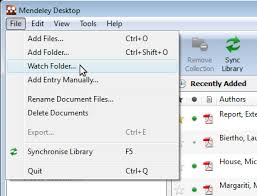
The Mendeley interface is designed to be user-friendly and intuitive:
- The top menu bar offers access to various sections, including All References, Recently Added, Favorites, Collections, and Groups.
- The central Library area displays a list of your stored references.
- The left panel provides quick access to essential features, such as Organize, Add to Collection or Group, Mark as Favorite, Export to BibTeX, EndNote XML, Word XML, or RIS, and Delete.
Importing References
You can import references in two ways:
- Drag-and-drop: Drag the .PDF file into the Mendeley Library area.
- Add New: Select Add New > Rows from Computer to manually enter bibliographic information.
Organizing Your Database
To keep your database organized, follow these steps:
- Select Organize in the left panel.
- Choose a collection or group for your reference.
- Use the menu to add references to a collection or group.
Mendeley Web Importer: Adding Online References
The Mendeley Web Importer is an extension that allows you to import online sources directly into your library:
- Install the Mendeley Web Importer on Chrome or Firefox.
- Visit the webpage of the article or document you wish to add.
- Click on the Mendeley icon in the browser toolbar.
- Select Add to Library and follow the prompts.
Mendeley Cite: Integrating With Microsoft Word
To integrate Mendeley with Microsoft Word:
- Install Mendeley Cite from the Microsoft Store.
- Launch Word and access the Mendeley Cite tool.
- Insert citations and bibliographic references directly into your document.
Faqs
Here are some frequently asked questions to help you get started with Mendeley:
Q: What is Mendeley?
A: Mendeley is a platform for academic collaboration that integrates citation management software.
Q: How do I install Mendeley on my computer?
A: Download the installer file from the official website and follow the prompts.
Q: Can I use Mendeley online?
A: Yes, you can access Mendeley through its web interface or by installing the desktop application.
Q: How do I import references into Mendeley?
A: You can drag-and-drop .PDF files into the Library area or manually enter bibliographic information using the Add New feature.
Q: Can I add online sources to my library?
A: Yes, use the Mendeley Web Importer extension to add online articles and documents to your library.
Q: How do I integrate Mendeley with Microsoft Word?
A: Install Mendeley Cite from the Microsoft Store and access the tool directly within Word.
Conclusion
Mendeley is an indispensable tool for researchers and academics, providing a streamlined way to manage bibliographic references, collaborate with peers, and stay organized. By following this comprehensive tutorial, you’ll be able to unlock the full potential of Mendeley and take your research to the next level.
Frequently Asked Questions (FAQs)
- Q: What is Mendeley?
A: Mendeley is a platform for academic collaboration that integrates citation management software. - Q: How do I Install Mendeley on my Computer?
A: Download the installer file from the official website and follow the prompts. - Q: Can I Use Mendeley Online?
A: Yes, you can access Mendeley through its web interface or by installing the desktop application. - Q: How do I Import References Into Mendeley?
A: You can drag-and-drop .PDF files into the Library area or manually enter bibliographic information using the Add New feature. - Q: Can I Add Online Sources to my Library?
A: Yes, use the Mendeley Web Importer extension to add online articles and documents to your library. - Q: How do I Integrate Mendeley With Microsoft Word?
A: Install Mendeley Cite from the Microsoft Store and access the tool directly within Word. - Q: Is Mendeley Free?
A: Yes, the basic version of Mendeley is free; however, you can upgrade to a paid subscription for additional features. - Q: Can I Use Mendeley on Multiple Devices?
A: Yes, you can access your Mendeley library from any device with an internet connection using the web interface or by installing the desktop application.


