
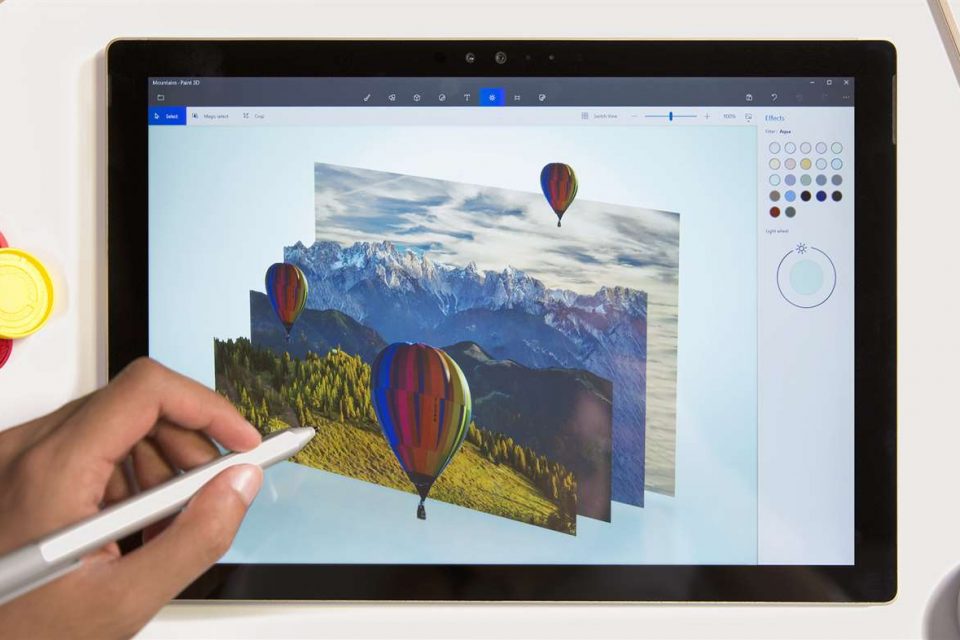
Mastering 3D Art With Paint 3D: A Comprehensive Guide
As a beginner or an experienced artist, you might be wondering how to harness the power of Paint 3D, a feature-rich painting software that comes pre-installed in Windows 10. With its intuitive interface and robust set of tools, Paint 3D allows users to create stunning three-dimensional artworks with ease.
What is Paint 3D?
Paint 3D is not just another graphics editor; it’s a full-fledged art studio that enables users to design, model, cartoon, and print in three dimensions. This powerful tool was introduced as part of the Fall Creators Update for Windows 10 in 2017.
Requirements For Using Paint 3D
Before you start creating masterpieces with Paint 3D, make sure your device meets the minimum requirements:
- Operating System: Windows 10 (Build 16299.0 Or later)
- Processor: 1 GHz CPU or faster
- RAM: 2 GB of RAM or more
Getting Started With Paint 3D
To access Paint 3D, navigate to the Start menu and click on the “Paint” icon. Alternatively, you can search for “Paint 3D” in the Windows search bar.
Understanding The Interface
The Paint 3D interface is divided into four main sections:
- Menu: The top menu bar allows you to create new projects, open existing files, save, and print.
- Brushes: This section contains a variety of brushes for creating textures, patterns, and effects.
- Forms 2D/3D: Here, you can design lines, shapes, and forms in both 2D and 3D formats.
- Adhesive: Add texture, patterns, or materials to your creations.
- Text: Insert text into your artwork.
- Effects: Apply filters and adjust lighting effects.
Working With Objects
To add an object to your scene, navigate to the respective section (Forms 2D/3D, Brushes, etc.) And select the desired item. You can then manipulate the object by dragging it around, resizing it, or applying effects.
Visualizing Your Creation in 3D
Use the “Mixed Reality” feature to visualize your creation in a three-dimensional environment. This is especially useful for presentations, demonstrations, or educational purposes.
Saving And Printing Your Masterpiece
Once you’ve completed your artwork, save it as an image, pattern, or video. You can also print your design using a 3D printer or send it to a service for printing.
Conclusion
Paint 3D is an incredibly powerful tool that allows artists of all levels to create stunning three-dimensional artworks with ease. With its intuitive interface and robust set of features, you’ll be hooked from the first moment you start creating. Remember to save your work regularly and experiment with different techniques to unlock the full potential of this amazing software.
Frequently Asked Questions
- What is Paint 3D?
Paint 3D is a feature-rich painting software that allows users to create three-dimensional artworks. - Is Paint 3D Free?
Yes, Paint 3D comes pre-installed in Windows 10 and is completely free to use. - Do I Need Any Special Hardware to Run Paint 3D?
No, you can run Paint 3D on any device with a compatible version of Windows 10. - Can I Save my Creations as Images or Videos?
Yes, you can save your artwork in various formats, including images, patterns, and videos. - How do I Print my Creation Using a 3D Printer?
You’ll need to use a 3D printing service or have access to a 3D printer to print your design. - Is Paint 3D Compatible With Other Operating Systems?
No, Paint 3D is specifically designed for Windows 10 and may not be compatible with other operating systems. - Can I Import Images From Other Software Into Paint 3D?
Yes, you can import images from other graphics editors or painting software into Paint 3D. - Is There a Tutorial or Guide to Help me Learn Paint 3D?


