
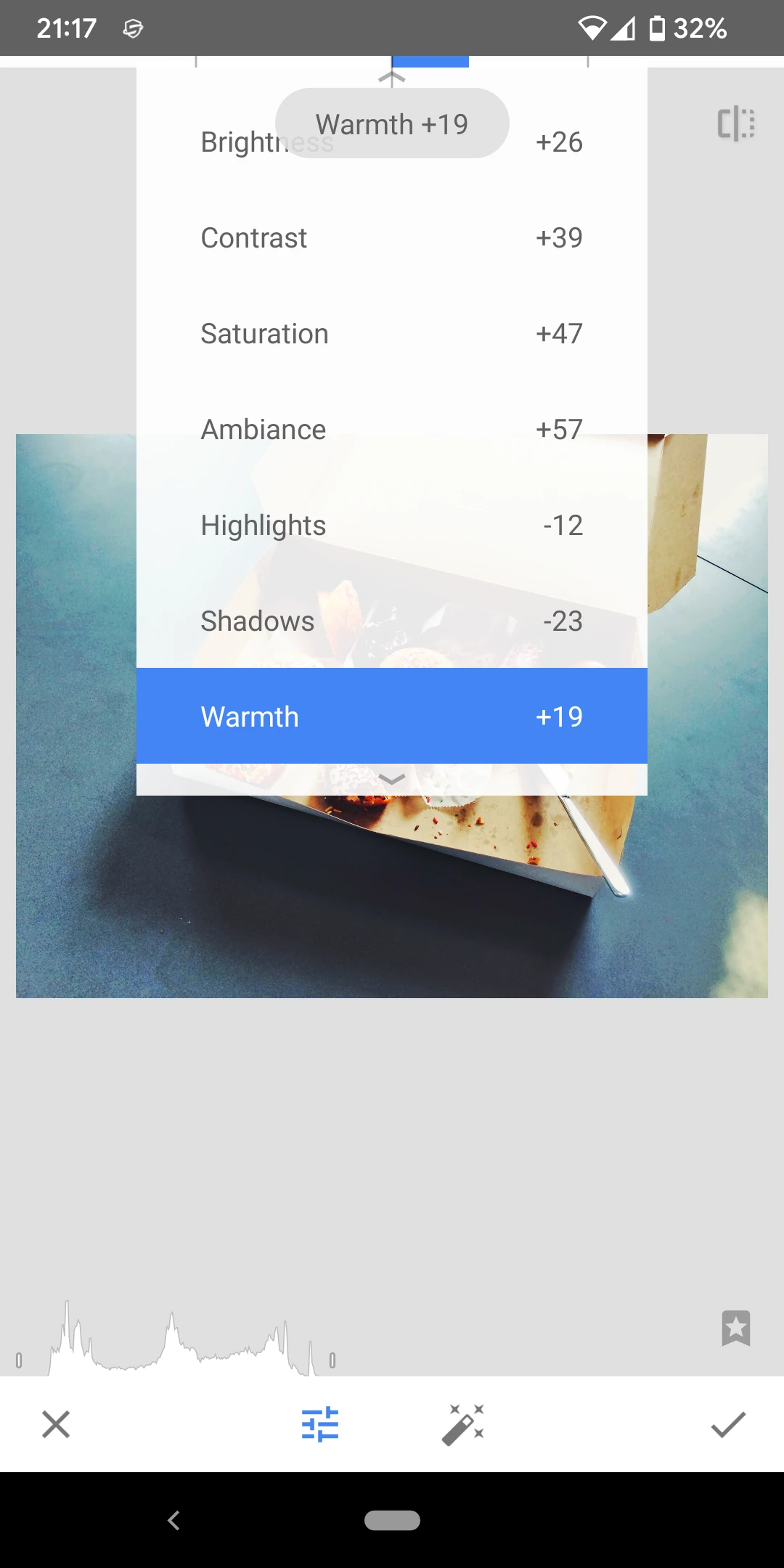
Unlocking The Power of Snapseed: A Comprehensive Guide
Are you tired of mediocre photos? Do you want to take your mobile photography game to the next level? Look no further than Snapseed, a powerful photo editing app developed by Google.
In this article, we’ll delve into the world of Snapseed and explore its features, tools, and techniques. Whether you’re a beginner or an advanced user, this guide will help you unlock the full potential of this incredible app.
What is Snapseed?
Snapseed is a free photo editing app available on both Android and iOS devices. With its intuitive interface and powerful tools, it’s no wonder that millions of users worldwide rely on Snapseed to enhance their photos.
Getting Started With Snapseed
Before we dive into the nitty-gritty details, let’s get started with the basics.
- Download And Install: Download Snapseed from the Google Play Store (for Android) or the App Store (for iOS). Once installed, launch the app and agree to its terms and conditions.
- Launch The App: Tap on the Snapseed icon to open the app. You’ll be greeted by a clean and intuitive interface.
Using Snapseed to Enhance Your Photos
Now that we’ve covered the basics, let’s explore the various features and tools within Snapseed.
Correcting Your Photos With Snapseed
Snapseed offers an array of correction tools designed to help you fix common issues such as:
- Blemishes: Use the Spot Removal tool to remove unwanted marks or blemishes.
- Red Eye: Eliminate red eye effect from your photos using the Red Eye tool.
Selectively Editing Your Photos
Snapseed’s Selective editing feature allows you to target specific areas of an image for precise edits. This is particularly useful when working with portraits, where you might want to adjust skin tones or remove unwanted blemishes.
- Choose a Tool: Tap on the Selective tool and choose from various options such as Contrast, Exposure, and Saturation.
- Target Your Area: Pinch to zoom in on the area you’d like to edit. Use your fingers to draw a selection around the area.
- Adjust Settings: Adjust settings for contrast, exposure, and saturation.
Using Filters And Presets
Snapseed offers an array of filters and presets designed to give your photos that extra oomph. Browse through various categories or search for specific effects like HDR or Black & White.
- Browse Through Categories: Tap on the Filter tab to browse through various categories.
- Adjust Settings: Adjust settings for each filter or preset to get the desired effect.
Advanced Editing Tools
Snapseed also offers advanced editing tools like HDR and Glamour that allow you to apply sophisticated effects to your photos.
- Hdr (High Dynamic Range): Use this tool to merge multiple exposures into a single image.
- Glamour: Apply a range of glamour filters designed to enhance the appearance of portraits.
Exporting Your Edited Photos
Once you’ve edited and enhanced your photo, it’s time to export it. Snapseed allows you to save your edits in various formats such as JPEG or PNG.
- Tap on Export: Tap on the Export tab to save your edited image.
- Choose a Format: Choose between JPEG, PNG, or other formats suitable for social media platforms like Instagram and Facebook.
Frequently Asked Questions (FAQs)
Here are some frequently asked questions about Snapseed:
-
Q: Is Snapseed Free?
- A: Yes, Snapseed is a free app developed by Google.
-
Q: What Devices Does Snapseed Support?
- A: Snapseed supports both Android and iOS devices.
-
Q: How do I Use The Selective Editing Feature in Snapseed?
- A: Use your fingers to draw a selection around the area you’d like to edit. Adjust settings for contrast, exposure, and saturation.
-
Q: Can I Undo Edits Made in Snapseed?
- A: Yes, you can undo edits by tapping on the Undo button or selecting the Revert to Original option.
-
Q: How do I Export my Edited Photos From Snapseed?
- A: Tap on the Export tab and choose between JPEG, PNG, or other formats suitable for social media platforms.
Conclusion
Snapseed is a powerful photo editing app that offers a wide range of tools and features designed to help you enhance your mobile photography. From correcting blemishes to applying advanced effects like HDR and Glamour, Snapseed has got you covered.
Whether you’re a beginner or an advanced user, this comprehensive guide has helped you unlock the full potential of Snapseed. Happy editing!


