
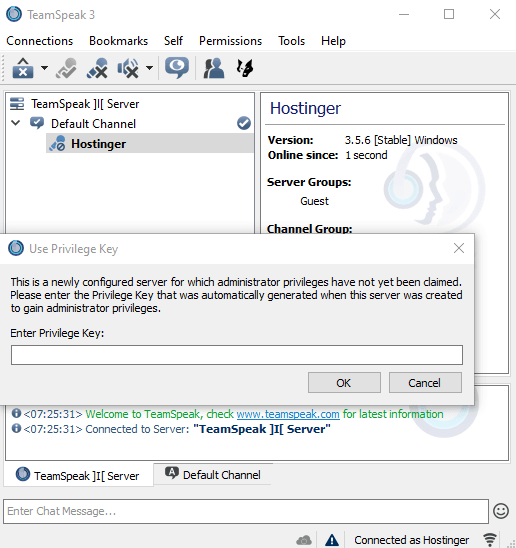
Using Teamspeak: A Comprehensive Guide
Are you looking for a way to communicate with friends or team members online? Look no further than TeamSpeak, a powerful voice chat software that’s free to download and use.
What is Teamspeak?
TeamSpeak is a software program that allows users to communicate with each other in real-time through voice chat. It’s perfect for gamers, teams, and communities who want to stay connected and collaborate online.
Why Use Teamspeak?
There are many reasons why you should consider using TeamSpeak:
- Free to Download: TeamSpeak is completely free to download and use, making it a cost-effective solution for individuals and businesses.
- High-quality Voice Chat: TeamSpeak offers crystal-clear voice chat quality, ensuring that you can hear your team members or friends clearly.
- Cross-platform Compatibility: TeamSpeak can be used on multiple platforms, including Windows, macOS, Android, and iOS.
Getting Started With Teamspeak
To get started with TeamSpeak, follow these simple steps:
- Download The Software: Visit the TeamSpeak website and download the software for your preferred platform.
- Install The Software: Follow the installation instructions to install TeamSpeak on your computer or mobile device.
- Create an Account: Sign up for a free TeamSpeak account to access all the features of the software.
Using Teamspeak 5 on PC
TeamSpeak 5 is the latest version of the software, offering improved performance and new features. Here’s how to use it:
- Download And Install: Download and install TeamSpeak 5 on your Windows or macOS computer.
- Connect to a Server: Join a TeamSpeak server by entering the server address and password in the client software.
- Configure Your Microphone: Set up your microphone settings to ensure clear voice chat quality.
Using Teamspeak 3 on PC
TeamSpeak 3 is an older version of the software, but still offers many useful features. Here’s how to use it:
- Download And Install: Download and install TeamSpeak 3 on your Windows or macOS computer.
- Connect to a Server: Join a TeamSpeak server by entering the server address and password in the client software.
- Configure Your Microphone: Set up your microphone settings to ensure clear voice chat quality.
Using Teamspeak on Smartphone And Tablet
TeamSpeak is also available on mobile devices, allowing you to communicate with team members or friends on-the-go. Here’s how to use it:
- Download The App: Download the TeamSpeak app from the App Store (for iOS devices) or Google Play Store (for Android devices).
- Connect to a Server: Join a TeamSpeak server by entering the server address and password in the client software.
- Configure Your Audio Settings: Set up your audio settings to ensure clear voice chat quality.
Managing a Teamspeak Server
As an administrator of a TeamSpeak server, you can manage user permissions, create channels, and configure server settings. Here’s how:
- Access Server Management Tools: Access the server management panel by clicking on the “Permissions” button in the client software.
- Configure User Permissions: Set up user permissions to restrict access to certain channels or features.
- Create New Channels: Create new channels for team members to communicate and collaborate.
Conclusion
TeamSpeak is a powerful voice chat software that’s perfect for gamers, teams, and communities who want to stay connected online. With its high-quality voice chat quality, cross-platform compatibility, and easy-to-use interface, TeamSpeak is an essential tool for anyone looking to communicate with others online.
Frequently Asked Questions (FAQs)
- What is Teamspeak?
TeamSpeak is a software program that allows users to communicate with each other in real-time through voice chat. - Is Teamspeak Free to Download?
Yes, TeamSpeak is completely free to download and use. - Can I Use Teamspeak on Multiple Platforms?
Yes, TeamSpeak can be used on Windows, macOS, Android, and iOS devices. - How do I Connect to a Teamspeak Server?
To connect to a TeamSpeak server, enter the server address and password in the client software. - What Are The System Requirements For Using Teamspeak?
The minimum system requirements for using TeamSpeak include a Windows or macOS computer with an Intel Core 2 Duo processor, 2 GB of RAM, and a graphics card that supports DirectX 9. - Can I Use Teamspeak on my Smartphone or Tablet?
Yes, TeamSpeak is available as a mobile app for Android and iOS devices. - How do I Configure my Microphone Settings in Teamspeak?
To configure your microphone settings in TeamSpeak, access the “Tools” menu in the client software and select the “Options” button. - Can I Manage User Permissions on a Teamspeak Server?
Yes, as an administrator of a TeamSpeak server, you can manage user permissions to restrict access to certain channels or features.
Key Features And Benefits
- Free to Download: TeamSpeak is completely free to download and use.
- High-quality Voice Chat: TeamSpeak offers crystal-clear voice chat quality.
- Cross-platform Compatibility: TeamSpeak can be used on multiple platforms, including Windows, macOS, Android, and iOS.
- Easy-to-use Interface: The TeamSpeak client software has a user-friendly interface that’s easy to navigate.
- Powerful Server Management Tools: As an administrator of a TeamSpeak server, you can manage user permissions, create channels, and configure server settings.
Conclusion
TeamSpeak is a powerful voice chat software that’s perfect for gamers, teams, and communities who want to stay connected online. With its high-quality voice chat quality, cross-platform compatibility, and easy-to-use interface, TeamSpeak is an essential tool for anyone looking to communicate with others online.


