
How to Use a Microsd Card on Android, Iphone, Ipad, And Pc: A Comprehensive Guide
Are you struggling to use your microSD card? Do you want to expand the storage of your device but don’t know how? Look no further! In this article, we will guide you through the process of using a microSD card on Android, iPhone, iPad, and PC.
What is a Microsd Card?
A microSD card is a small memory card that can be used to expand the storage capacity of your device. It’s an ideal solution for users who want to store more photos, videos, apps, and files but don’t have enough space on their device.
How to Use a Microsd Card on Android
Using a microSD card on Android is relatively straightforward. Here’s how:
- Insert The Microsd Card: Locate the SIM card slot on your Android device and remove it. Then, insert the microSD card into the slot.
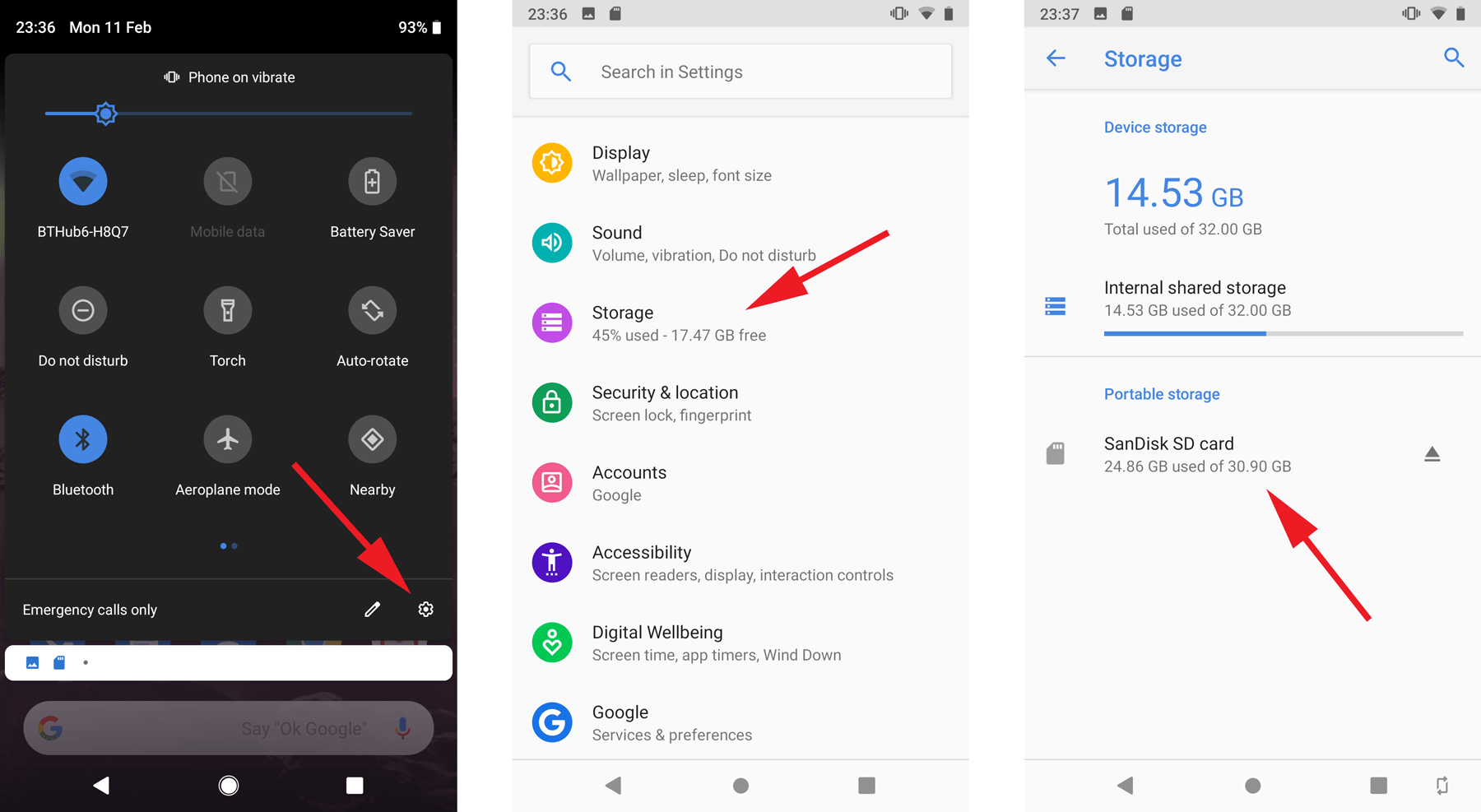
- Format The Microsd Card: Go to Settings > Storage > SD card and tap on the three dots at the top right corner. Select Format SD card and choose a file system (FAT32 or exFAT).
- Move Files to The Microsd Card: Once formatted, you can move files from your device’s internal storage to the microSD card.
- Use The Microsd Card as Internal Storage: To use the microSD card as internal storage, go to Settings > System > Developer options and enable Force authorization app on external memory.
How to Use a Microsd Card on Iphone And Ipad
Unfortunately, you can’t directly insert a microSD card into an iPhone or iPad. However, there are some adapters available that allow you to use a microSD card with your Apple device. Here’s how:
- Get an Adapter: Purchase a microSD card adapter for iPhone/iPad from Amazon or other online stores.
- Insert The Microsd Card: Insert the microSD card into the adapter and connect it to your iPhone or iPad using the Lightning cable or USB-C port.
- Access The Microsd Card: Open the Files app on your iPhone or iPad and navigate to the microSD card storage.
How to Use a Microsd Card on PC
Using a microSD card on PC is easy and straightforward. Here’s how:
- Get a Reader: Purchase a microSD card reader for PC from Amazon or other online stores.
- Insert The Microsd Card: Insert the microSD card into the reader and connect it to your PC using a USB port.
- Access The Microsd Card: Open File Explorer on your PC and navigate to the microSD card storage.
Frequently Asked Questions
Q: What is the difference between a microSD card and a regular SD card?
A: A microSD card is smaller than a regular SD card and has a different connector.
Q: Can I use a microSD card on any device?
A: No, not all devices support microSD cards. Check your device’s specifications before purchasing a microSD card.
Q: How do I format my microSD card?
A: To format your microSD card, go to Settings > Storage > SD card and tap on the three dots at the top right corner. Select Format SD card and choose a file system (FAT32 or exFAT).
Q: Can I use a microSD card as internal storage on my Android device?
A: Yes, but you need to enable Force authorization app on external memory in Settings > System > Developer options.
Conclusion
Using a microSD card is a great way to expand the storage capacity of your device. Whether you’re using an Android, iPhone, iPad, or PC, we’ve got you covered. Remember to always format your microSD card before using it and follow the instructions provided above to ensure smooth operation.
Additional Tips And Tricks
- Make sure to purchase a microSD card that is compatible with your device.
- Use a reputable brand for better performance and durability.
- Keep your microSD card away from dust, moisture, and extreme temperatures.
- Regularly back up your files on the microSD card to prevent data loss.
We hope this article has been helpful in answering your questions about using a microSD card. If you have any further queries or concerns, please don’t hesitate to reach out!


