
Are you looking for a detailed guide on how to use TIMVISION? Look no further! This article will walk you through the process of using TIMVISION, from accessing the service without a subscription to using it on various devices.
What is Timvision?
TIMVISION is a streaming video service provided by TIM that offers a wide range of films, TV series, documentaries, and contents for kids. You can access it freely in some areas served by the Italian telephone operator or subscribe to an apposite subscription.
How to Access Timvision Without Subscription
If you want to know how to use TIMVISION without a subscription, don’t worry! You can still access the service by using one of the available packs, such as TIMVISION Kick and Sport or TIMVISION Gold. These packs include access to other services like DAZN, Netflix, Disney+, and Infinity+.
How to Use Timvision on TV
You can use TIMVISION on your TV by downloading the application on a Smart TV compatible with Android TV, Samsung, LG with webOS, or Hisense. If you have one of these televisions, follow these steps:
- Access the store of reference and search for TIMVISION.
- Download and install the app.
- Initiate the app and select the option to access with your number fixed TIM (if you’re a client).
- Choose the content you want to watch.
How to Use Timvision on Smart TV
Using TIMVISION on Smart TV is similar to using it on your TV, but with some additional features:
- Download the application from the store.
- Initiate the app and select the option to access with your number fixed TIM (if you’re a client).
- Choose the content you want to watch.
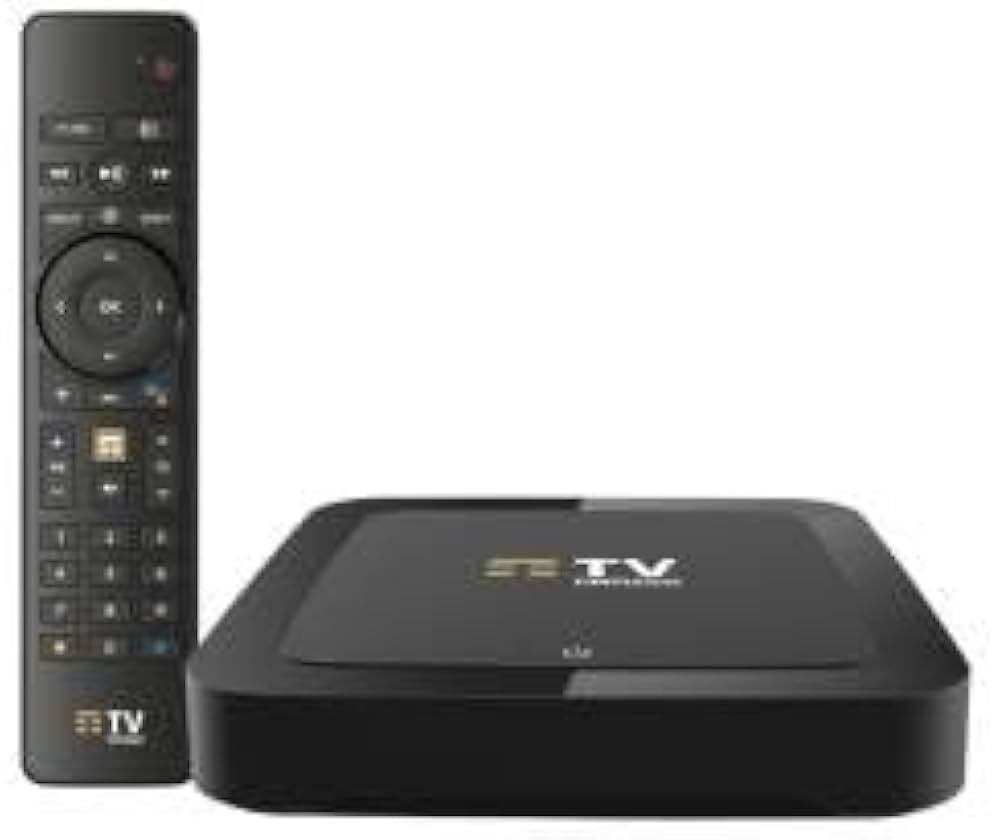
- Use the remote control or the app to navigate through the menu.
How to Use Timvision on Smart TV Without Telecomando
If you don’t have a telecomando, you can use your smartphone as a remote control:
- Download the app on your smartphone.
- Initiate the app and select the option to access with your number fixed TIM (if you’re a client).
- Choose the content you want to watch.
- Use the app to navigate through the menu.
How to Use Timvision on Smartphone
TIMVISION is also available as an application for Android devices:
- Download the app from the store.
- Initiate the app and select the option to access with your number fixed TIM (if you’re a client).
- Choose the content you want to watch.
- Use the app to navigate through the menu.
How to Use Timvision on PC
You can also use TIMVISION on your PC without downloading any software:
- Access the leading page of the service.
- Click on the option to access with your number fixed TIM (if you’re a client).
- Choose the content you want to watch.
How to Use Timvision With Chromecast
Using TIMVISION with Chromecast is also possible:
- Download the app from the store.
- Initiate the app and select the option to access with your number fixed TIM (if you’re a client).
- Choose the content you want to watch.
- Use the app to navigate through the menu.
How to Access Replay
Accessing Replay on TIMVISION allows you to see TV programs gone in onda in the last 7 days:
- Access the section Replay from the menu.
- Choose the program you want to watch.
How to Use Videostore
Using Videostore on TIMVISION allows you to download or buy content:
- Access the section Videostore from the menu.
- Choose the content you want to download or buy.
- Select the quality of vision and confirm the payment.
Frequently Asked Questions (FAQs)
- Q: Can I Use Timvision Without a Subscription?
A: Yes, you can access TIMVISION without a subscription by using one of the available packs. - Q: How do I Download The App on my Tv?
A: You can download the app from the store on your Smart TV compatible with Android TV, Samsung, LG with webOS, or Hisense. - Q: Can I Use Timvision With Chromecast?
A: Yes, you can use TIMVISION with Chromecast by downloading the app and following the instructions.
Conclusion
TIMVISION is a great service that offers a wide range of films, TV series, documentaries, and contents for kids. With this guide, you should be able to access and use TIMVISION on various devices without any issues.


