
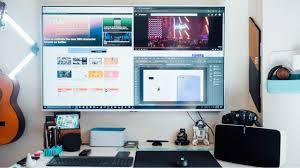
How to Use TV as a Monitor For Pc: A Step-by-step Guide
Are you tired of cluttering your workspace with multiple monitors? Do you want to know how to use your TV as a monitor for your PC without breaking the bank? Look no further! In this article, we will show you how to easily connect your TV to your computer and enjoy an extended desktop experience.
Why Use Your TV as a Monitor?
Using your TV as a monitor can be a great way to increase your productivity and multitask with ease. By extending your desktop onto the big screen, you can:
- Watch videos or movies while browsing online
- Keep an eye on multiple tasks at once without having to switch between windows
- Enjoy an immersive gaming experience with higher resolution and larger screen size
The Best Technologies For Wireless Tv-to-pc Connection
There are several technologies that allow you to wirelessly connect your TV to your PC. Here are some of the most popular ones:
Miracast (Windows 8.1 And Successive)
Miracast is a wireless display technology developed by the Wi-Fi Alliance. It allows you to connect your Windows 8.1 Or later computer to a Miracast-enabled TV without the need for cables. To use Miracast, follow these steps:
- Ensure that your computer has Miracast capabilities
- Connect your TV to the same network as your computer
- Open the Settings app on your computer and click on “Display”
- Select the option to connect to a wireless display (Miracast)
- Choose your TV from the list of available devices
Chromecast/google Cast (Windows/macOS)
If you’re using a Windows or macOS computer, you can also use Chromecast/Google Cast to wirelessly connect your TV to your PC. Here’s how:
- Ensure that your computer is running Google Chrome
- Connect your TV to the same network as your computer
- Open Google Chrome on your computer and click on the three dots in the top right corner
- Select “Cast” from the menu
- Choose your TV from the list of available devices
Airplay (macOS)
If you’re using a Mac, you can use AirPlay to wirelessly connect your TV to your PC. Here’s how:
- Ensure that your computer is running macOS High Sierra or later
- Connect your TV to the same network as your computer
- Click on the Apple logo in the top left corner of your screen and select “System Preferences”
- Click on “Displays” and select the option to connect to a wireless display (AirPlay)
- Choose your TV from the list of available devices
Connecting Your PC to Your TV Using Hdmi
If you prefer a wired connection, you can use an HDMI cable to connect your PC to your TV. Here’s how:
- Ensure that both your computer and TV have HDMI ports
- Connect one end of the HDMI cable to your computer and the other end to your TV
- Turn on your TV and select the correct input channel
- Your computer desktop should now be displayed on your TV screen
Configuring Windows For Multiple Monitor Use
If you’re using a Windows PC, you can configure it to use multiple monitors by following these steps:
- Click on the Start menu and select “Settings”
- Click on “Display” and select the option to add a new display
- Choose your TV from the list of available devices
- Select the resolution and orientation for your TV screen
Configuring Macos For Multiple Monitor Use
If you’re using a Mac, you can configure it to use multiple monitors by following these steps:
- Click on the Apple logo in the top left corner of your screen and select “System Preferences”
- Click on “Displays” and select the option to add a new display
- Choose your TV from the list of available devices
- Select the resolution and orientation for your TV screen
Using Your TV as a Monitor: Benefits And Tips
Using your TV as a monitor can be a great way to increase your productivity and multitask with ease. Here are some benefits and tips to keep in mind:
- Benefits: Increased productivity, improved multitasking capabilities, and immersive gaming experience
- Tips: Ensure that your computer and TV have compatible HDMI ports, configure your PC or Mac for multiple monitor use, and experiment with different resolution and orientation settings for optimal viewing experience
By following the steps outlined in this article, you can easily connect your TV to your PC and enjoy an extended desktop experience. Whether you’re looking to increase your productivity, improve your multitasking capabilities, or enhance your gaming experience, using your TV as a monitor is definitely worth considering.
Faqs
- Q: Can I Use my TV as a Monitor For Any Type of Computer?
A: Yes, you can use your TV as a monitor for Windows and macOS computers. - Q: Do I Need to Purchase Any Additional Hardware or Software to Connect my TV to my Pc?
A: Depending on the technology used (Miracast, Chromecast/Google Cast, or AirPlay), you may need to purchase an adapter or cable to connect your TV to your computer. - Q: Can I Adjust The Resolution And Orientation of my TV Screen?
A: Yes, you can adjust the resolution and orientation of your TV screen by following the steps outlined in this article. -
Q: What Are The Benefits of Using my TV as a Monitor?
A: The benefits include increased productivity, improved multitasking capabilities, and immersive gaming experience. -
Q: Can I Use Multiple Monitors With my Windows PC or Mac?
A: Yes, you can configure your Windows PC or Mac to use multiple monitors by following the steps outlined in this article. -
Q: Do I Need a Special Adapter to Connect my TV to my Computer?
A: Depending on the type of HDMI port on your TV and computer, you may need an adapter to connect them. -
Q: Can I Adjust The Settings For Multiple Monitors on Windows or Macos?
A: Yes, you can configure the settings for multiple monitors on Windows by following these steps, and on macOS by clicking on “Displays” in System Preferences


