
Watching TV Without a Remote Control: Alternative Solutions
Are you tired of not being able to watch your favorite shows because you lost or broke the remote control? Don’t worry! In this article, we’ll explore alternative solutions that can help you navigate through your TV’s menu and enjoy your programming without a remote.
The Problem With Losing a Remote Control
Losing or breaking a remote control can be frustrating, especially on weekends when you’re craving some relaxation time. If you can’t find the remote, you have to get up from the couch and search for it in the living room.
Solution 1: Using a Smartphone App
One convenient solution is to use a smartphone app that can replace the remote control. Many TV manufacturers offer apps that allow you to control your TV using your smartphone or tablet.
For example, if you have an LG Smart TV, you can download the LG ThinQ app on your Android device and control your TV, change channels, adjust volume, and even use voice commands.
Similarly, Sony TVs come with a dedicated app called Google TV that lets you control your TV using your smartphone or tablet.
How to Use an App as a Remote Control
To use an app as a remote control, follow these steps:
- Download the app from the Play Store (for Android devices) or App Store (for Apple devices).
- Open the app and select the option to connect to your TV.
- Follow the on-screen instructions to configure your device and TV.
- Once connected, you can use the app to control your TV.
Solution 2: Using a Universal Remote
Another solution is to purchase a universal remote that can work with multiple devices. These remotes usually come with an infrared (IR) or Wi-Fi connection and can be programmed to work with different types of TVs.
There are many brands available in the market, such as Davilis, Meliconi, and Broadlink, which offer universal remotes that can control your TV without a dedicated remote.
How to Program a Universal Remote
To program a universal remote, follow these steps:
- Check if the remote is compatible with your TV brand.
- Turn on your TV and locate the remote’s settings menu.
- Follow the instructions provided with the remote to program it to work with your TV.
Solution 3: Using Physical Buttons
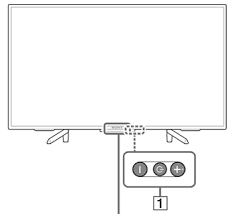
If you don’t have a smartphone or tablet, another solution is to use physical buttons on your TV. Many modern TVs come equipped with dedicated buttons that allow you to control the TV without a remote.
These buttons usually include options like changing channels, adjusting volume, and accessing the menu.
How to Use Physical Buttons as a Remote Control
To use physical buttons as a remote control, follow these steps:
- Locate the button on your TV that corresponds to the action you want to perform.
- Press the button to execute the desired action.
Conclusion
In conclusion, losing or breaking a remote control doesn’t have to be the end of the world! There are alternative solutions available that can help you navigate through your TV’s menu and enjoy your programming without a remote.
By using an app as a remote control, purchasing a universal remote, or using physical buttons on your TV, you can continue to watch your favorite shows without any interruptions.
Frequently Asked Questions
Q: Can I use my smartphone as a remote control for my TV?
A: Yes, many TV manufacturers offer apps that allow you to control your TV using your smartphone or tablet.
Q: What is a universal remote?
A: A universal remote is a device that can work with multiple devices and can be programmed to work with different types of TVs.
Q: How do I program a universal remote?
A: To program a universal remote, follow the instructions provided with the remote to configure it to work with your TV.
Q: Can I use voice commands to control my TV?
A: Yes, some TVs come equipped with voice command capabilities that allow you to control the TV using voice commands.


