
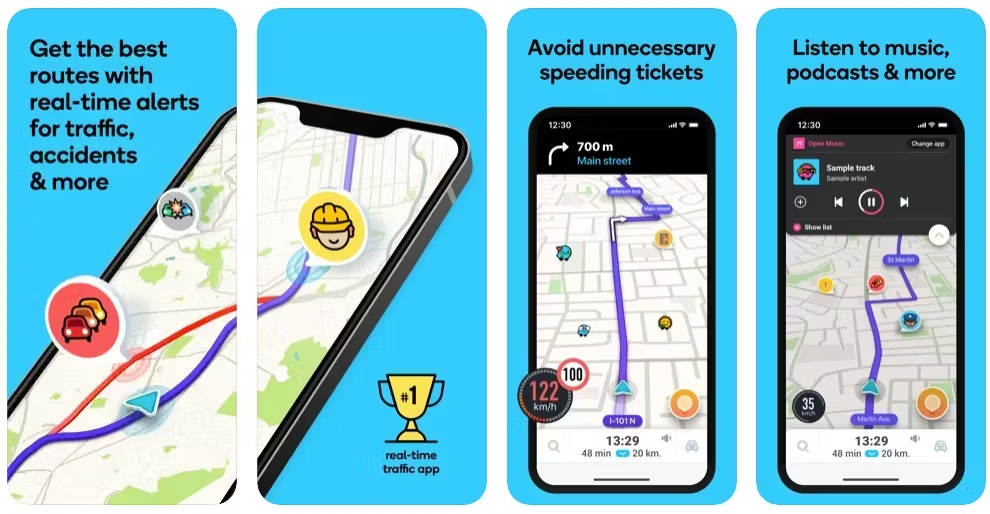
Mastering Off-route Navigation: A Comprehensive Guide to Using Waze Offline
Are you tired of relying on internet connectivity while navigating unfamiliar territories? Do you wish there was a way to access turn-by-turn directions without the need for a stable online connection? Look no further than Waze, the popular navigation app that has revolutionized the way we travel. In this article, we will delve into the world of off-route navigation and explore how to use Waze offline on both Android and iOS devices.
Table 1: Key Features of Waze Offline
| Feature | Description |
|---|---|
| Gps Navigation | Get turn-by-turn directions without internet connectivity |
| Preloaded Maps | Access maps that have been preloaded on your device |
| Offline Route Calculation | Calculate routes offline, using preloaded data |
How Waze Works Offline
While Waze doesn’t offer a dedicated offline mode, it can still be used to navigate routes without internet connectivity. Here’s how:
- Preload Maps: Before embarking on your journey, make sure to preload the maps for your destination area.
- Download Data: Ensure that you have downloaded the necessary data, such as voice commands and map updates.
- Activate Gps: Activate your device’s GPS to receive location-based updates.
Using Waze Offline on Android
To use Waze offline on an Android device, follow these steps:
- Install Waze: Download and install the Waze app from the Google Play Store.
- Preload Maps: Open Waze and preload the maps for your destination area by tapping on the zoom-in button in the lower-left corner of the screen.
- Enter Destination: Enter your destination by typing it into the search bar or selecting it from your history.
- Calculate Route: Calculate your route using preloaded data, then tap on the “Display Itinerary” button to view your route on the map.
- Start Navigation: Start navigation by tapping on the “Start” button.
Using Waze Offline on Ios
To use Waze offline on an iOS device, follow these steps:
- Install Waze: Download and install the Waze app from the App Store.
- Preload Maps: Open Waze and preload the maps for your destination area by tapping on the zoom-in button in the lower-right corner of the screen.
- Enter Destination: Enter your destination by typing it into the search bar or selecting it from your history.
- Calculate Route: Calculate your route using preloaded data, then tap on the “Display Itinerary” button to view your route on the map.
- Start Navigation: Start navigation by tapping on the “Exit” button.
The Benefits of Using Waze Offline
Using Waze offline offers several benefits, including:
- Offline Access: Access turn-by-turn directions without internet connectivity
- Reduced Data Costs: Reduce data costs associated with online navigation
- Improved Safety: Receive location-based updates and alerts while navigating
Conclusion
In conclusion, using Waze offline is a great way to access turn-by-turn directions without the need for a stable online connection. By preloading maps and activating GPS on your device, you can navigate routes with confidence. Whether you’re traveling abroad or exploring unfamiliar territories, Waze offline is an indispensable tool that will keep you safe and informed.
Frequently Asked Questions
Q: Can I use Waze offline without internet connectivity?
A: Yes, Waze can be used offline, but it requires preloaded maps and activated GPS.
Q: How do I preload maps on my device?
A: To preload maps, open Waze and tap on the zoom-in button in the lower-left corner (Android) or lower-right corner (iOS).
Q: Can I use other navigation apps that offer offline capabilities?
A: Yes, there are several navigation apps available that offer offline capabilities. Some popular options include Google Maps, Apple Maps, and HERE WeGo.


