
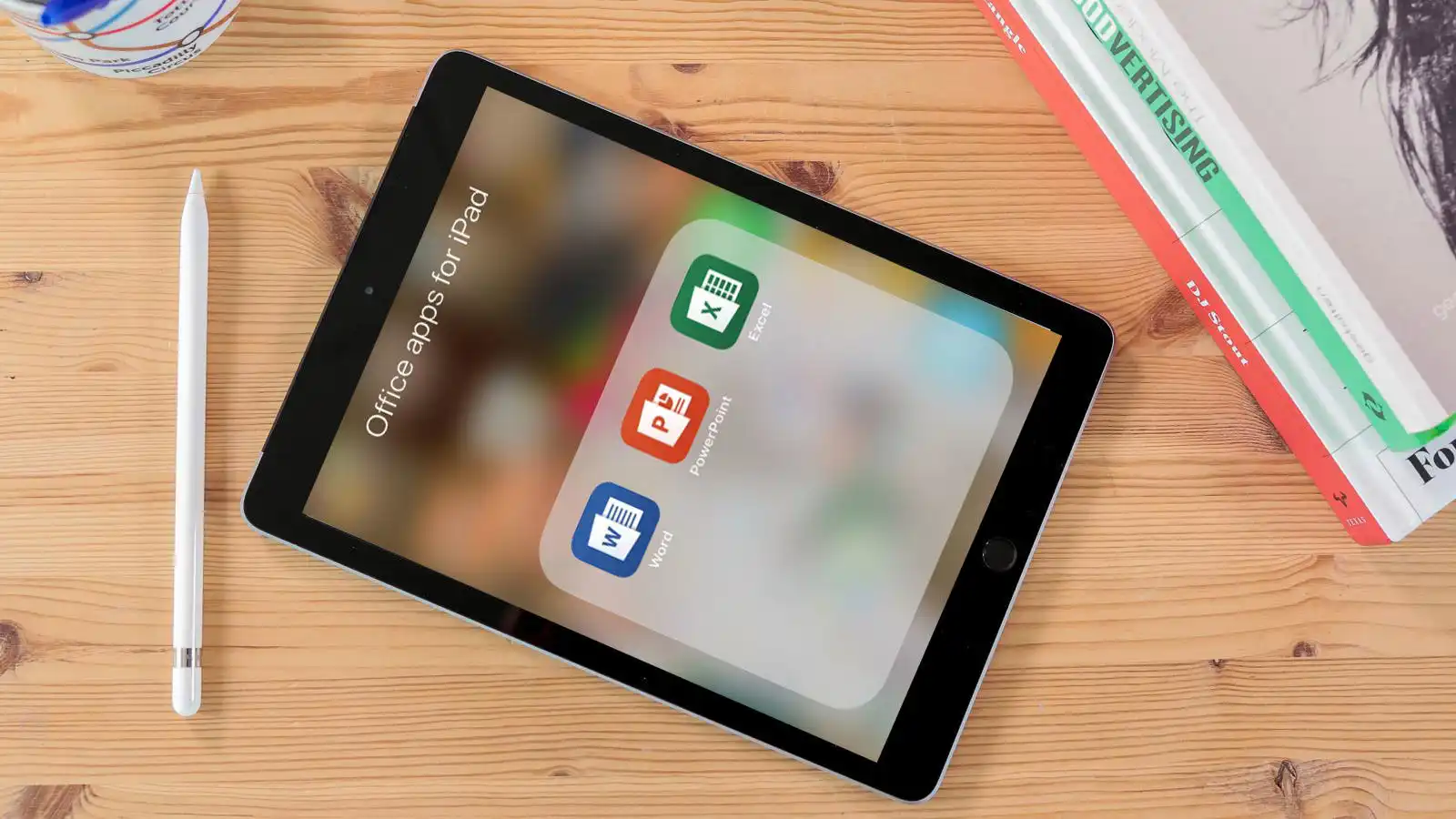
How to Use Microsoft Word on Your Mobile Device
Are you tired of being tied down to your computer to use Microsoft Word? Do you wish you could work on documents anywhere, anytime? Look no further! With the mobile app version of Microsoft Word, you can create, edit, and share documents from your smartphone or tablet.
What is Microsoft Word’s Mobile App?
Microsoft Word’s mobile app is a free download for both Android and iOS devices. The app allows you to access all your Word documents on the go, without needing to log in to a computer. With the app, you can create new documents, edit existing ones, and even share them with others.
How Do I Download Microsoft Word’s Mobile App?
Downloading Microsoft Word’s mobile app is easy! If you have an Android device:
- Open the Google Play Store app on your device.
- Search for “Microsoft Word” in the search bar.
- Select the app from the search results.
- Tap the “Install” button to download and install the app.
If you have an iOS device:
- Open the App Store app on your device.
- Search for “Microsoft Word” in the search bar.
- Select the app from the search results.
- Tap the “Get” button to download and install the app.
What Features Does Microsoft Word’s Mobile App Have?
The mobile app version of Microsoft Word has many features that will make your work easier:
- Create New Documents: You can create new documents from scratch, or use templates to get started.
- Edit Existing Documents: Edit existing documents on the go, without needing a computer.
- Share Documents: Share documents with others via email or by sharing a link.
- Collaborate With Others: Collaborate with others in real-time, using features like commenting and tracking changes.
- Format And Design: Use formatting tools to make your documents look professional.
How Do I Use Microsoft Word’s Mobile App?
Using Microsoft Word’s mobile app is easy! Here are the basic steps:
- Open the app on your device.
- Tap the “+” icon to create a new document.
- Choose from templates or start from scratch.
- Type or edit text using the keyboard.
- Use formatting tools to make your documents look professional.
Tips And Tricks
Here are some tips and tricks for using Microsoft Word’s mobile app:
- Use Shortcuts: Use shortcuts to quickly access frequently used features, like undo and redo.
- Collaborate With Others: Collaborate with others in real-time, using features like commenting and tracking changes.
- Save And Share Documents: Save and share documents easily, via email or by sharing a link.
Microsoft 365 Subscription
While the mobile app version of Microsoft Word is free to download, you may want to consider subscribing to Microsoft 365 for additional features:
- Premium Features: Get access to premium features like advanced formatting tools and collaboration features.
- Offline Access: Access your documents offline, even without an internet connection.
Faqs
Here are some frequently asked questions about Microsoft Word’s mobile app:
Q: Is the mobile app version of Microsoft Word free?
A: Yes, the mobile app version of Microsoft Word is free to download and use.
Q: Can I edit existing documents on the go?
A: Yes, you can edit existing documents on the go using the mobile app version of Microsoft Word.
Q: How do I share documents with others?
A: You can share documents with others via email or by sharing a link.
Conclusion
Microsoft Word’s mobile app is a powerful tool that allows you to create, edit, and share documents from your smartphone or tablet. With features like collaboration, formatting tools, and offline access, this app is perfect for anyone who needs to work on the go.


