
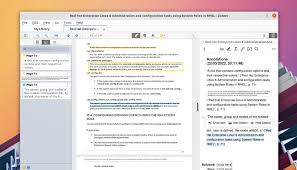
Unlocking Productivity: A Comprehensive Guide to Using Zotero
As a student or researcher, you’re constantly collecting and organizing information from various sources. Managing this influx of data can be overwhelming, but fear not! Zotero is here to revolutionize your workflow.
In this article, we’ll delve into the world of Zotero, exploring its features, benefits, and how-to guides. Get ready to supercharge your productivity and take your research to new heights!
What is Zotero?
Zotero is a free, open-source citation management tool that helps you organize your sources, format citations, and create bibliographies. This powerful software is designed to simplify the process of collecting, storing, and sharing information.
With Zotero, you can:
- Store and manage your sources in customizable collections
- Automatically generate citations and bibliographies in various styles
- Collaborate with others on research projects
- Access a vast library of free resources and extensions
Why Use Zotero?
In today’s fast-paced academic environment, staying organized is crucial. Zotero’s user-friendly interface and robust features make it an indispensable tool for:
- Research students: Organize your sources, create bibliographies, and format citations with ease.
- Professors: Streamline the research process, collaborate with students, and easily share resources.
- Researchers: Manage large datasets, create comprehensive bibliographies, and share findings.
Getting Started With Zotero
Before you begin, ensure you have a computer running Windows, macOS, or Linux. You can also use the mobile app on your iPhone or iPad. Follow these steps to install Zotero:
- Download the software from the official Zotero website.
- Install the program on your computer.
- Set up an account on the Zotero website for synchronization and access to additional features.
Mastering Zotero: A Step-by-step Guide
Now that you have Zotero installed, let’s dive into its core functions:
Creating Collections
Collections are the backbone of Zotero, allowing you to organize your sources by topic, project, or type. To create a new collection:
- Click on the “+” symbol in the top-left corner.
- Assign a name and description to your collection.
- Add new items to the collection by dragging them from the library or using the “Add Item” button.
Adding Sources
With Zotero, you can add various types of sources, including:
- Books: Search for books in the Zotero database or add them manually.
- Articles: Import articles from online databases, academic journals, or PDFs.
- Websites: Capture website information and automatically generate citations.
To add a source:
- Click on the “Add Item” button.
- Select the type of source you want to add.
- Fill out the necessary fields, such as title, author, publication date, etc.
Creating Bibliographies
Bibliographies are a crucial aspect of academic writing. Zotero makes it easy to create comprehensive bibliographies:
- Select the sources you want to include in your bibliography.
- Choose a citation style (e.G., MLA, APA, Chicago).
- Format your citations and bibliography according to the selected style.
Collaborating With Others
Zotero’s collaboration features allow multiple users to work on research projects together:
- Share your library with colleagues or students.
- Invite others to collaborate on a specific collection.
- Use the “Edit” feature to co-author sources and bibliographies.
Tips And Tricks
To get the most out of Zotero, keep these tips in mind:
- Customize your collections and libraries to suit your research needs.
- Take advantage of Zotero’s mobile app for seamless collaboration on-the-go.
- Utilize the vast library of free resources and extensions to enhance your workflow.
Conclusion
Zotero is a game-changing tool that can revolutionize your research workflow. With its user-friendly interface, robust features, and collaborative capabilities, you’ll be able to manage your sources, create comprehensive bibliographies, and share findings with ease.
By following this guide, you’ll unlock the full potential of Zotero and become a productivity powerhouse in no time!
Frequently Asked Questions (FAQs)
- What is The Difference Between Zotero And Other Citation Management Tools?
Zotero offers a unique combination of features, including collaboration capabilities, mobile app support, and seamless synchronization across devices. - Can I Use Zotero With my Favorite Writing Software?
Yes! Zotero integrates seamlessly with popular writing software like Microsoft Word, Google Docs, and LibreOffice. - Is Zotero Free to Use?
Yes! Zotero is a completely free, open-source tool that offers all the features you need for academic research and collaboration. - How do I Backup my Zotero Library?
To ensure your data safety, regularly sync your Zotero library with the online database or export it as an XML file. - Can I Share my Zotero Library With Others?
Yes! You can share your entire library or specific collections with colleagues or students using the “Share” feature. - How do I Update to The Latest Version of Zotero?
Visit the official Zotero website and follow the instructions for updating to the latest version.
Further Reading
- The official Zotero documentation provides detailed guides on getting started, customization options, and advanced features.
- Explore the Zotero community forum for answers to frequently asked questions, troubleshooting tips, and feature requests.
- Stay up-to-date with the latest developments in the world of Zotero by following their blog.
Happy researching with Zotero!


