
How to Video Call With Android: A Step-by-step Guide
Are you tired of using your iPhone and want to switch to an Android device? Congratulations! You’ve made a great decision. But, have you ever wondered how to video call with your new Android smartphone? Don’t worry; we’ve got you covered.
What Are Video Calls?
Video calls, also known as video conferencing or video chat, allow you to make voice and video calls to other people over the internet using a smartphone or tablet. With video calls, you can see each other’s faces, communicate more effectively, and even share screens.
Why Use Video Calls?
Video calls have become increasingly popular due to their convenience and accessibility. They’re perfect for:
- Catching up with friends and family who live far away
- Conducting business meetings or conferences remotely
- Collaborating with colleagues on projects
- Receiving online therapy or consultations
Best Android Apps For Video Calls
There are many excellent video calling apps available for Android devices. Here are some of the most popular ones:
- Google Meet: Google’s own video conferencing app is a top choice for many users.
- Whatsapp: This popular messaging app also allows for video calls and voice messages.
- Messenger: Facebook’s messaging app offers video calling capabilities, too.
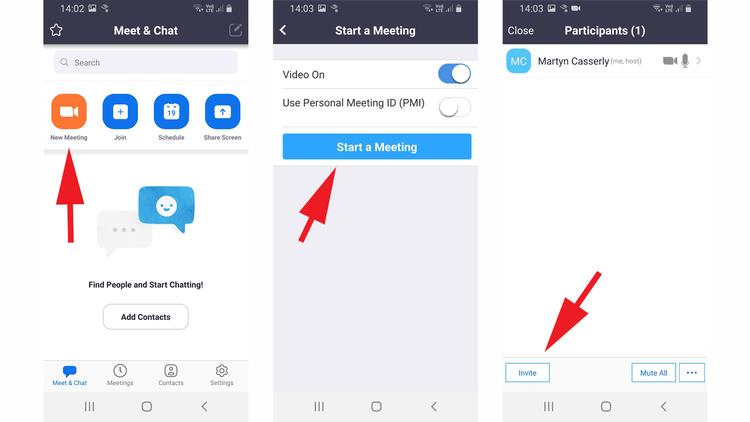
- Zoom: A popular platform for virtual meetings and conferences.
- Skype: Microsoft’s classic video conferencing app is still widely used today.
Step-by-step Guide to Video Calling With Android
Let’s take a closer look at how to use some of these apps for video calls:
Google Meet
- Download the Google Meet app from the Play Store.
- Open the app and sign in with your Google account.
- Tap on the “New” button to start a new meeting.
- Invite participants by adding their email addresses or phone numbers.
- Start the call, and you’ll be connected!
- Open WhatsApp and go to the conversation with the person you want to call.
- Tap on the video call icon (a camera) next to the voice call button.
- Wait for the other person to answer the call.
Messenger
- Open Messenger and sign in with your Facebook account.
- Go to the conversation with the person you want to call.
- Tap on the video call icon (a camera) next to the voice call button.
- Wait for the other person to answer the call.
Other Android Apps For Video Calls
There are many more apps available for video calls, including:
- Telegram
- Viber
- Hangouts
- Discord
These apps may offer additional features and functionality, but they all allow for video calling on your Android device.
Tips And Tricks
Here are some tips to keep in mind when using video calls with Android:
- Make sure you have a stable internet connection.
- Choose a quiet and private space for the call.
- Use headphones or earbuds for better audio quality.
- Experiment with different apps to find the one that works best for you.
Conclusion
Video calling on Android is easy, convenient, and fun. With these steps and tips, you can start making video calls with your friends, family, or colleagues in no time. Choose the app that suits your needs, follow our guide, and enjoy seamless communication with anyone, anywhere!


