
Visualizing File Extensions: A Step-by-step Guide
Are you tired of dealing with mysterious file extensions on your computer? Do you want to know what each extension represents and how to visualize them easily? You’ve come to the right place! In this article, we’ll explore the world of file extensions and provide a comprehensive guide on how to visualize them on different operating systems.
Why Visualize File Extensions?
Visualizing file extensions is an essential skill for anyone who uses a computer. It helps you understand what each file represents, making it easier to manage your files and avoid confusion. By visualizing file extensions, you can:
- Identify the type of file (e.G., Image, document, video)
- Determine which program to use to open the file
- Rename or modify the extension with ease
Visualizing File Extensions on Windows 11
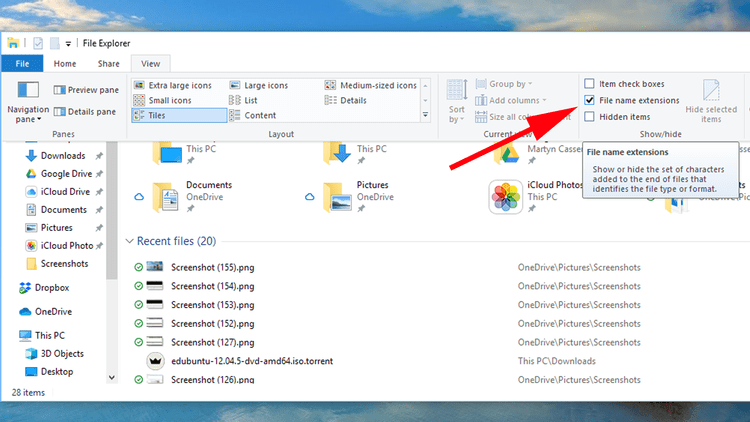
If you’re using Windows 11, visualizing file extensions is a breeze. Here’s how:
- Open File Explorer by clicking on the folder icon on the taskbar.
- Click on the “View” tab in the top-right corner of the window.
- Select “File name extensions” from the menu.
- A checkbox will appear next to the option; make sure it’s checked.
Visualizing File Extensions on Windows 10
If you’re using Windows 10, follow these steps:
- Open File Explorer by clicking on the folder icon on the taskbar.
- Click on the “View” tab in the top-right corner of the window.
- Select “File name extensions” from the menu.
- A checkbox will appear next to the option; make sure it’s checked.
Visualizing File Extensions on Windows 7
If you’re still using Windows 7, don’t worry! Here’s how to visualize file extensions:
- Open My Computer or This PC by clicking on the folder icon on the taskbar.
- Click on “Organize” and select “Folder and search options.”
- In the Folder Options window, click on the “View” tab.
- Uncheck the box next to “Hide extensions for known file types.”
Visualizing File Extensions on Windows XP
If you’re still using Windows XP (which we recommend updating!), here’s how to visualize file extensions:
- Open My Computer or This PC by clicking on the folder icon on the taskbar.
- Click on “Tools” and select “Folder Options.”
- In the Folder Options window, click on the “View” tab.
- Uncheck the box next to “Hide extensions for known file types.”
Visualizing File Extensions on Mac
If you’re using a Mac, follow these steps:
- Open Finder by clicking on the folder icon on the Dock.
- Click on “Finder” in the top menu bar and select “Preferences.”
- In the Finder Preferences window, click on the “Advanced” tab.
- Check the box next to “Show all file extensions.”
Visualizing File Extensions on Linux
If you’re using a Linux distribution like Ubuntu, here’s how to visualize file extensions:
- Open Nautilus by clicking on the folder icon on the top menu bar.
- Click on “Edit” and select “Preferences.”
- In the Preferences window, click on the “Behavior” tab.
- Uncheck the box next to “Hide known file types.”
Modifying File Extensions
Once you’ve visualized file extensions, you can modify them with ease. Here’s how:
- Right-click on the file and select “Rename.”
- Delete any existing extension (e.G., .Jpg) and add a new one.
- Click “OK” to save the changes.
Visualizing File Extensions For Unknown Files
If you encounter an unknown file type, don’t worry! You can use online resources like OpenTheFile or PC.Net to identify the true nature of the file.
Conclusion
Visualizing file extensions is a simple yet powerful skill that can make your computer life easier. By following these step-by-step guides for different operating systems, you’ll be able to:
- Understand what each file represents
- Identify the type of file (e.G., Image, document, video)
- Determine which program to use to open the file
Remember, modifying file extensions does not convert them; it simply changes the visible extension. If you need to transform a file from one format to another, consider using online tools or software specifically designed for this purpose.
Faqs
- Q: Why Should I Visualize File Extensions?
A: Visualizing file extensions helps you understand what each file represents, making it easier to manage your files and avoid confusion. - Q: Can I Modify The Extension of a File?
A: Yes, you can modify the extension of a file by right-clicking on it, selecting “Rename,” deleting any existing extension, and adding a new one. - Q: What if I Encounter an Unknown File Type?
A: Use online resources like OpenTheFile or PC.Net to identify the true nature of the file. - Q: Can I Visualize File Extensions on Windows Xp?
A: Yes, you can visualize file extensions on Windows XP by following the steps outlined in this article. - Q: How do I Modify The Extension of a File on Mac?
A: To modify the extension of a file on Mac, right-click on it, select “Rename,” delete any existing extension, and add a new one. - Q: What if I Need to Transform a File From One Format to Another?
A: Consider using online tools or software specifically designed for this purpose. - Q: Can I Visualize File Extensions on Linux?
A: Yes, you can visualize file extensions on Linux by following the steps outlined in this article. - Q: What Are Some Reliable Resources For Identifying Unknown File Types?
A: Some reliable resources for identifying unknown file types include OpenTheFile and PC.Net.


