
Unlocking Hidden Folders: A Comprehensive Guide
Are you struggling to find a specific file or folder on your computer? Do you feel like it’s hiding from you, only to be discovered later? Well, you’re not alone! Many of us have encountered this problem at some point in time. But worry no more, because we’re about to reveal the secrets of unlocking hidden folders.
The Purpose of Hidden Folders
Before we dive into the nitty-gritty, let’s first understand why folders go missing in the first place. The primary reason is to declutter your computer and keep it organized. When you hide a folder, it doesn’t actually disappear; it simply becomes invisible to the naked eye.
Windows: A Step-by-step Guide
If you’re using Windows 11, 10, or 7, don’t worry – we’ve got you covered! Here’s how to access hidden folders on each of these operating systems:
Windows 11
- Open File Explorer.
- Click on the “Explore” tab.
- Select “View” and then click on “Hidden items.”
- Your hidden files will now be visible.
Windows 10
- Open File Explorer.
- Click on the “Explore” tab.
- Select “View” and then click on “Show/hide.”
- Check the box next to “Hidden items.”
- Your hidden files will now be visible.
Windows 7
- Open Windows Explorer.
- Click on the “Organize” button.
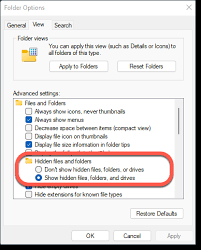
- Select “Folder and search options.”
- Go to the “View” tab.
- Check the box next to “Show hidden files, folders, and drives.”
- Your hidden files will now be visible.
Mac: The Easiest Way
If you’re using a Mac, you’ll be happy to know that accessing hidden folders is a breeze. Here’s how:
- Press the combination of keys Cmd + Shift + . (Period) on your keyboard.
- A new window will open with all your hidden files and folders.
Usb Drives: A Special Case
If you’ve found an empty USB drive, don’t panic! You might be wondering how to access its hidden files. Here’s the solution:
- Connect the USB drive to your computer.
- Open File Explorer (Windows) or Finder (Mac).
- Look for the USB drive in the list of devices.
- Double-click on the USB drive to open it.
Android And Ios: Limited Capabilities
Unfortunately, Android and iOS have limited capabilities when it comes to accessing hidden files. Here’s what you can do:
Android
- Use a file manager app like ES File Explorer or Solid File System.
- Look for the “Hidden” or “Secret” folder.
Ios (iPhone And Ipad)
- Unfortunately, there is no direct way to access hidden files on iOS devices.
- However, you can use the built-in Files app to view your photo library.
Conclusion
Accessing hidden folders might seem daunting at first, but with these simple steps, you’ll be able to unlock them in no time. Remember, it’s always a good idea to create backups of your important files and keep your computer organized.
Frequently Asked Questions (FAQs)
- What is the purpose of hiding folders?
Hiding folders helps declutter your computer and keeps it organized. - How do I access hidden folders on Windows?
You can follow the step-by-step guide provided for each operating system version (Windows 11, 10, or 7). - Can I hide a folder on my Mac?
Yes, you can press Cmd + Shift + . (Period) to view hidden files and folders. - What if I have an empty USB drive?
Connect the USB drive to your computer, open File Explorer or Finder, and look for it in the list of devices. - Can I access hidden files on my Android device?
Yes, you can use a file manager app like ES File Explorer or Solid File System. - Is there a way to access hidden files on iOS devices (iPhone and iPad)?
Unfortunately, no direct method is available, but you can view your photo library using the built-in Files app.
We hope this guide has been helpful in unlocking hidden folders for you!


